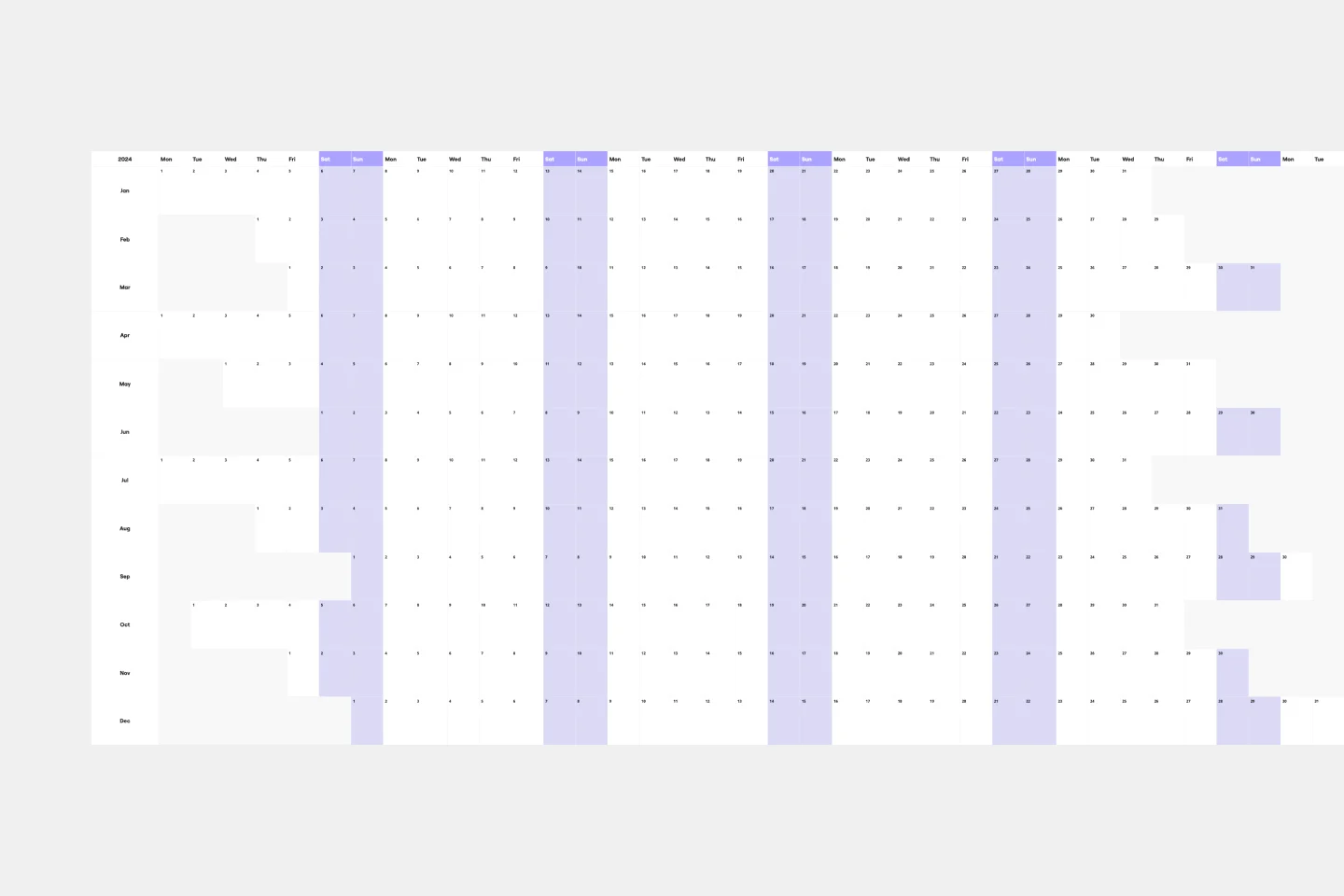
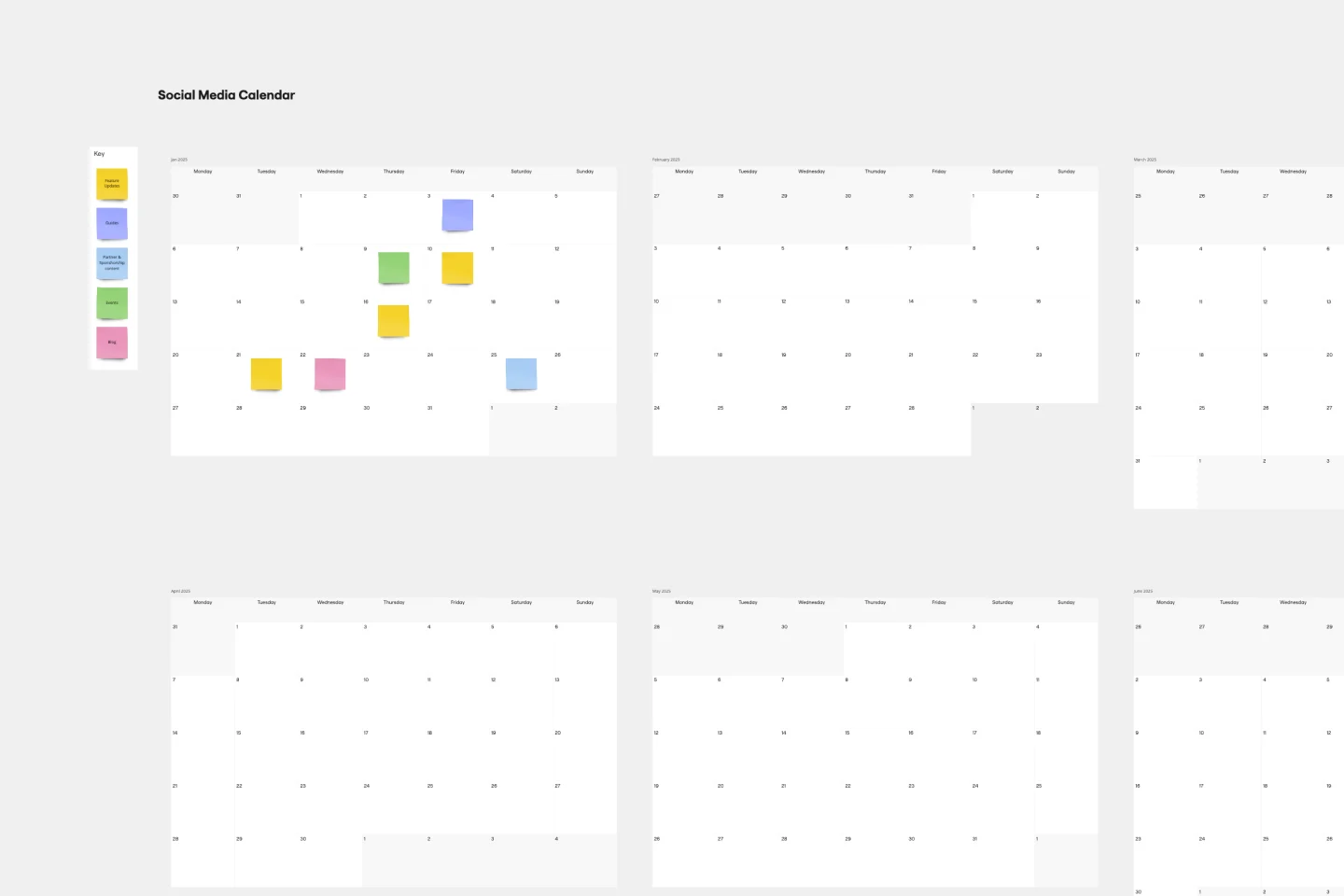
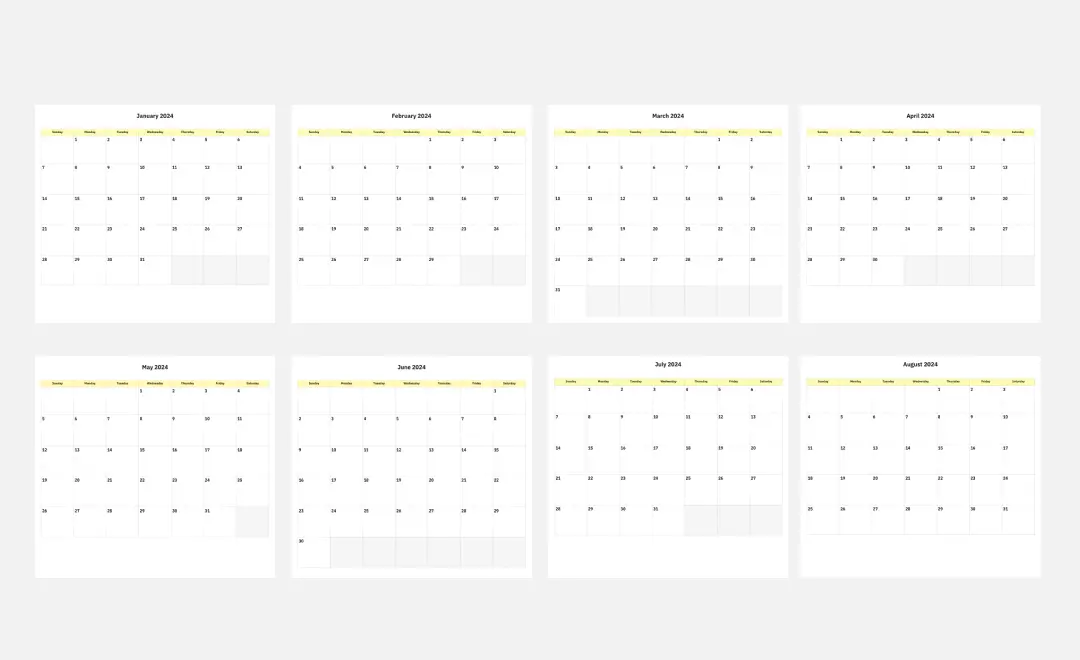
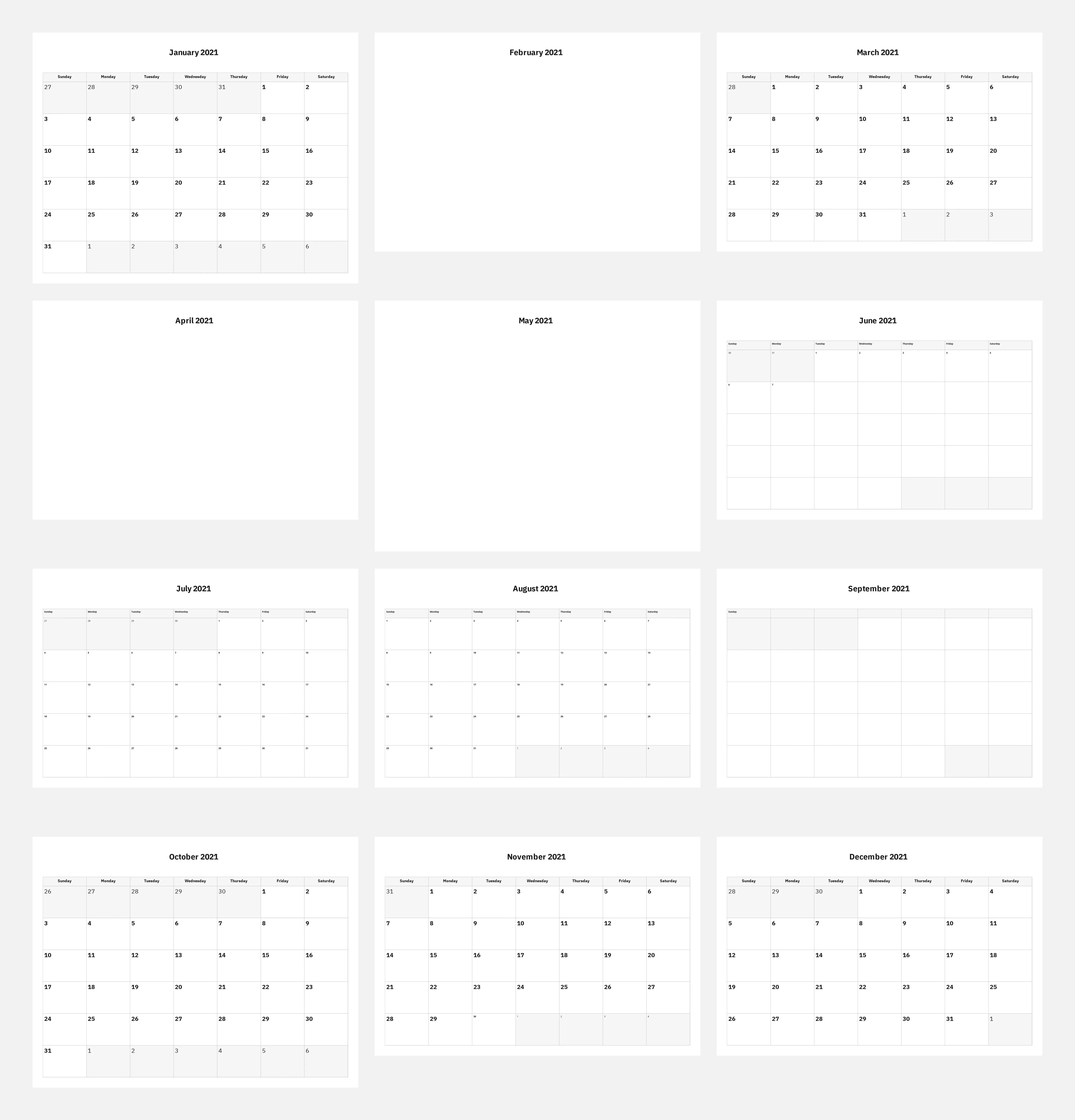
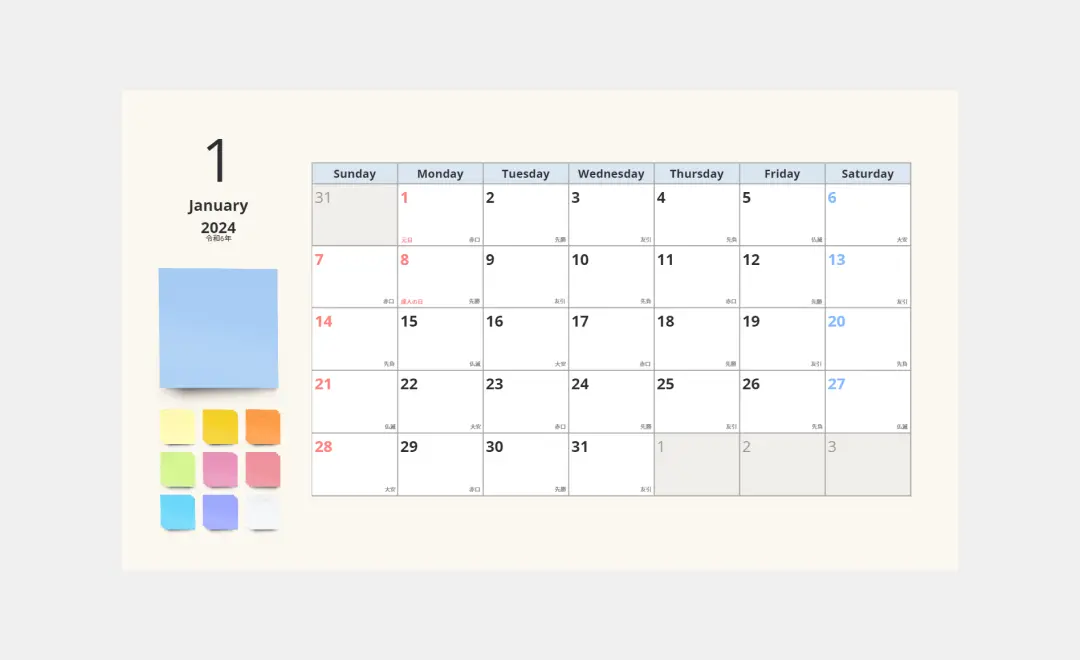
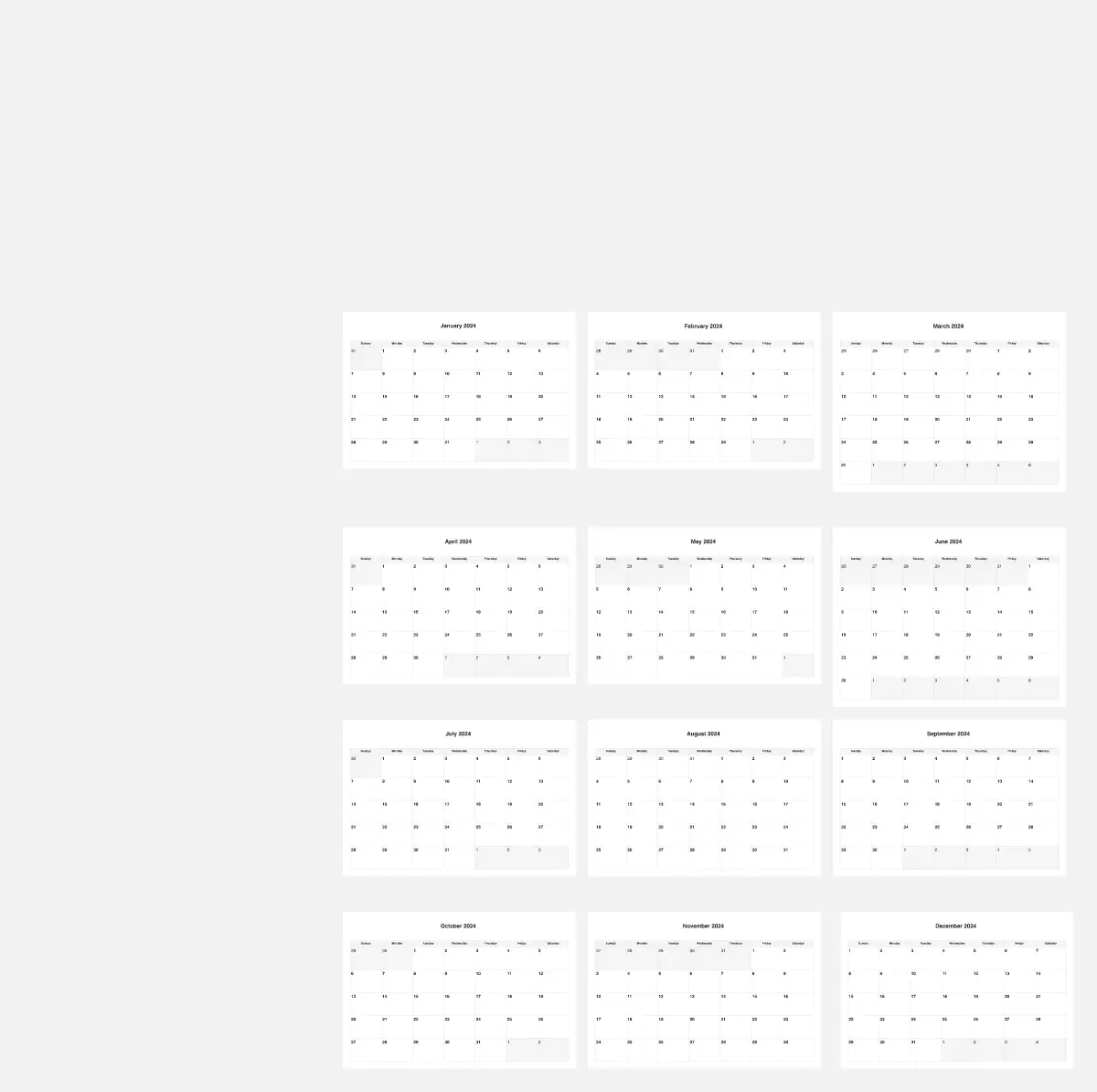
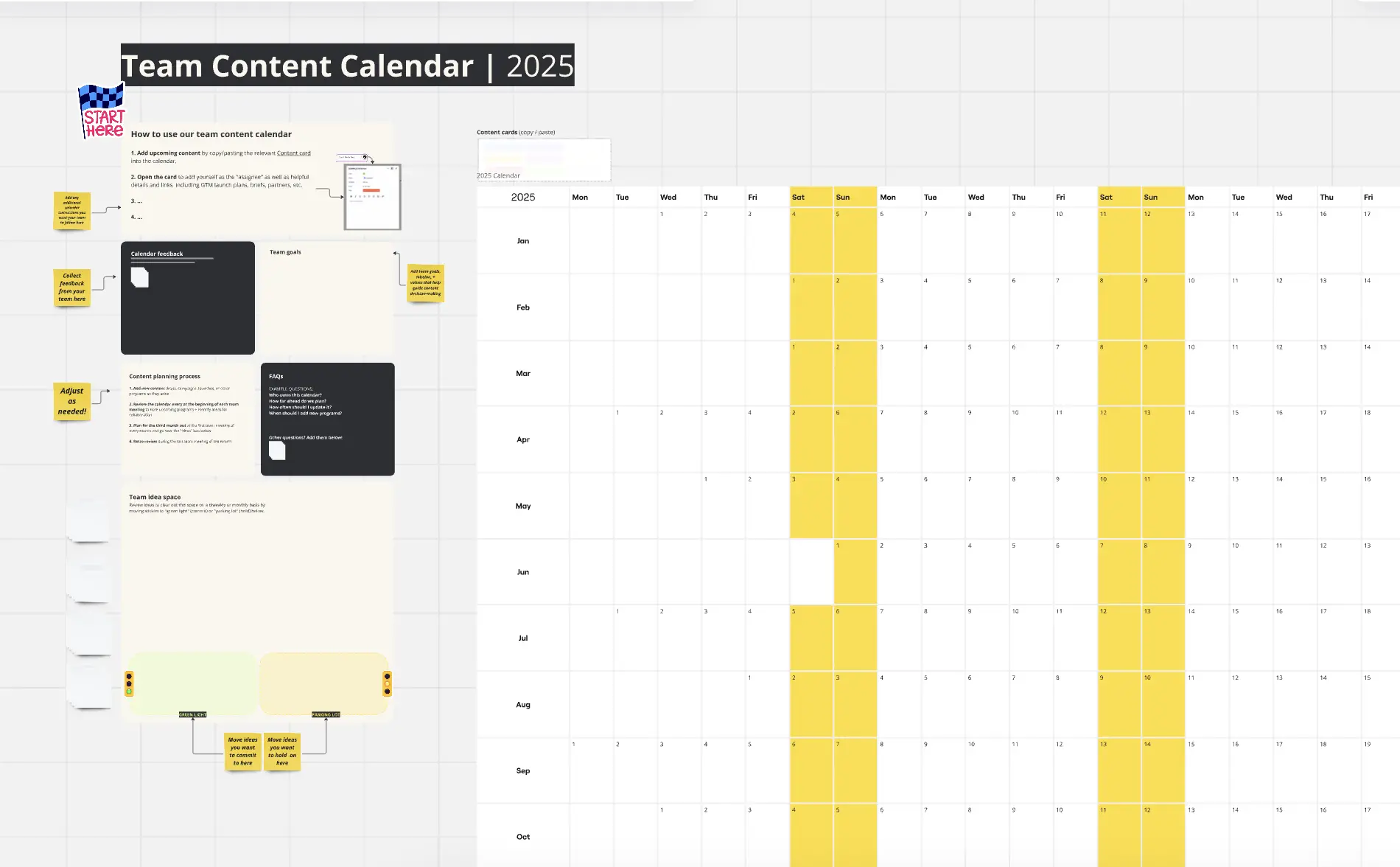
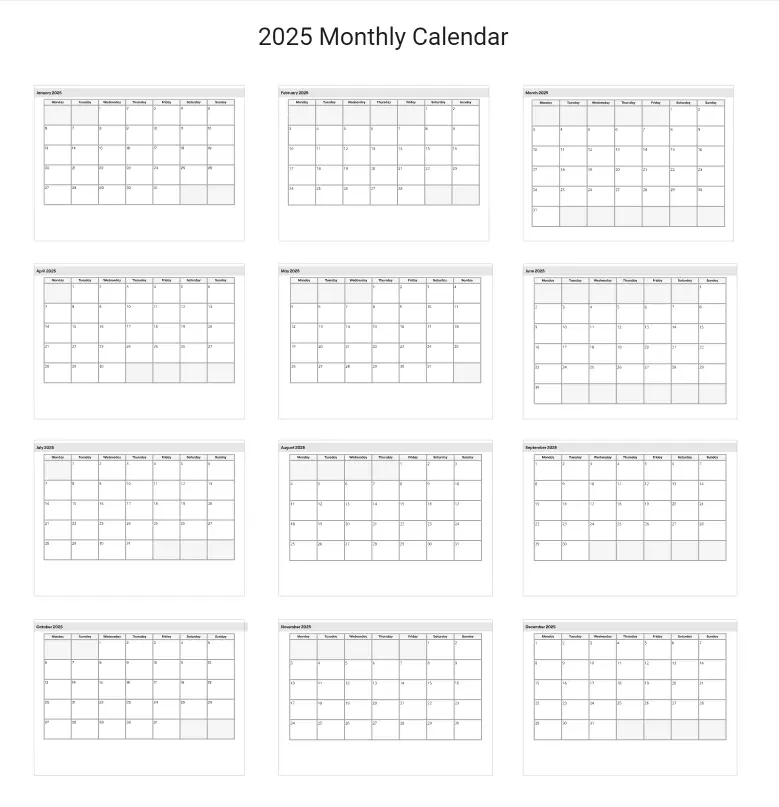
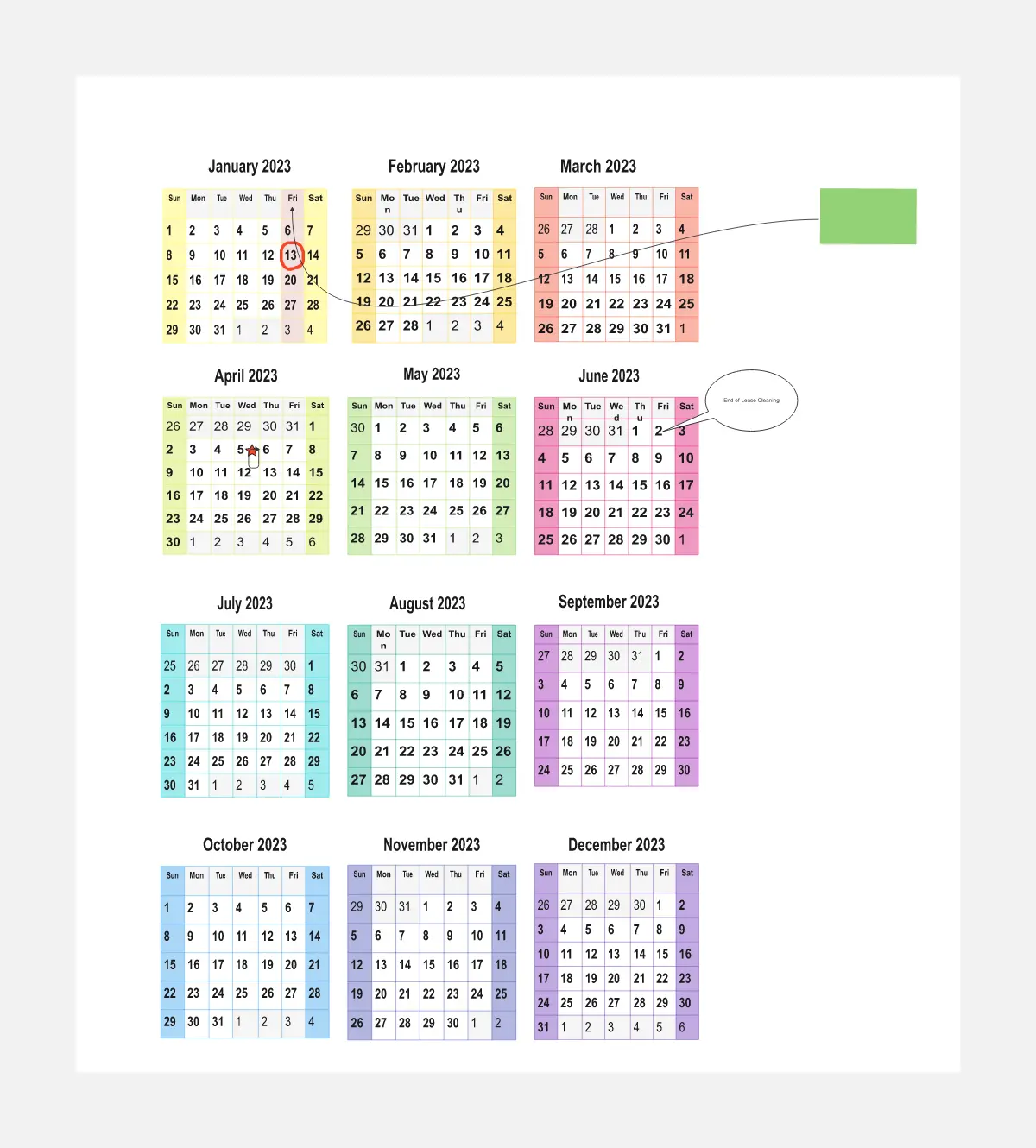
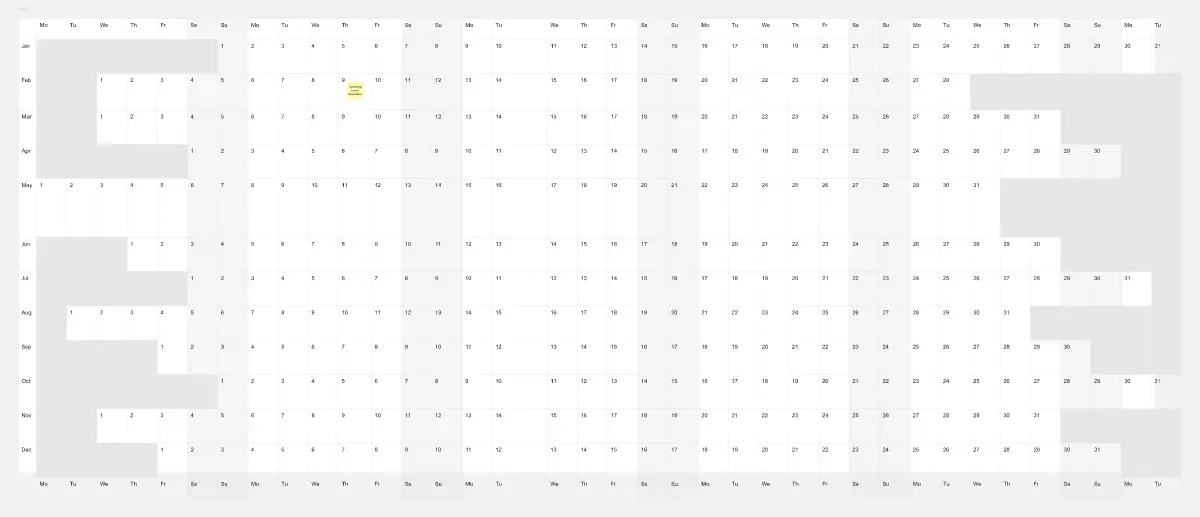
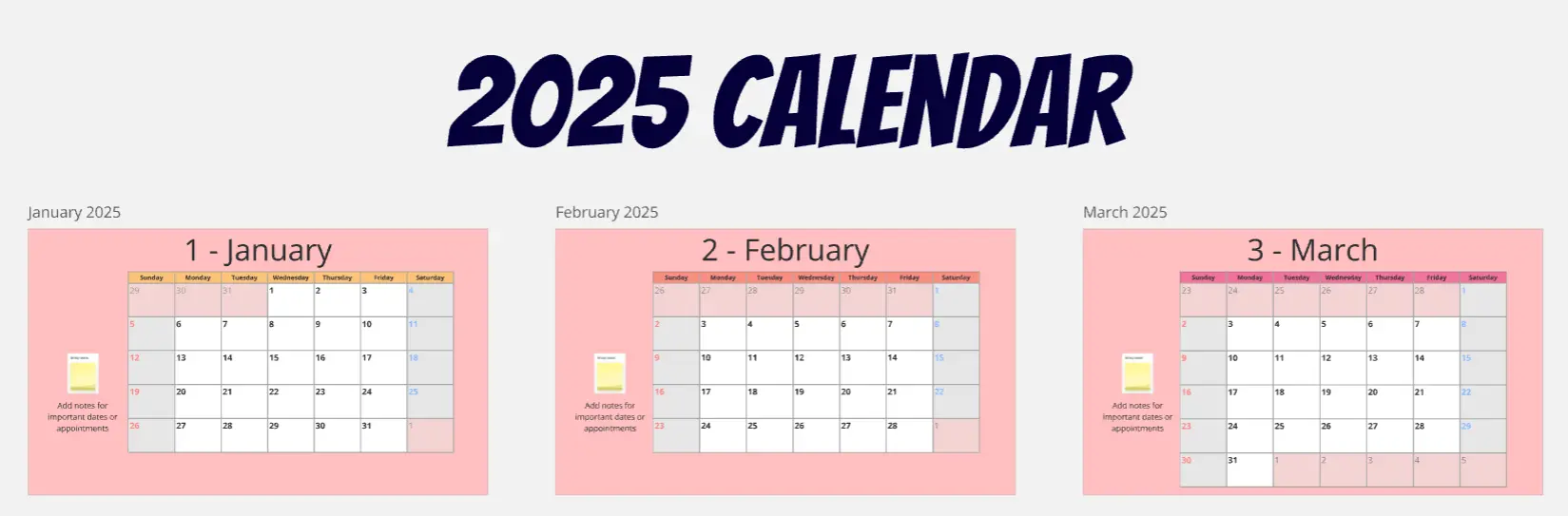
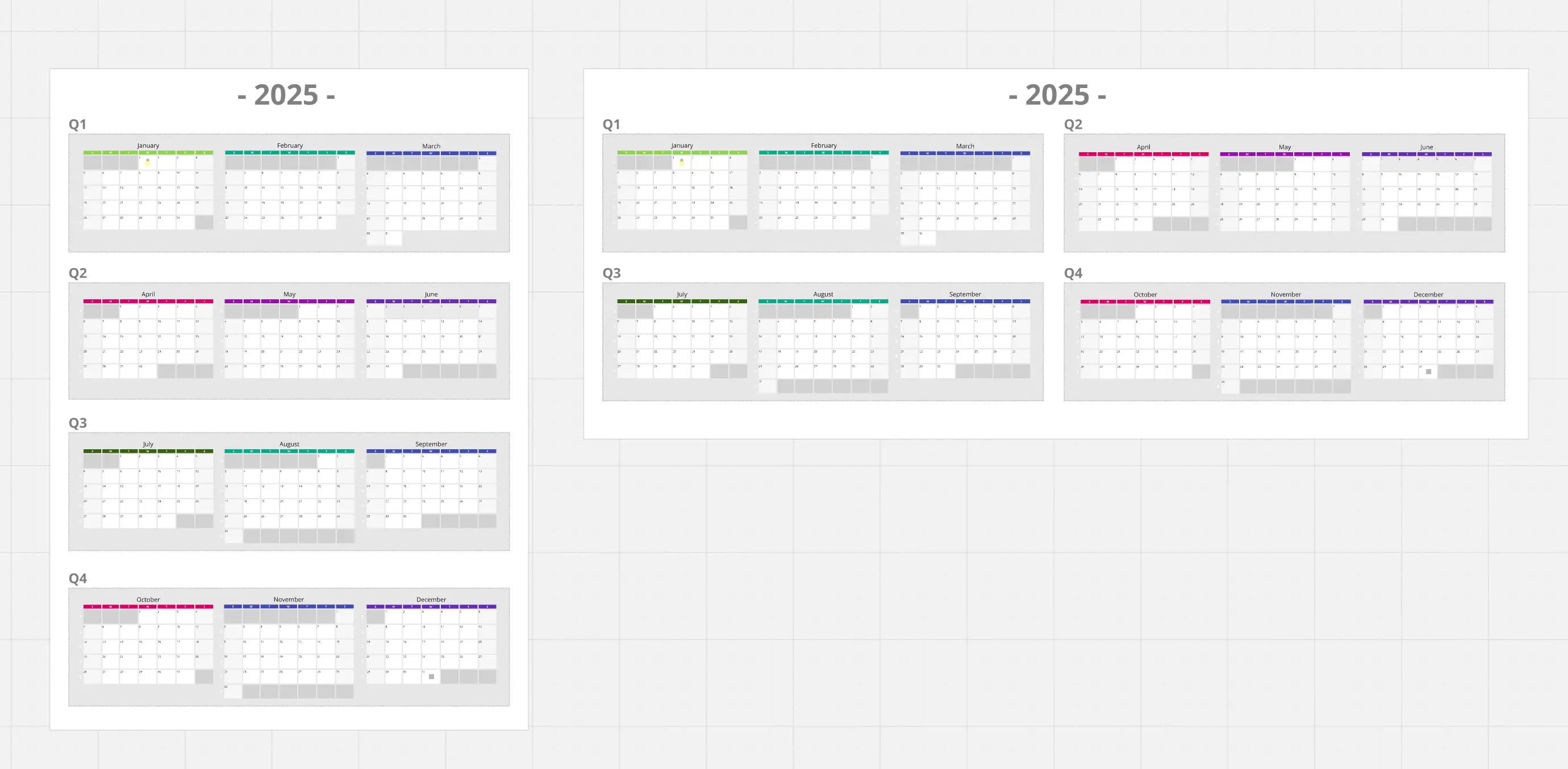
About the online calendar template collection
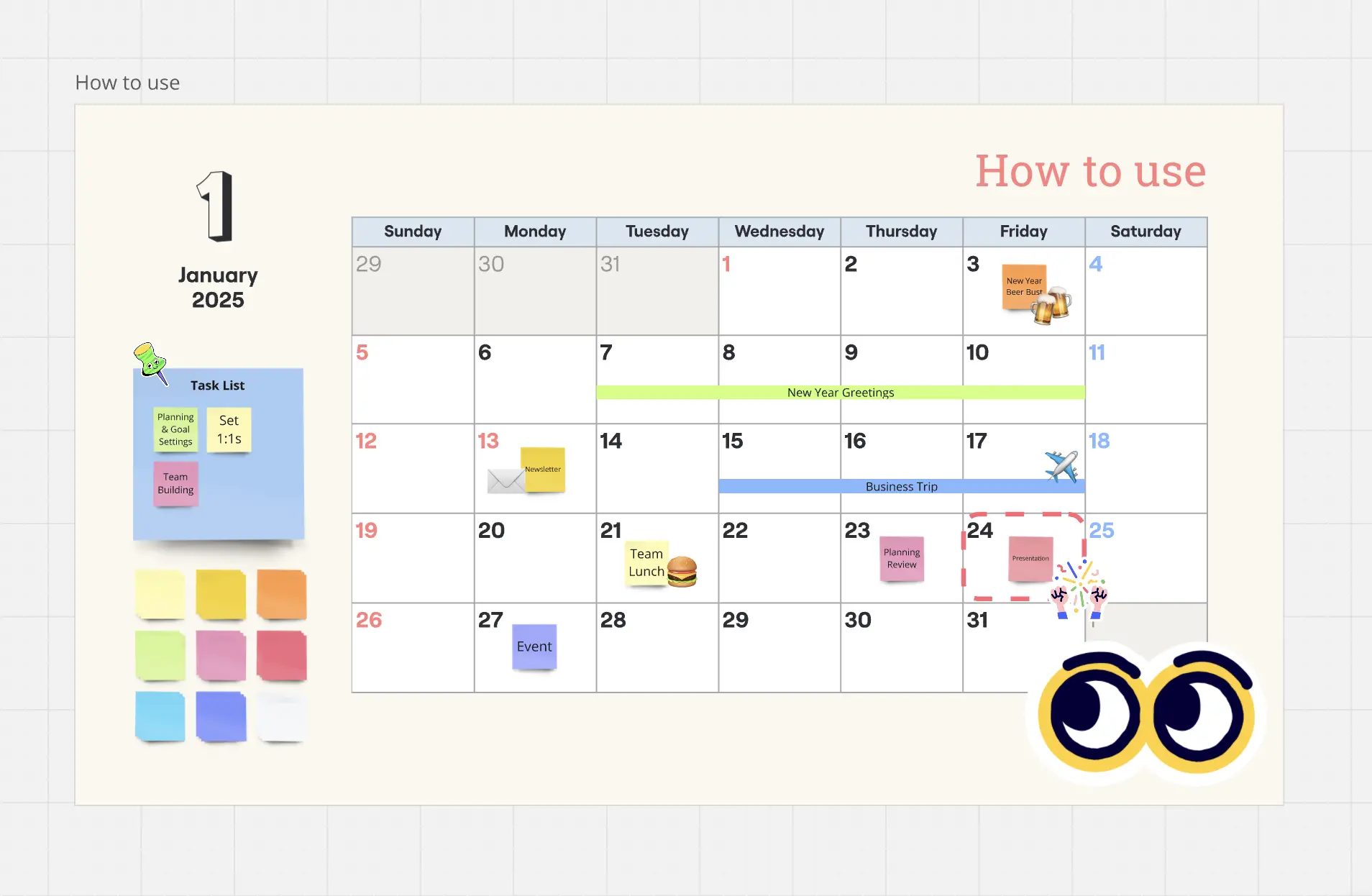
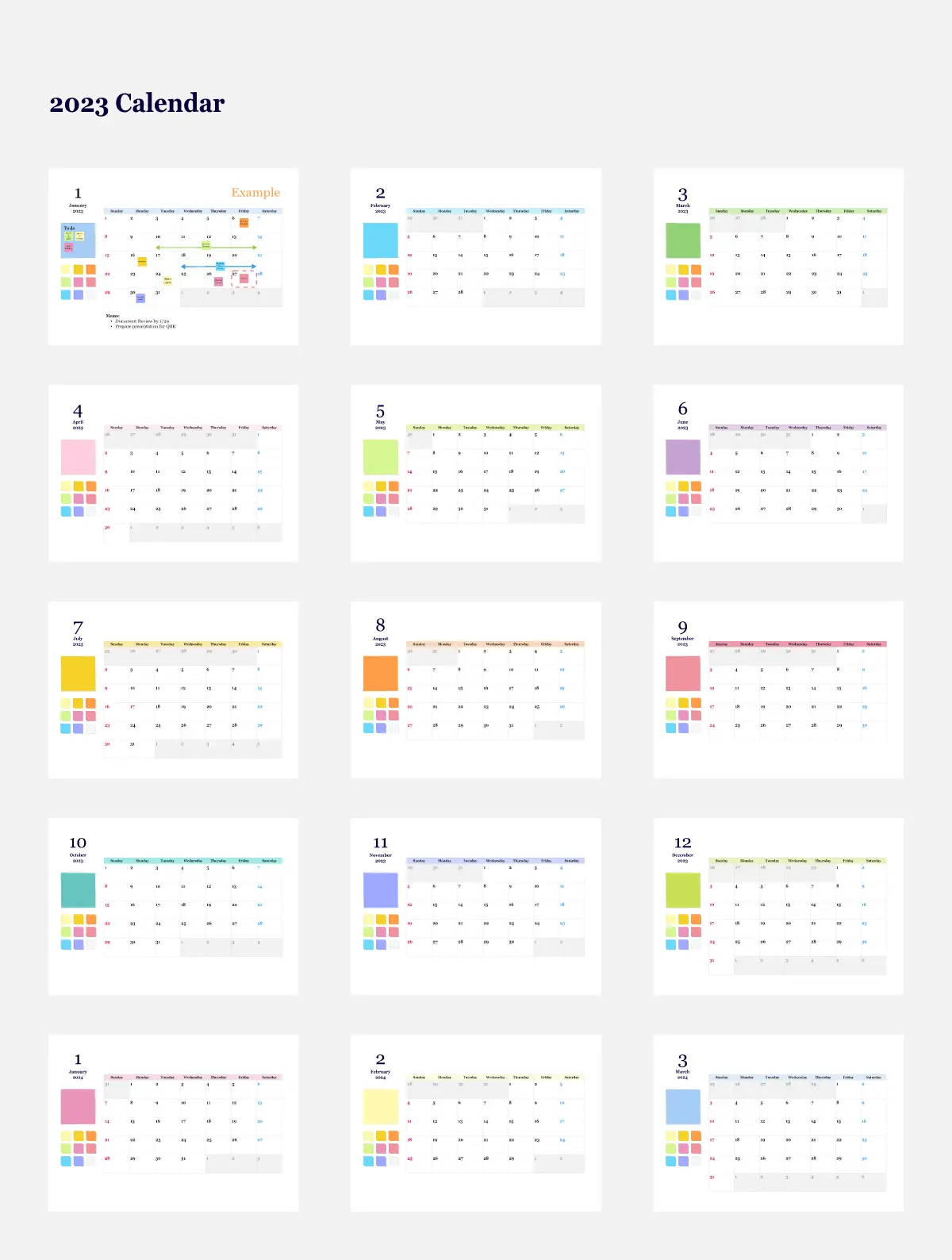
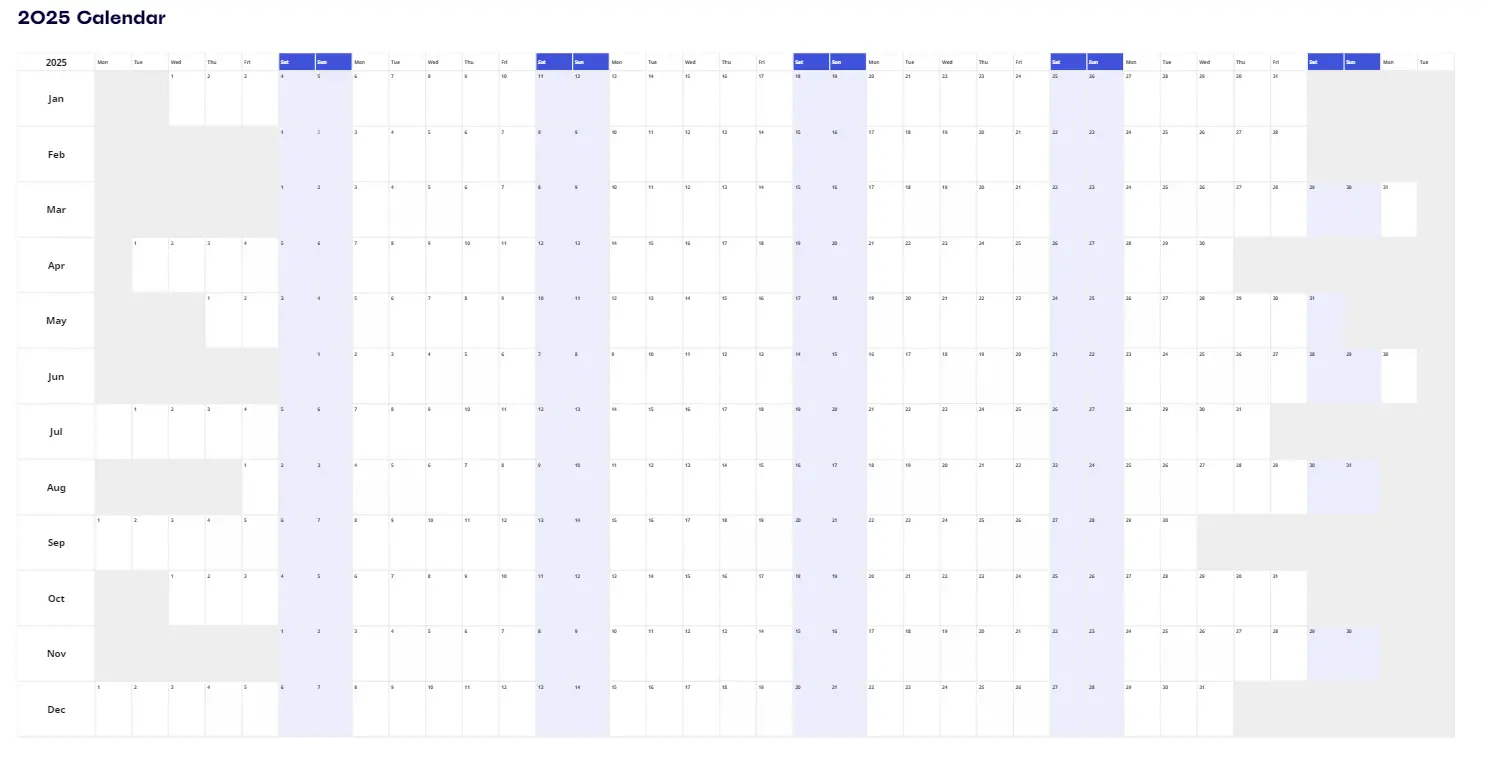
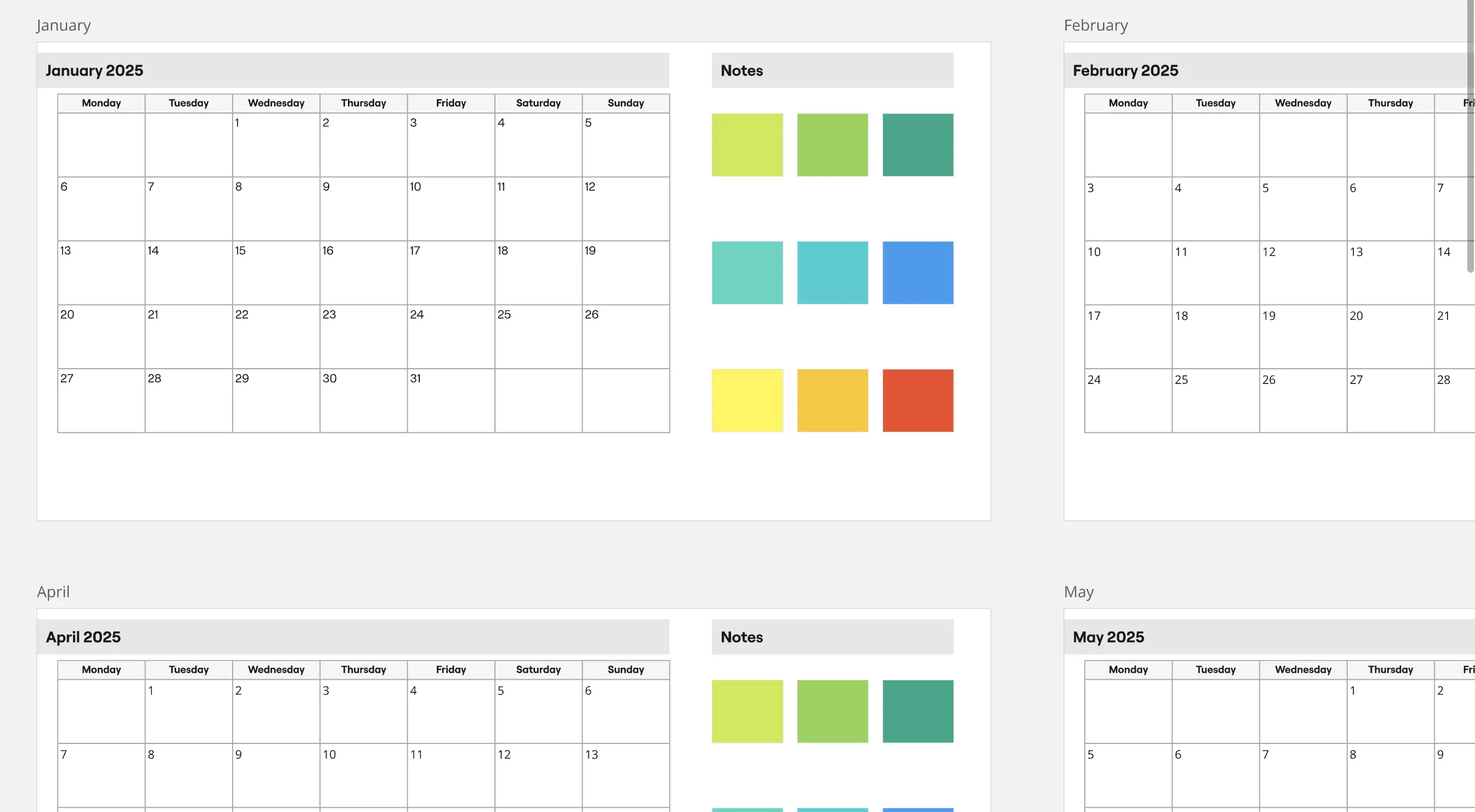
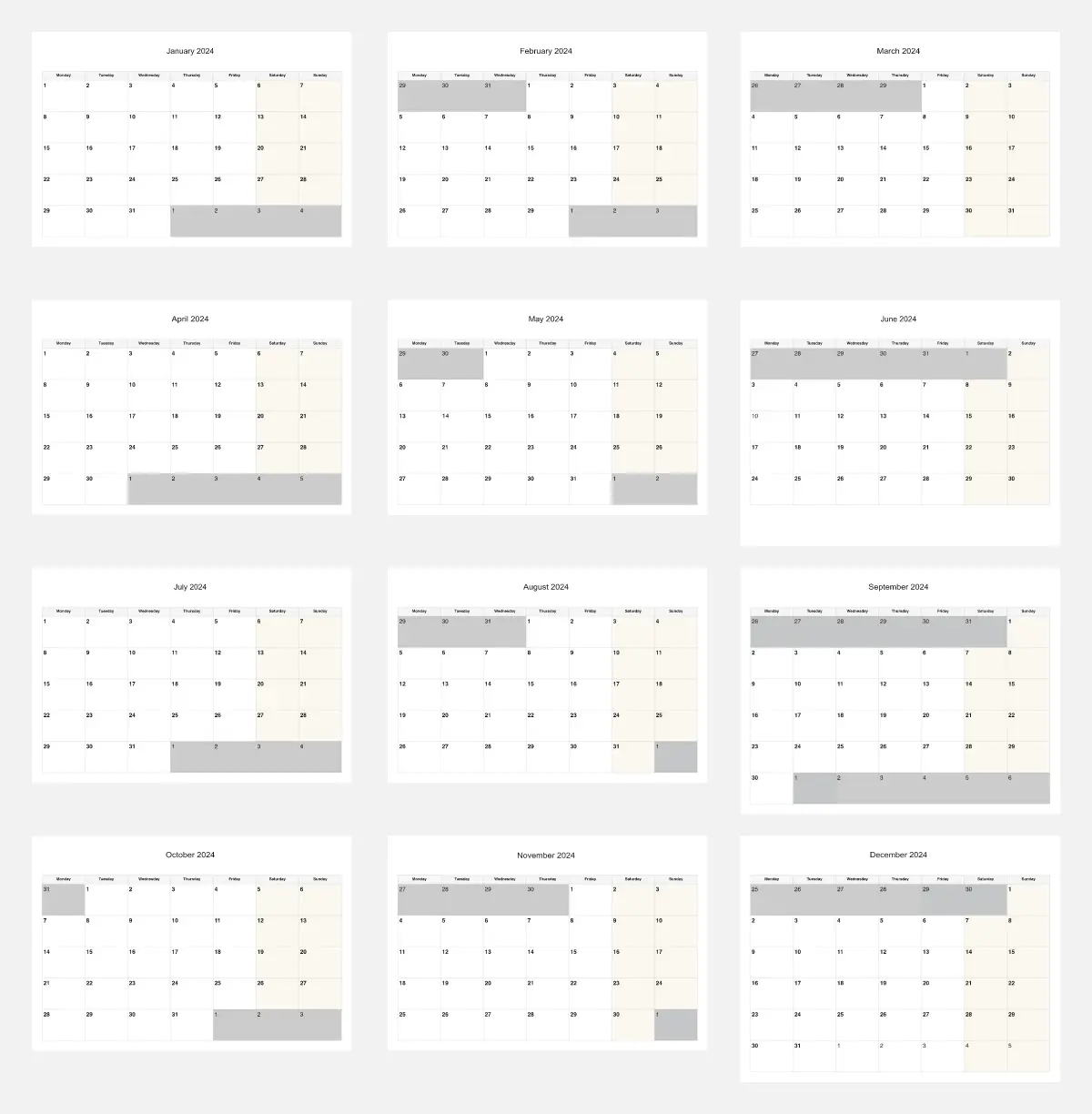
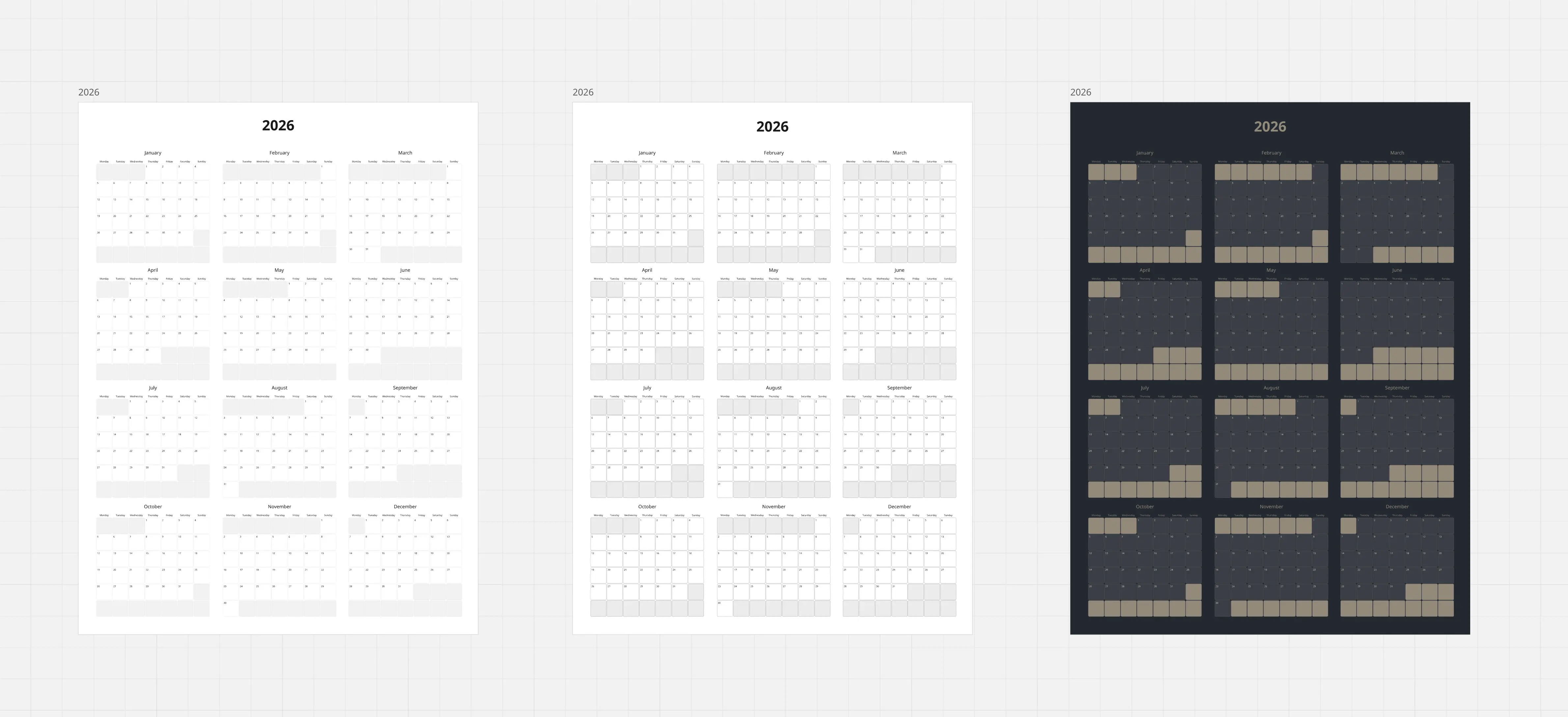
Planning is one of those things that sounds simple but can quickly become overwhelming without the right tools. Whether you're managing a team project, organizing a personal schedule, or mapping out your year, having a flexible calendar template can make all the difference. That's where Miro comes in. With our collection of editable calendar templates, you can easily create a calendar that fits your needs whether you're a fan of color-coded time blocks, kanban-style tracking, or traditional monthly layouts.
Key Components of a Calendar Template
A professional calendar template acts as the "Heartbeat" of your organization. Every high-performance Miro board should include these five core elements:
Flexible Time Scales: The ability to toggle between Monthly (Strategy), Weekly (Execution), and Daily (Focus) views.
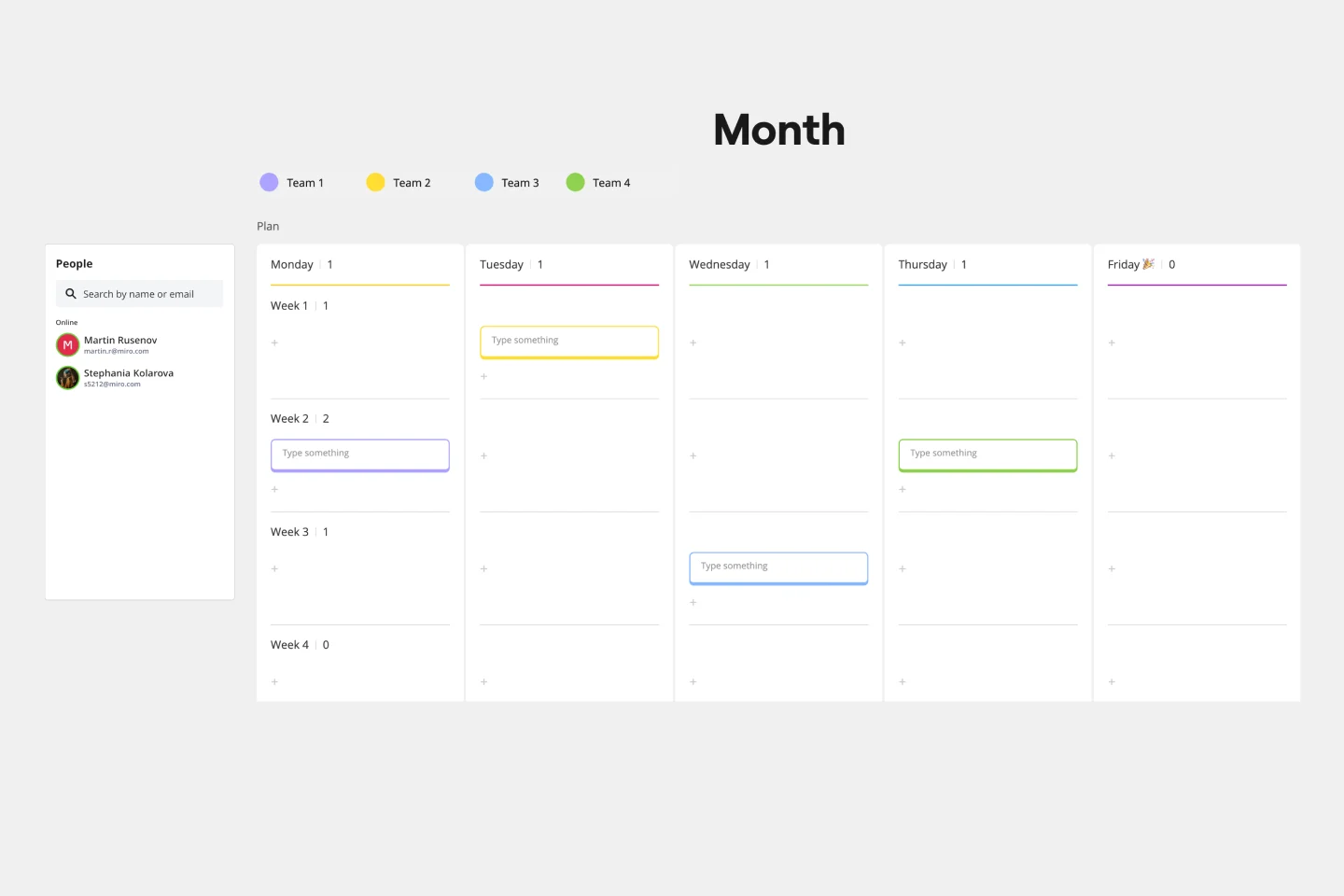
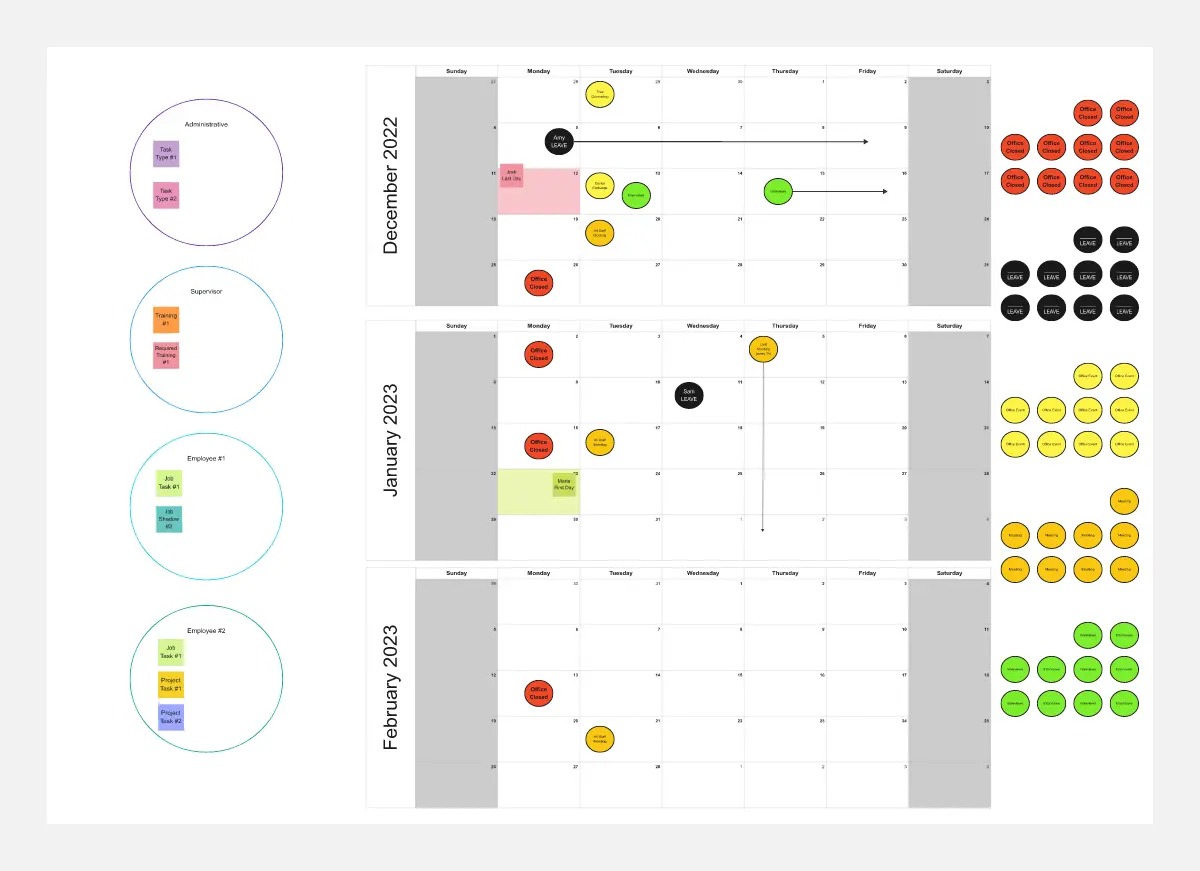
Legend/Key: A clear guide for color-coding (e.g., Red = Urgent, Purple = Internal) so stakeholders can "read" the board in seconds.
Integration Points: Space to link to external artifacts—like a Product Brief or a Zoom link—directly on the calendar entry.
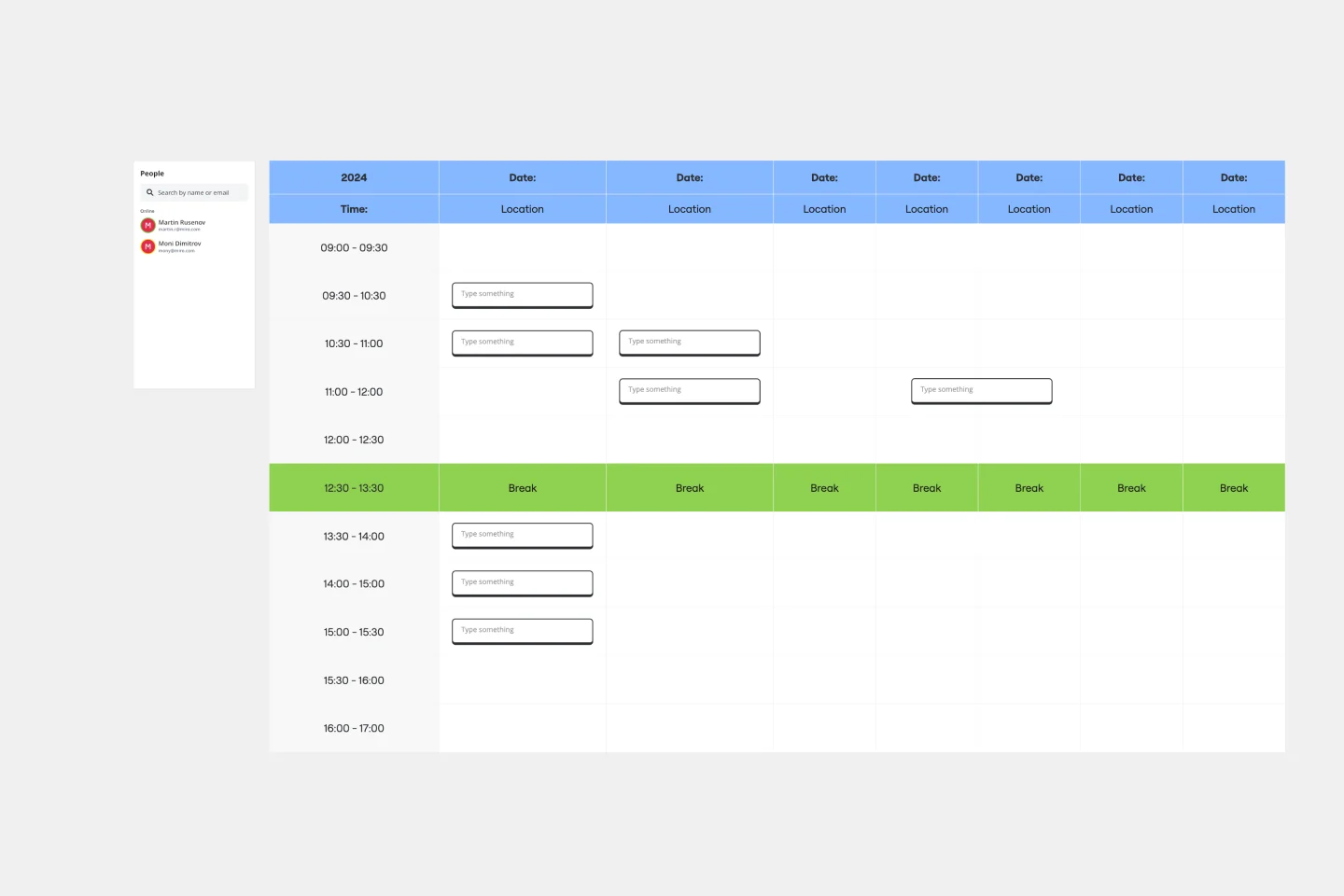
Draggable "Backlog" Area: A sidebar for tasks that are "Date-Pending," allowing you to pull them into the calendar as soon as a slot opens up.
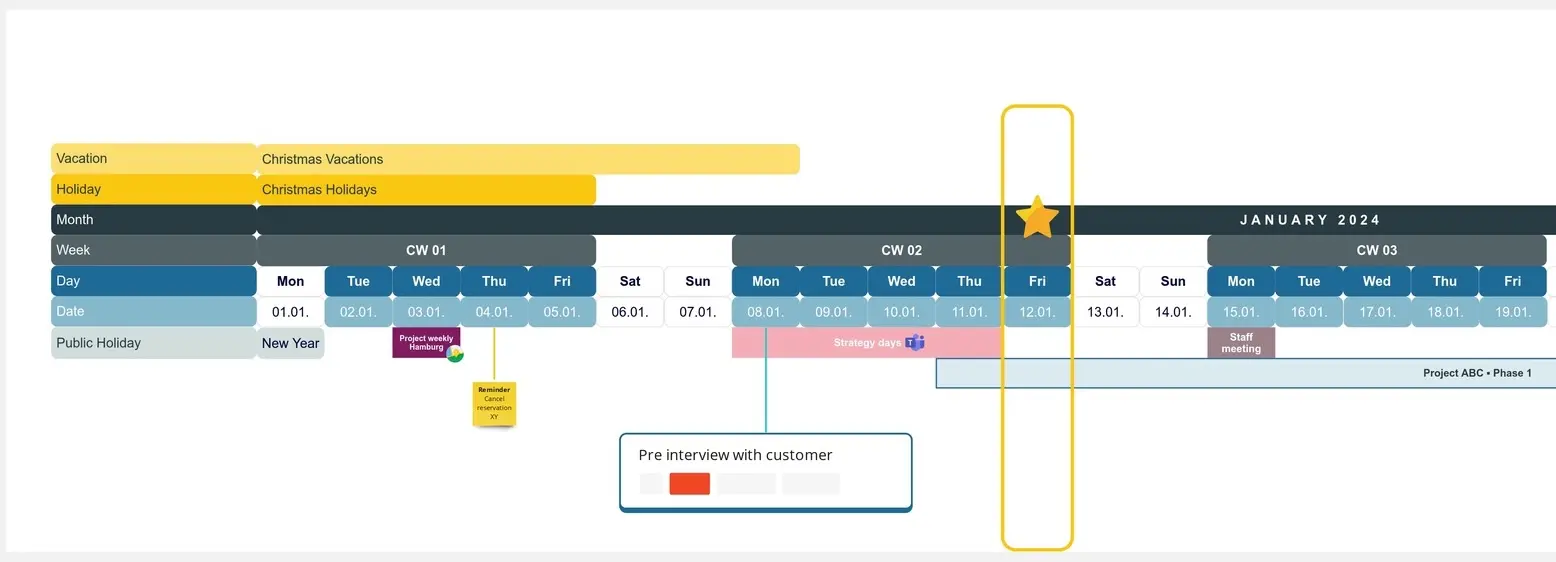
The "Today" Marker: A high-contrast visual cue that tells the team exactly where they are in the current cycle.
Strategic Use Cases: Which Calendar Template Do You Need?
Different goals require different levels of temporal detail. Select the Miro template that matches your specific use case:
The Editorial/Content Calendar:
Best For: Marketing teams and social media managers.
The Goal: To visualize the "Mix" of content across channels (Blog, LinkedIn, Email) and ensure a consistent brand voice without gaps in the publishing schedule.
The Project Milestone Calendar:
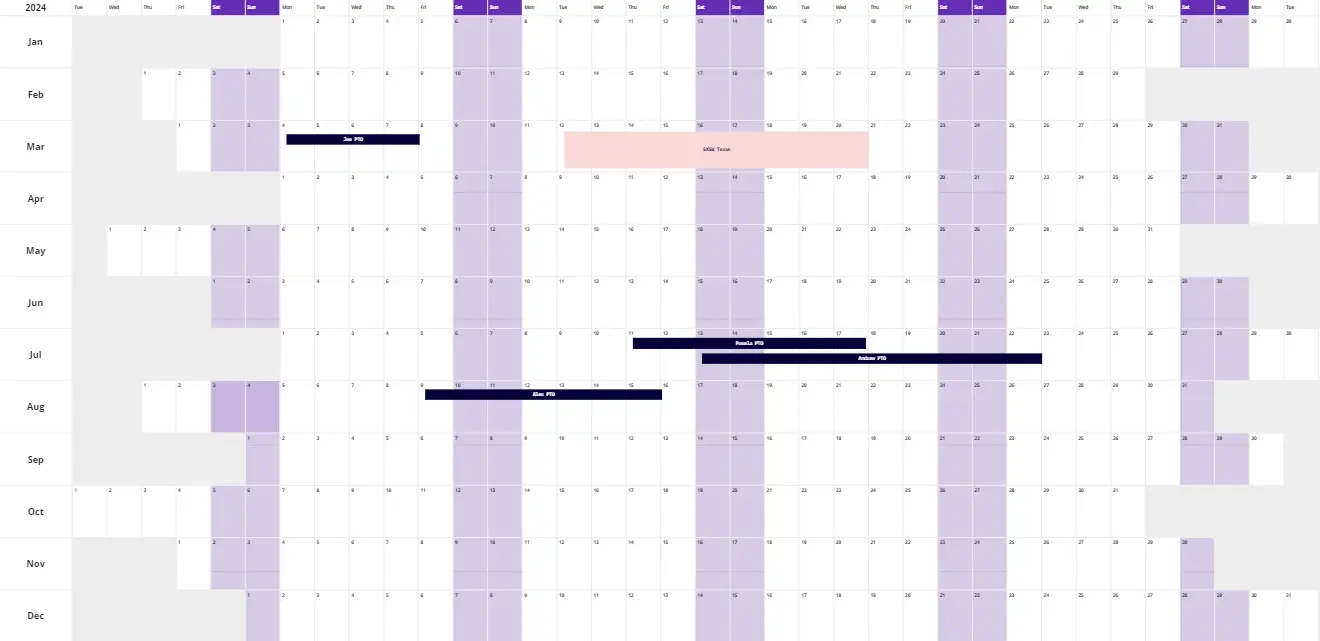
The Team Availability/Capacity Calendar:
Best For: Resource managers and department heads.
The Goal: To see at a glance who is "O-O-O" (Out of Office) or at max capacity, preventing over-allocation during critical sprint weeks.
The Personal "Time-Box" Planner:
The "Operational Cadence" Audit: 3 Ways to Master Your Schedule
A calendar is only as good as the reality it reflects. Before committing your team to a month of deadlines, apply these three expert "health checks" to your Miro board:
1. The "White Space" Integrity Test
The Audit: Is every single hour of the work week filled with "Back-to-Back" meetings or tasks?
The Fix: High-performance teams build in Strategic Buffers. An authoritative calendar includes "Deep Work" blocks and "Cooldown" periods. If your template doesn't show white space, you aren't planning for success; you’re planning for burnout. Use Miro’s Shape Tool to protect 20% of the week for unplanned pivots.
2. Identifying "Context Switching" Costs
The Audit: Are you jumping from a "Creative Brainstorm" to a "Budget Audit" within the same hour?
The Fix: Use Thematic Batching. Color-code your calendar by "Energy Type" (e.g., Blue for Deep Work, Yellow for Meetings, Green for Admin). If your week looks like a rainbow of fragmented colors, your "Switching Cost" is too high. Align similar tasks to maintain cognitive momentum.
3. The "Global Sync" Visualization
The Audit: Are you scheduling deadlines that ignore the time zones or holidays of your distributed team?
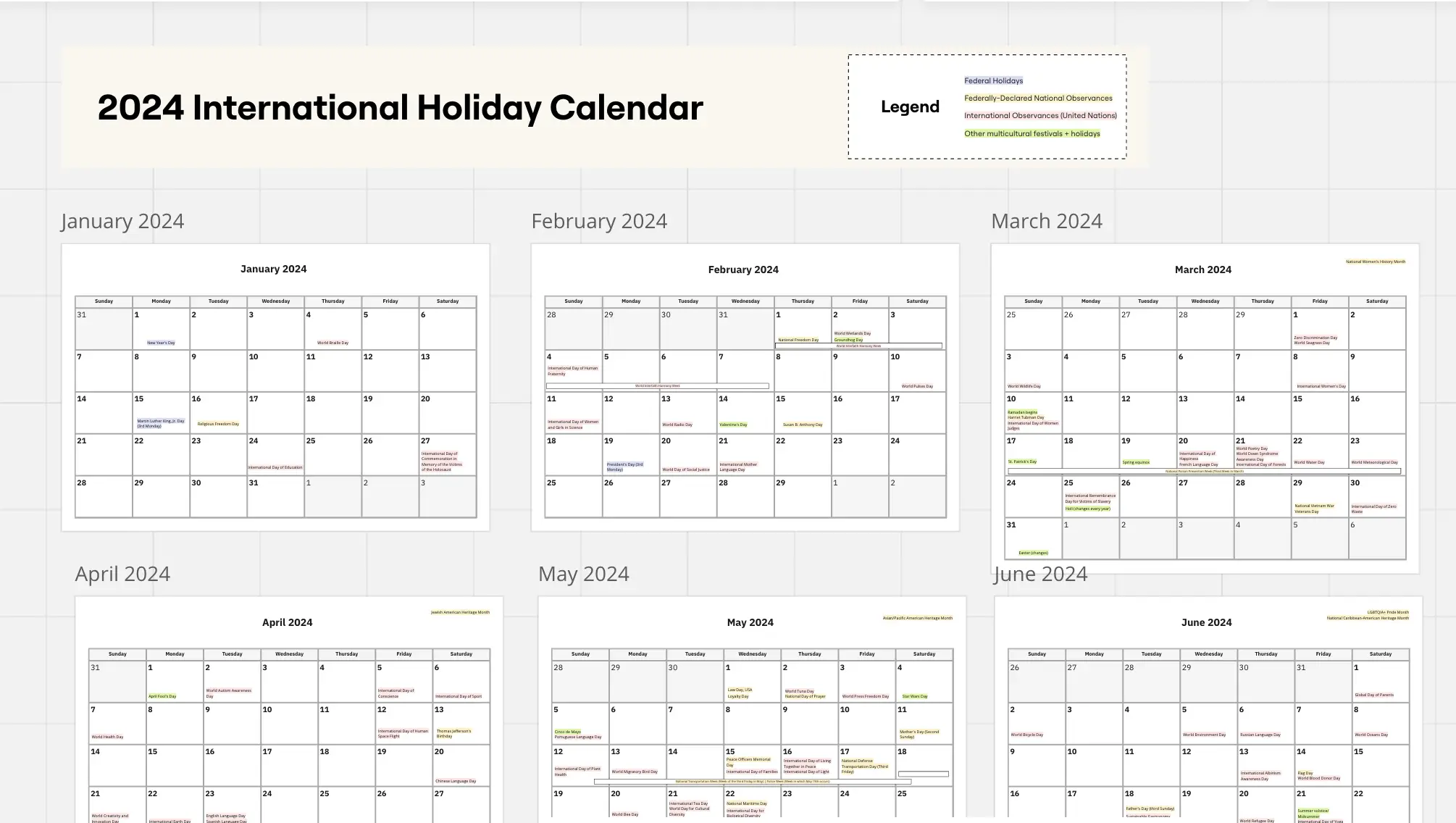
The Fix: Layer Time Zone Swimlanes onto your calendar. A professional template includes a "Global Context" bar that highlights regional holidays and overlapping "Golden Hours" (when all time zones are online). This prevents the "Friday Night Deadline" that ruins a teammate’s weekend across the globe.
How to use editable online calendar templates in Miro
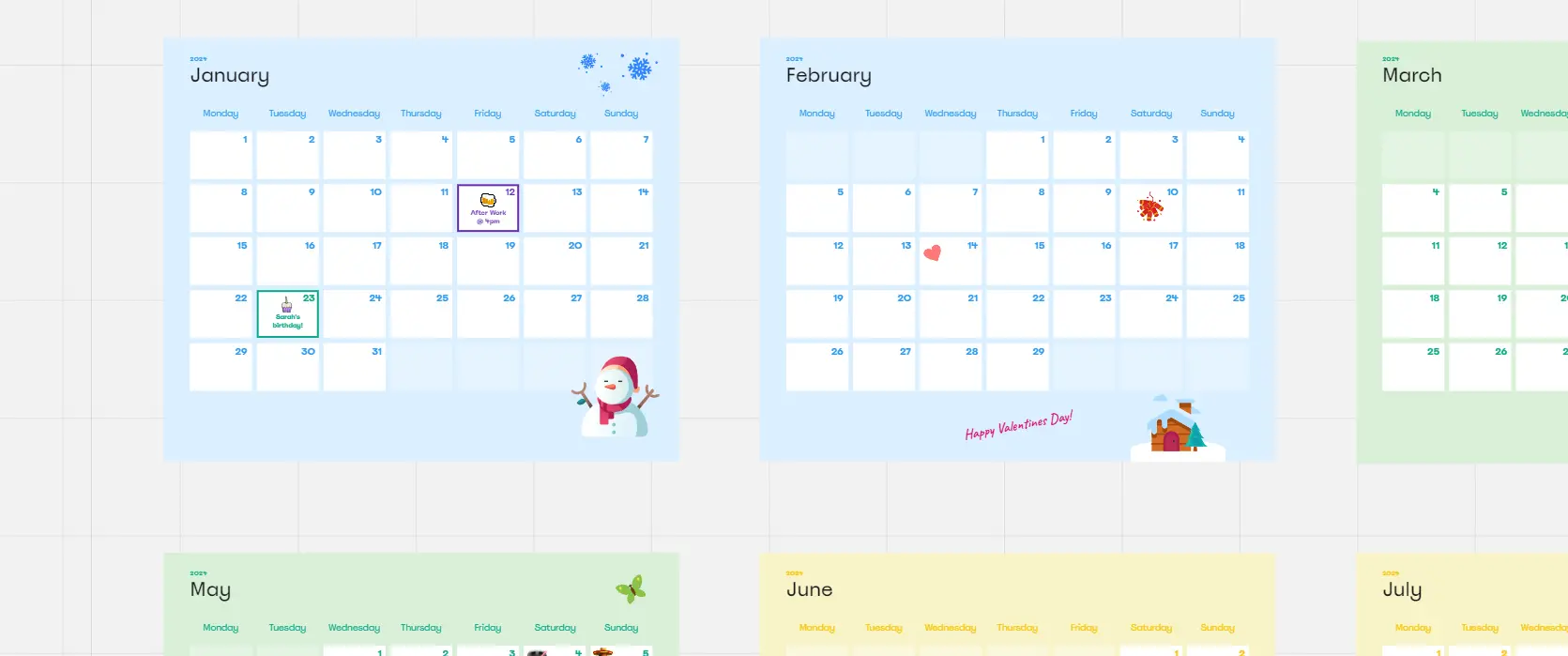
Getting started with our editable calendar templates is as easy as drag-and-drop. Miro's platform allows you to customize your calendar schedule template to match exactly what you need, whether it's a monthly calendar example for your team or a personal weekly calendar template.
Here are some tips to make the most of your calendar:
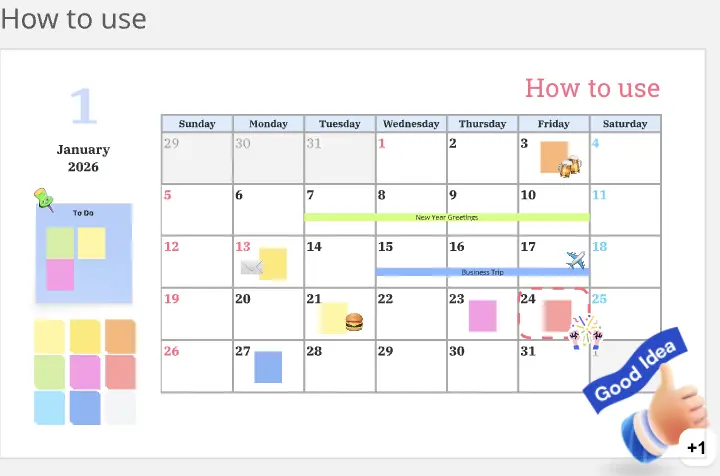
Use color codes for clarity: Assign different colors for projects, meetings, or personal tasks. It helps you spot priorities at a glance and keeps everything organized.
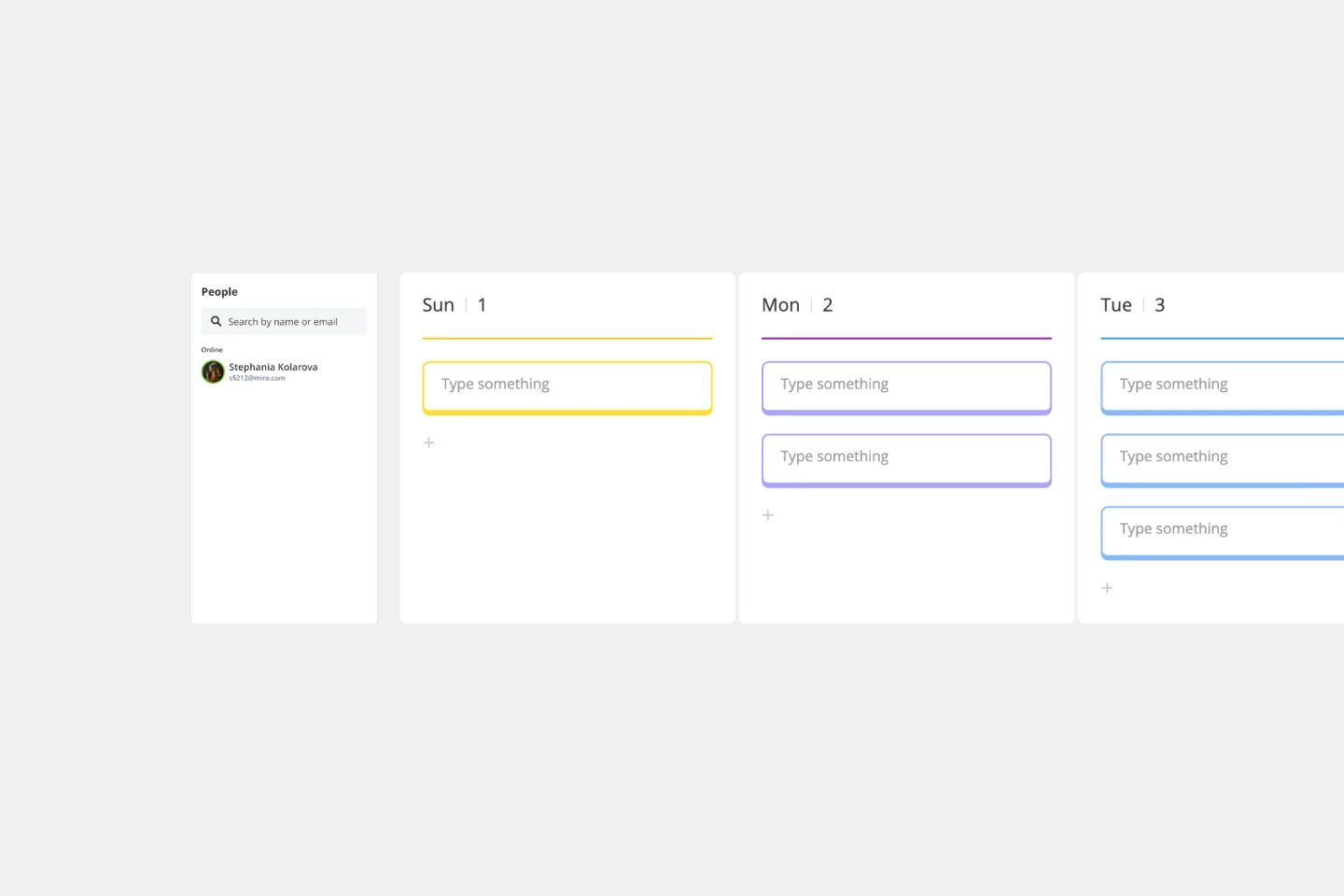
Drag-and-drop cards for easy adjustments: Plans change, and that’s okay. Miro's cards make it effortless to shift tasks, reschedule meetings, or reprioritize on the fly.
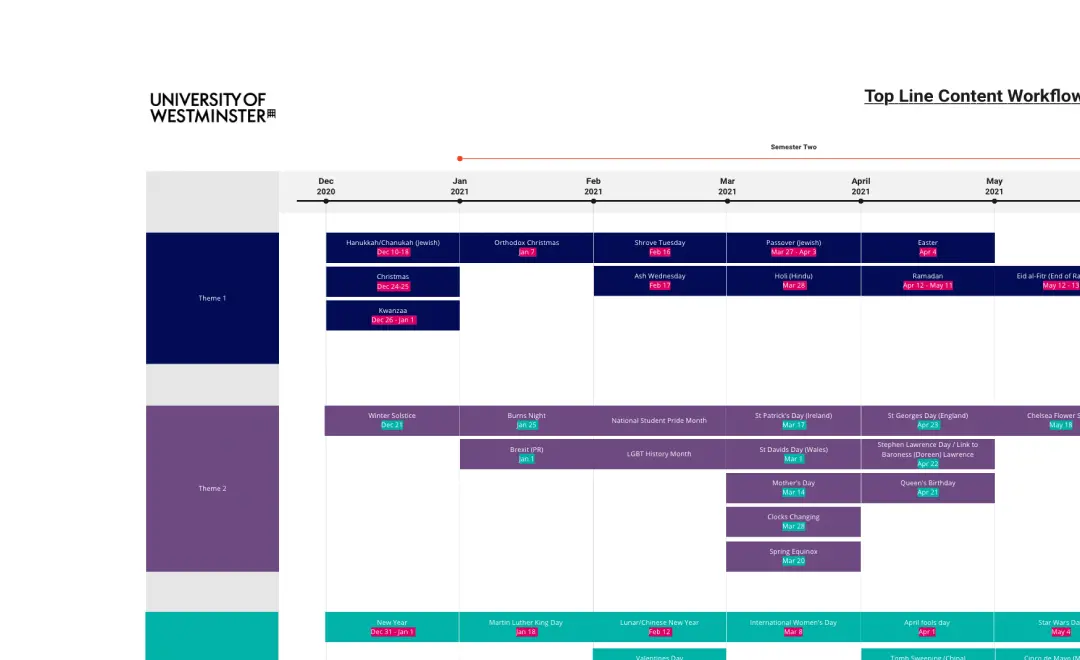
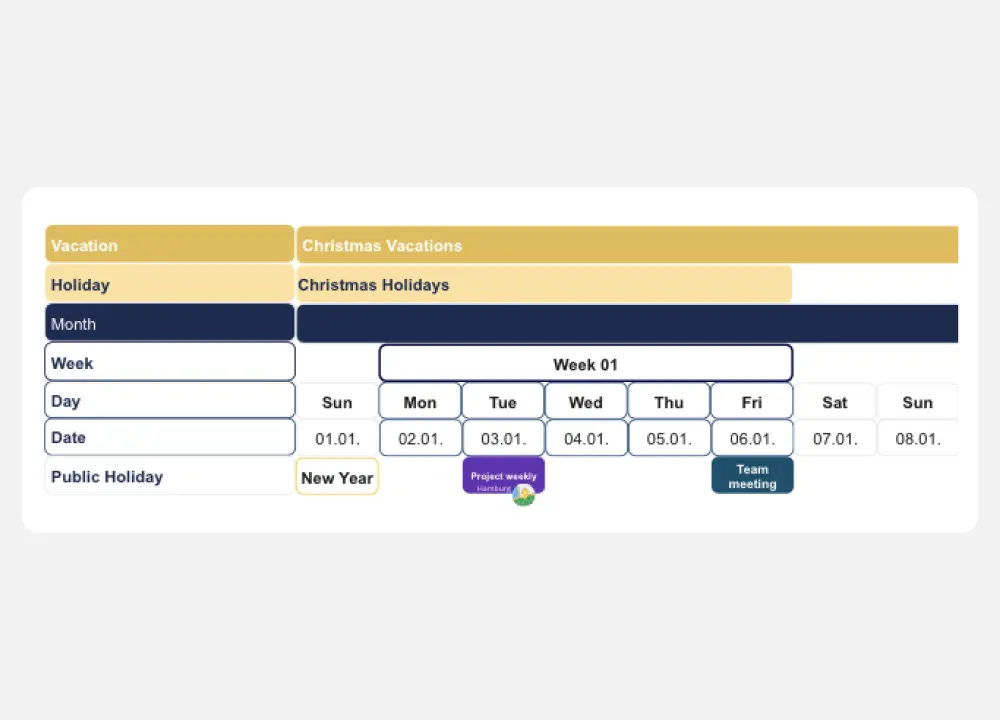
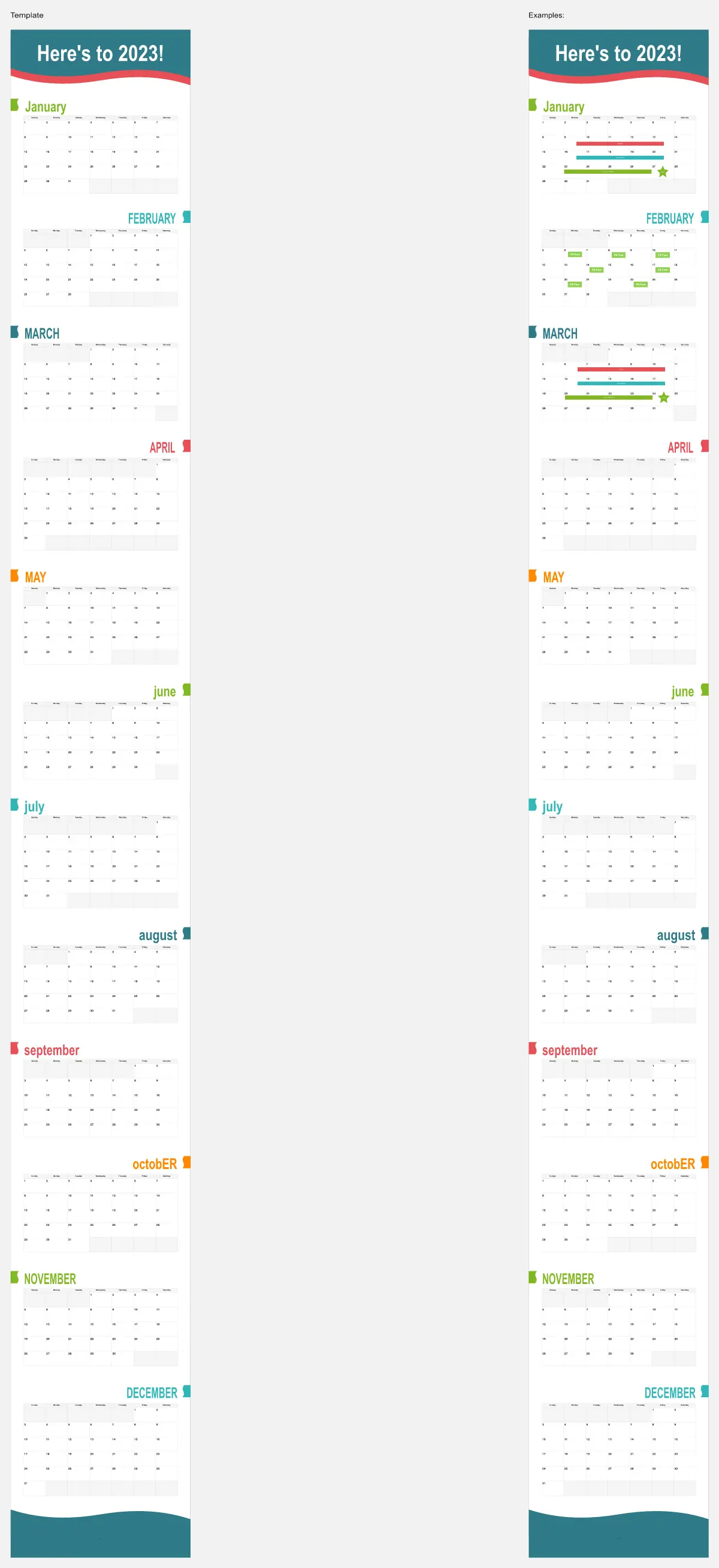
Integrate with a timeline widget: This feature is great for long-term planning. If you need a high-level overview of your entire project or year, use the timeline widget to see everything in one visual flow.
And remember: with Miro, you can invite your team to collaborate, no matter where they are. Whether they're adding comments, adjusting deadlines, or sharing files, the experience feels seamless—like everyone's working together, even when they're not.