All templates

AI Prototype Template

Miro

1K Views
122 uses
4 likes

Report

How to use the AI Accelerated Prototype template

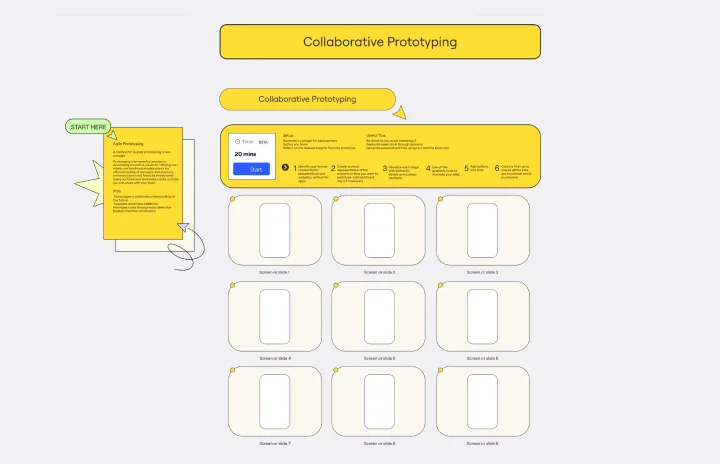
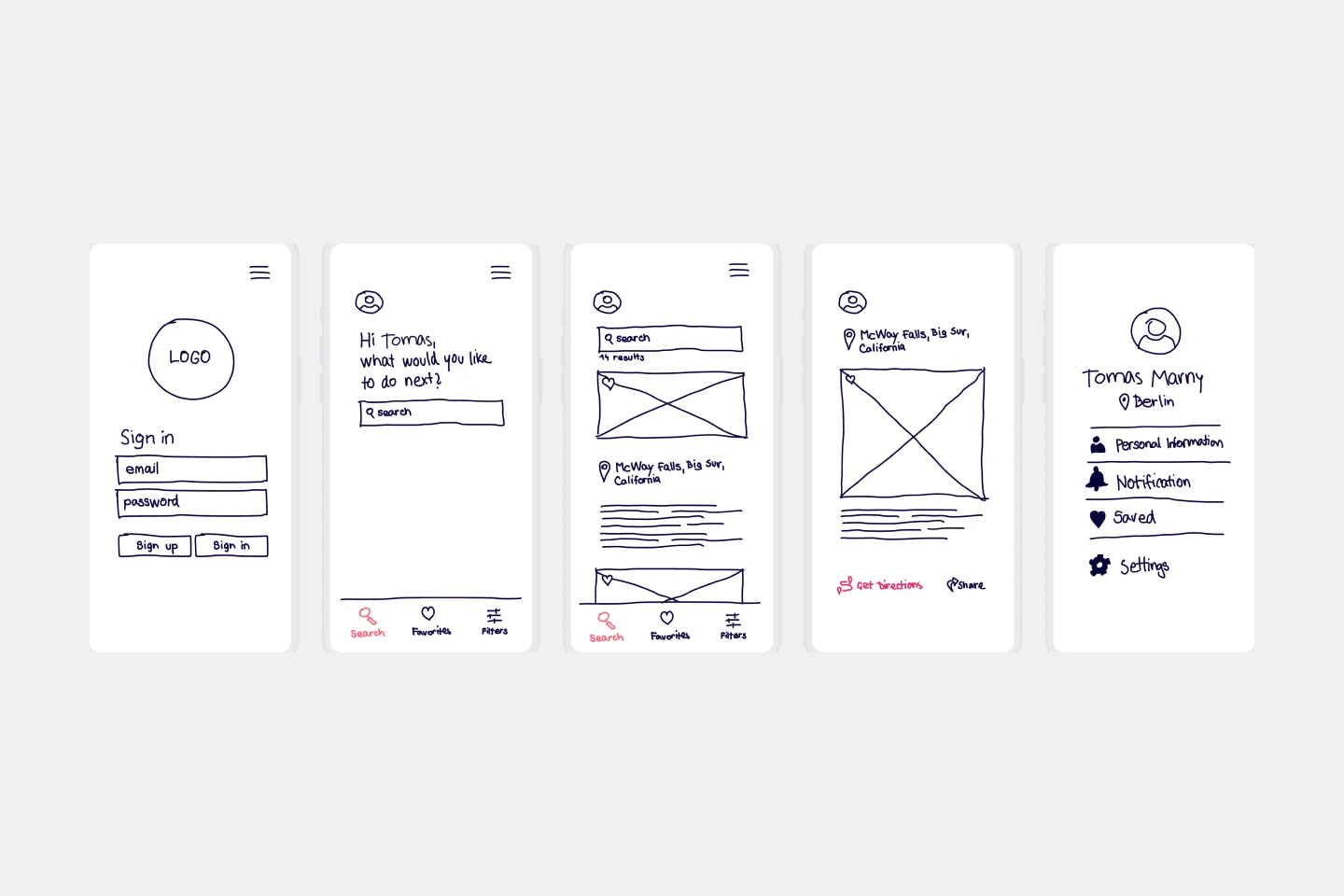
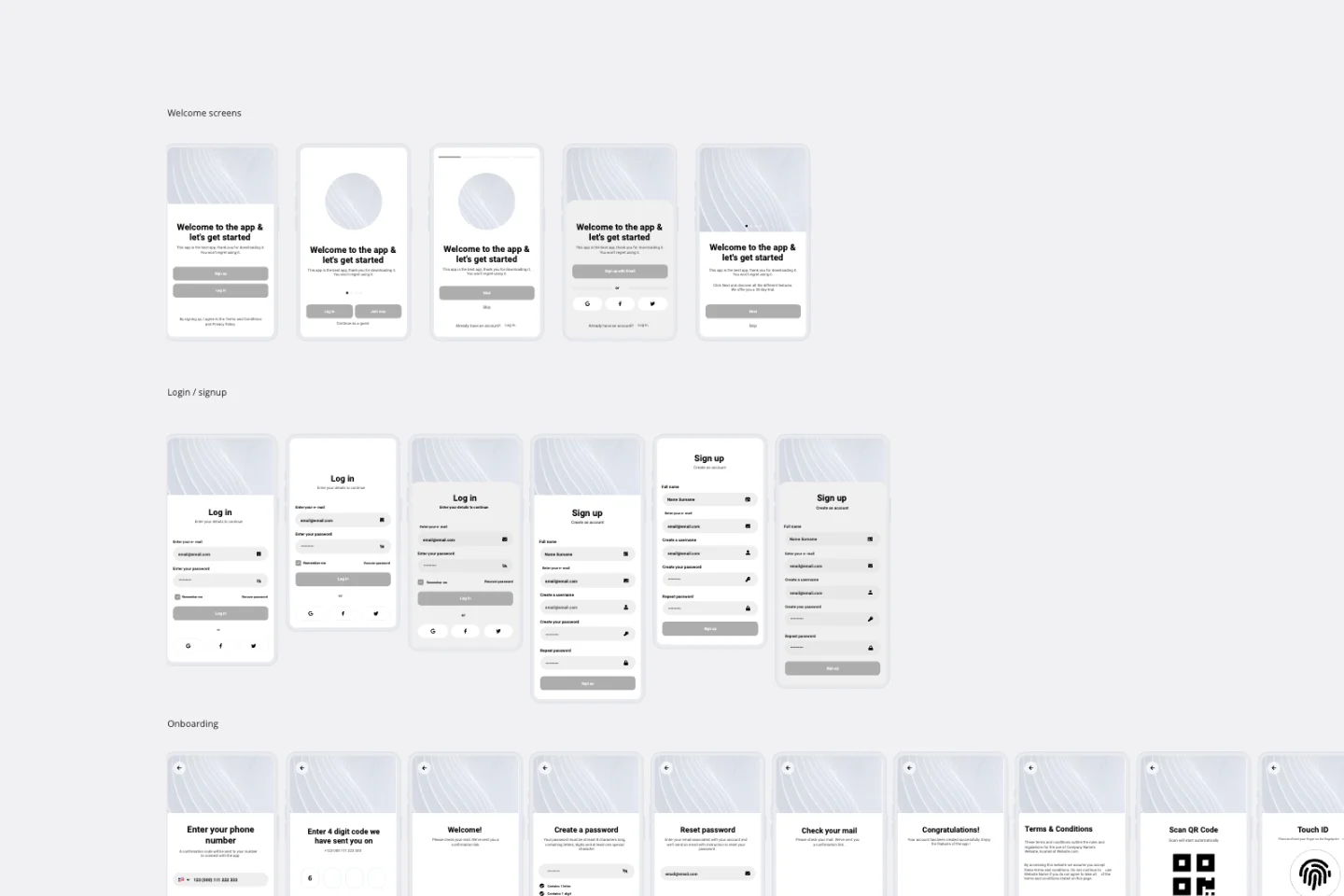
  • Select the Prototype & Describe Your Vision. Start by selecting the prototype in the Design Prototype Sidekick. Then, write a simple text prompt for the screen you want to create. You can choose a quick prompt or write your own, from "a login screen for a modern travel app" to "a user profile page with a photo and recent activity."

  • Pro tip: The more details you add to your prompt, the better your results will be.

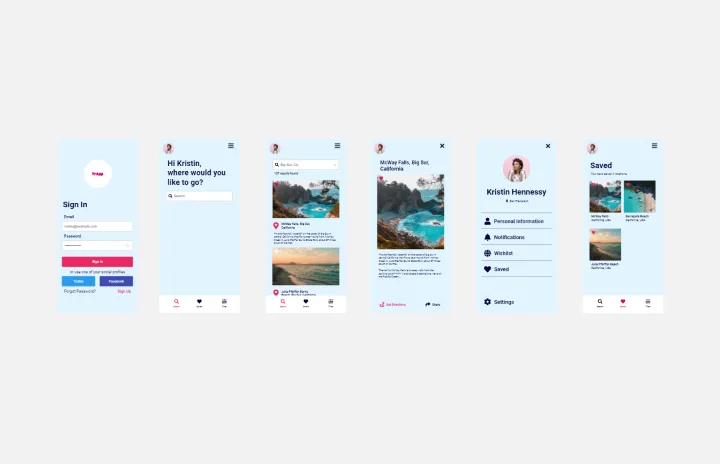
  • Generate the Mockup. With your prompt, Miro AI will instantly generate a visual design for your app screen.

  • Refine and Iterate. Chat with the AI to refine your design. Ask it to change colors, add elements, or adjust the layout until it matches your vision.

  • Apply and Build Your User Flow. Apply the finished design to the canvas. Repeat the process to create all the screens for your application. You can then connect them to build a complete, interactive prototype that demonstrates the entire user journey, ready for you to edit, share, and continue creating.

Miro

Your virtual workspace for innovation

Miro is an innovation workspace designed for teams of every size, everywhere, to dream, design, and build the future together. Our mission? To empower these teams to create the next big thing, powered by AI at every step of the way. Over 90 million users around the world rely on Miro to untangle complex ideas, put customer needs first, and deliver products and services faster. All supported by best-in-class security, compliance, and scalability.


Categories

Similar templates

App Wireframe Template

10 likes
417 uses

Remote Design Sprint

408 likes
2.7K uses

iPhone App Template

2 likes
122 uses