28likes
611uses
Explore Mobile App templates and examples from Miro. Free editable templates ready to use for teams, online and collaborative.
5 templates
AI Accelerated
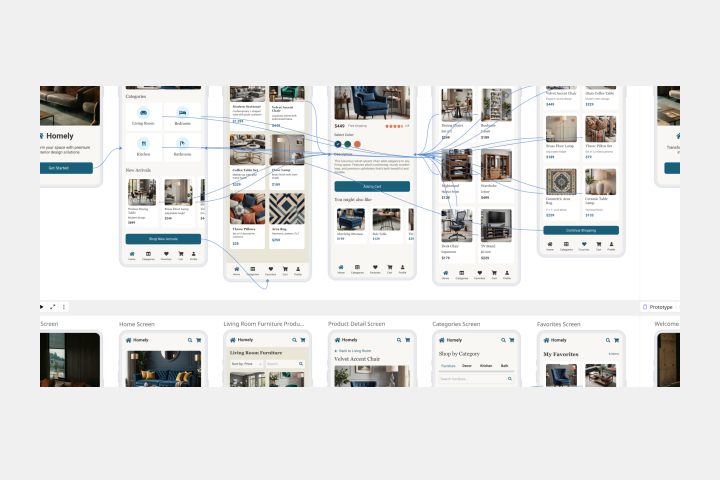
Mobile App Prototype AI Template
Miro's mobile app prototype template is your go-to solution for quickly and efficiently designing mobile apps, offering a collaborative and flexible framework to bring your ideas to life.
Bank Mobile App User Journey
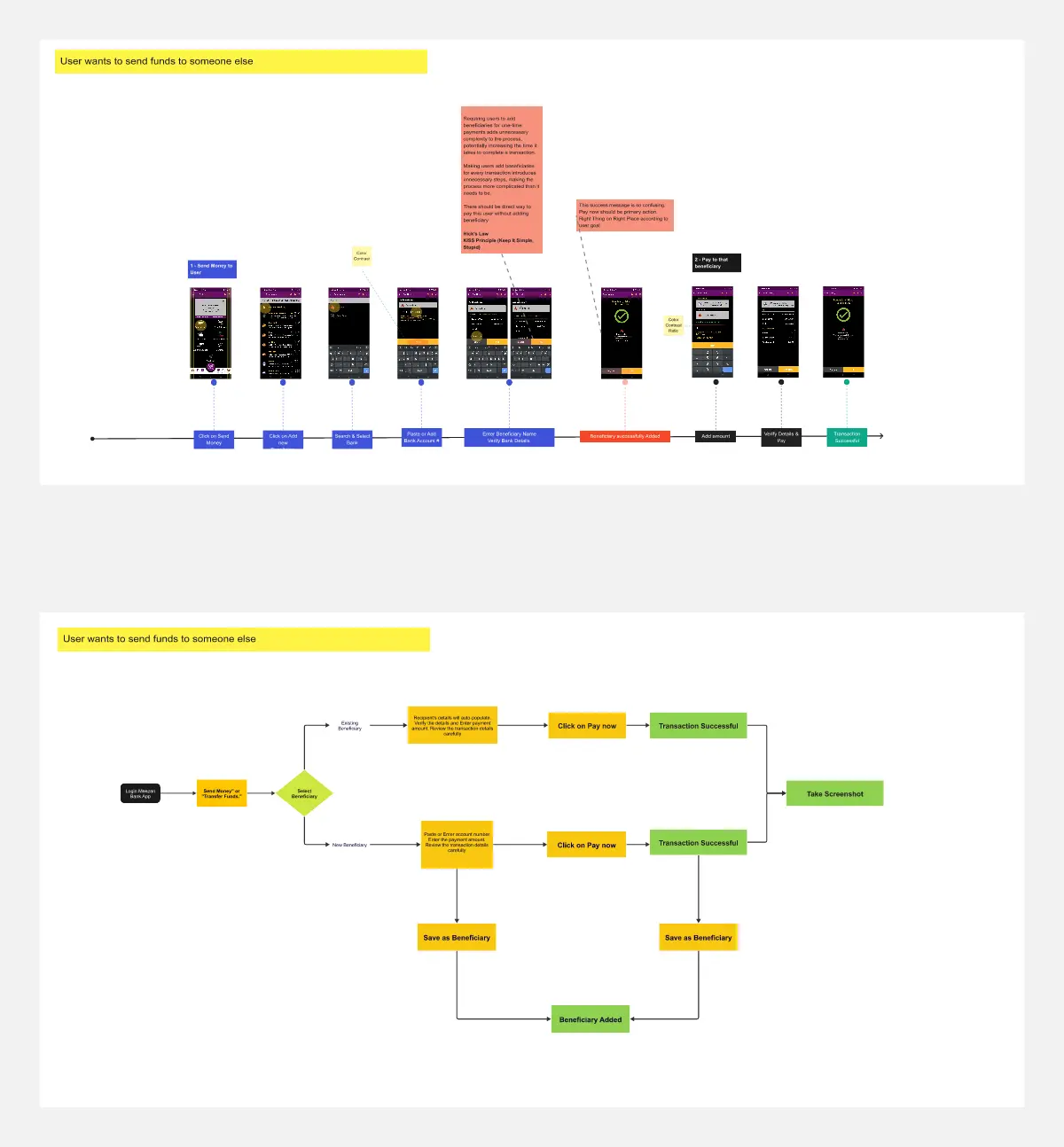
The Bank Mobile App User Journey template offers a visual framework for mapping out the user experience journey within a banking mobile application. It provides elements for visualizing user interactions, touchpoints, and emotions throughout the journey. This template enables teams to understand user needs, pain points, and opportunities for improvement, facilitating the design of user-friendly and intuitive banking apps. By promoting empathy and user-centric design, the Bank Mobile App User Journey template empowers teams to create digital experiences that meet customer expectations and drive engagement.
Mobile App Wireframe Template
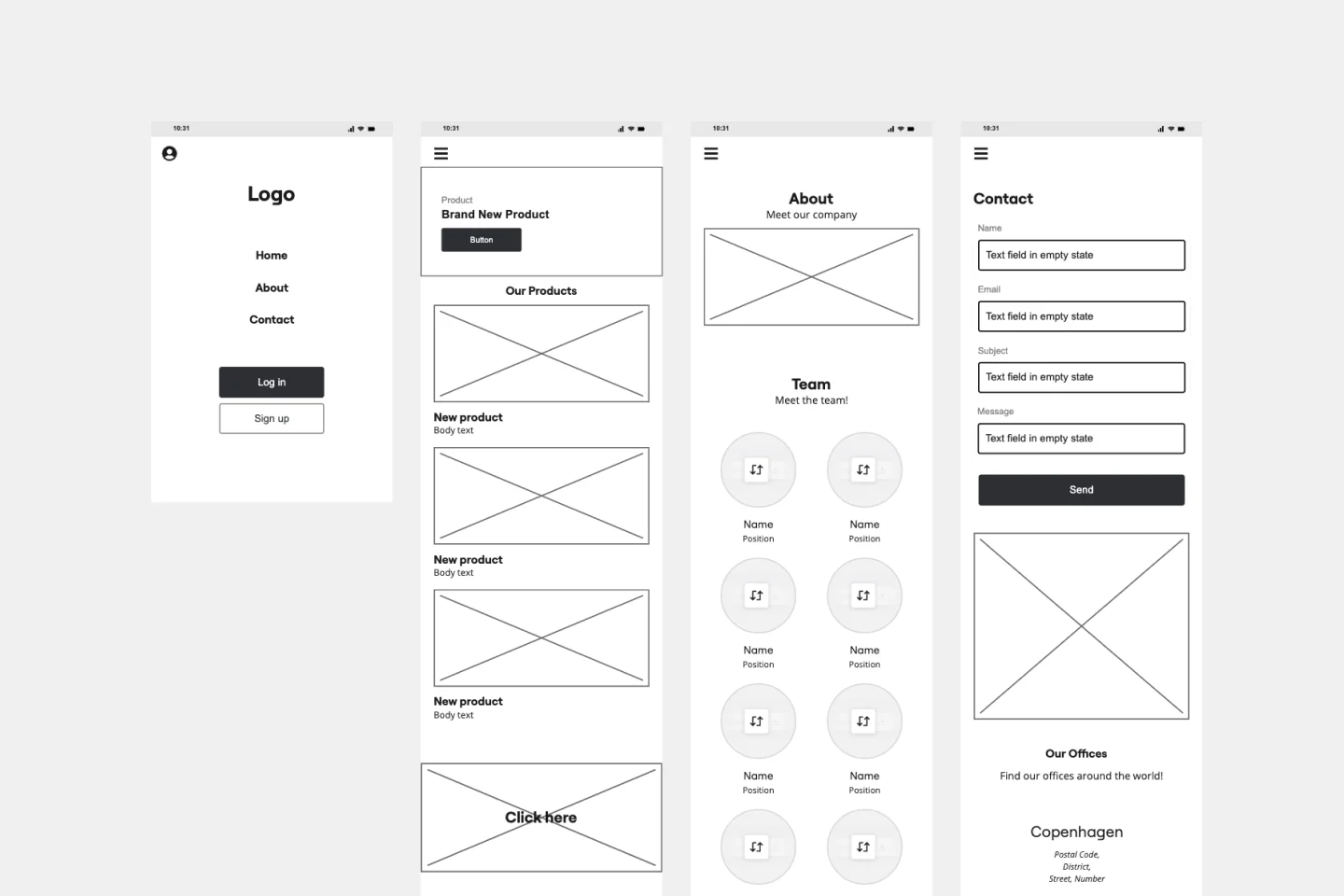
The Mobile App Wireframe template helps you take your ideation game to the next level. Built to support UX teams, it enables you to craft impactful low-fidelity wireframes that serve as the foundation for your mobile app designs. Once you’ve completed the basic framework, you can seamlessly transform your wireframes into mockups, applying your selected theme with just one click.
Mobile App Prototype Template
Miro's mobile app prototype template is your go-to solution for quickly and efficiently designing mobile apps, offering a collaborative and flexible framework to bring your ideas to life.
A Mobile App template is an interactive, low-to-mid-fidelity design and architecture workspace where product managers, UX/UI designers, and mobile developers map out screen layouts, gestures, and technical workflows. Developing a native iOS or Android application requires balancing strict technical constraints, screen real estate, and rapid user drop-offs. By utilizing a standardized Miro template, product teams can collaboratively sequence multi-screen user journeys, establish standard component behaviors, and pressure-test navigation patterns before committing expensive mobile engineering hours to high-fidelity code.
A professional mobile app workspace provides a structured kit of UI elements and flowcharts designed to simulate native device interactions. Every actionable Miro mobile development board features these five core elements:
The Canvas Architecture Grid: A spacious layout of mobile device mockups (device wrappers) where teams map out key application views side-by-side.
Component Design Kits: A repository of draggable, reusable native mobile UI patterns (e.g., Bottom Navigation Bars, Floating Action Buttons, Status Bars, Dialog Modals, Input Fields).
Gesture & Trigger Connectors: Dynamic, color-coded connector lines that explicitly detail how a user transitions between frames (e.g., Tap, Swipe, Double-tap, Long-press).
The State-Machine Tracker: A distinct technical lane to document edge-case scenarios, such as loading states, offline modes, empty screens, and system error responses.
The User Flow Map: A holistic, bird's-eye architectural zone showing how a user moves from an external trigger (like a push notification) into core application retention loops.
1. Establish the Screen Architecture Parameters Open your Mobile App template in Miro. Before pulling interface elements onto the board, define your technical baseline in the metadata anchor block (e.g., “iOS Native, iPhone 16 Pro Aspect Ratio, Light Mode default”). Lock this reference structure to keep cross-functional team designs visually aligned.
2. Plot the Horizontal User Backbone Have your product managers and user researchers lay out the primary milestones a user takes during an ideal session. Place these high-level journey cards in a clean row above your device frames to serve as the structural guide for your layout design.
3. Wireframe Individual Screen Views Use Miro's UI kit shapes to construct the interface components within the phone frame wrappers. Keep designs focused on information architecture rather than specific branding assets—use simple geometric containers for images and placeholder lines for copy blocks.
4. Connect the Screen Actions with Gestures Draw connector lines between interactive components on Screen A to the resulting target view on Screen B. Text-label every single arrow line directly on the canvas to explicitly specify the user behavior required to trigger the change (e.g., label an arrow “Left Swipe to dismiss card”).
5. Map Out Technical Edge Cases Do not only design the perfect, seamless path. Create duplicate screen frames to explicitly map out how the app behaves when things break. Draw out your loading skeletons, offline notifications, and validation errors so engineers have an unshakeable manual for building app state logic.
6. Conduct a Live Visual Walkthrough Use Miro's presenter layout options to walk your engineering team through the connected flow frames. Ask your developers to call out any high-complexity patterns, deep platform restrictions, or native component opportunities directly on the board using bright sticky notes.
7. Freeze, Approve, and Export to Production Once the user flow, core wireframes, and edge states are fully aligned across design, product, and engineering, lock all components on the canvas. Export the finished user flow frame as a high-resolution PDF or shared asset link to anchor your upcoming UI/UX high-fidelity mockups and engineering sprints.