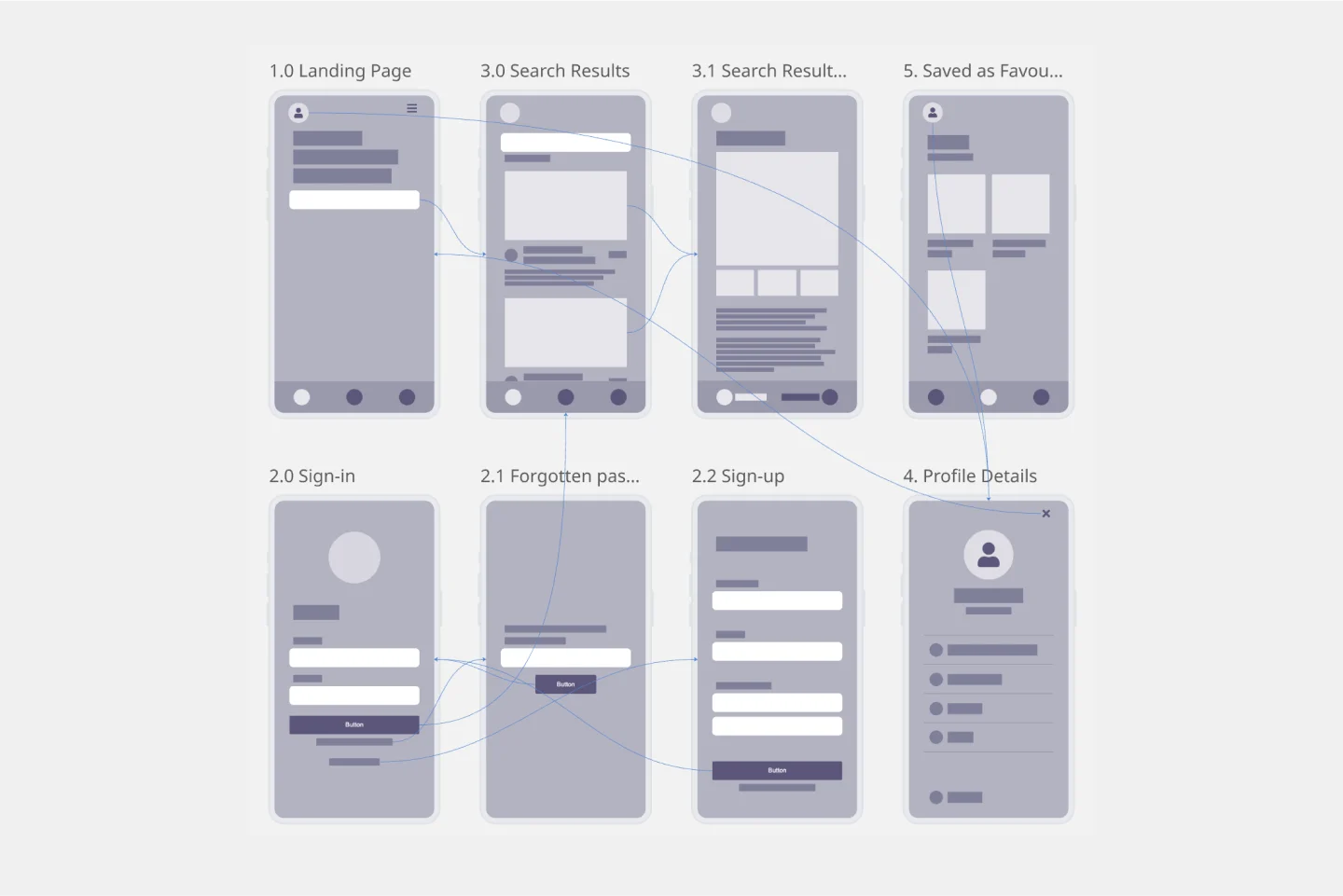
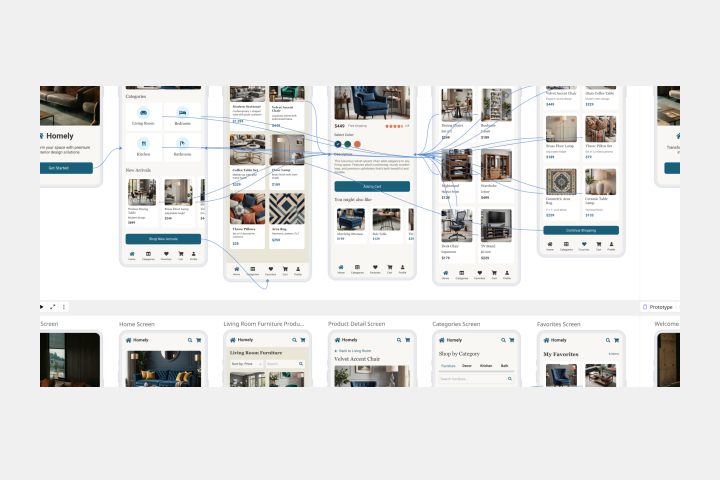
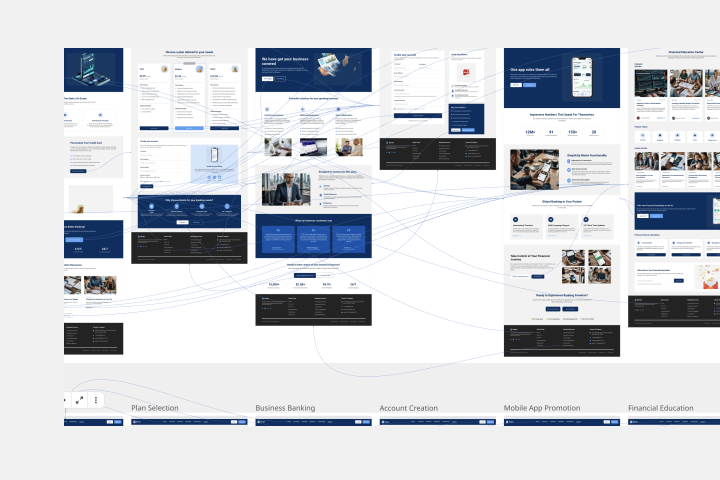
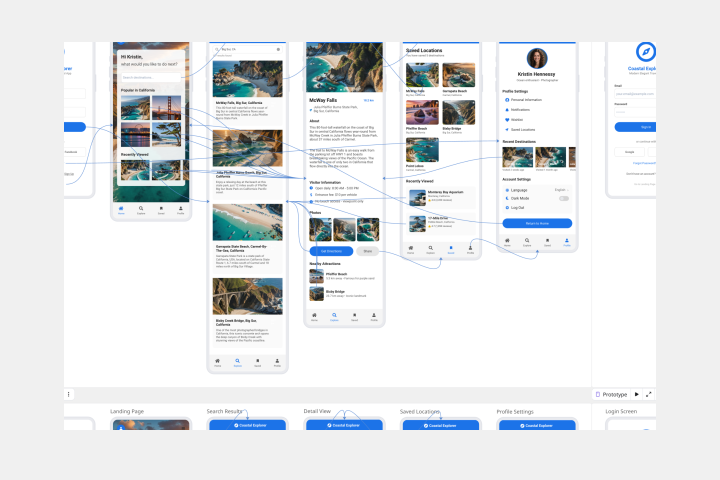
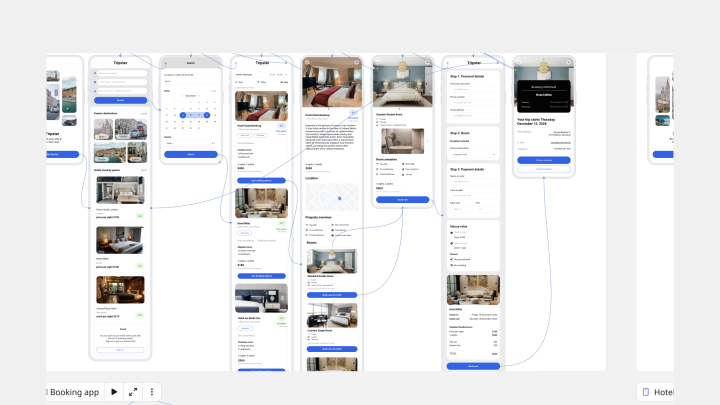
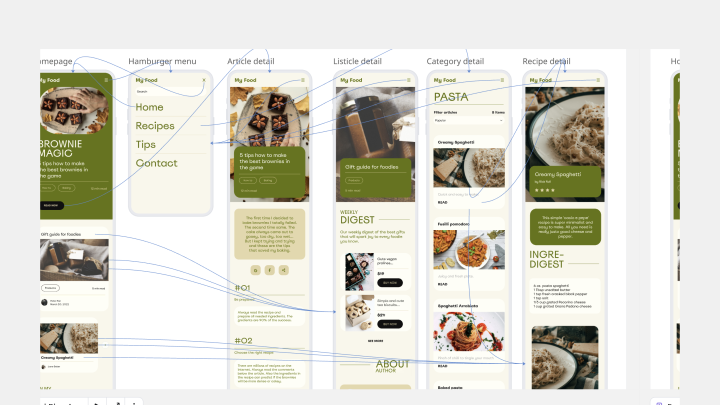
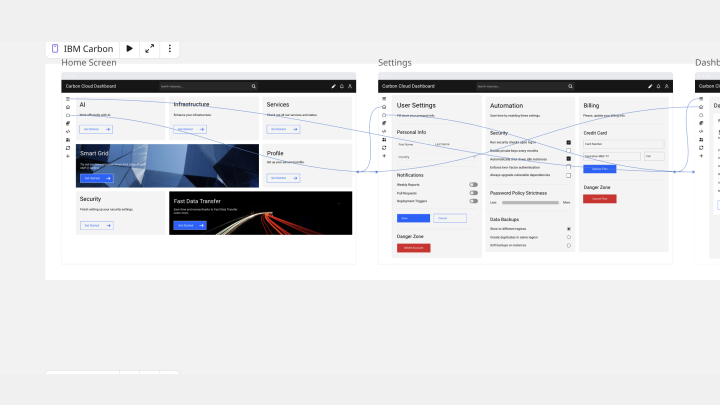
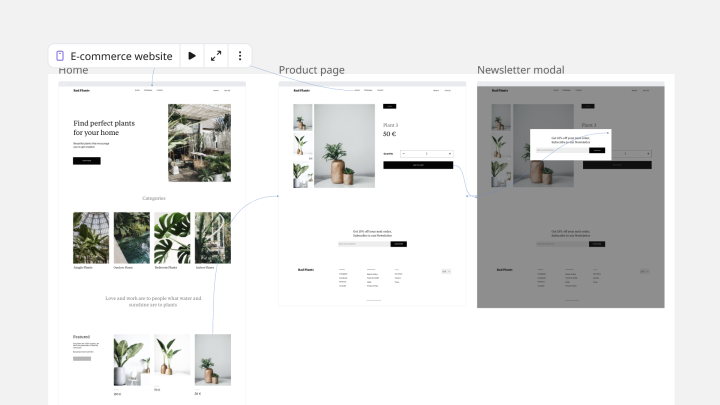
About the prototype templates collection
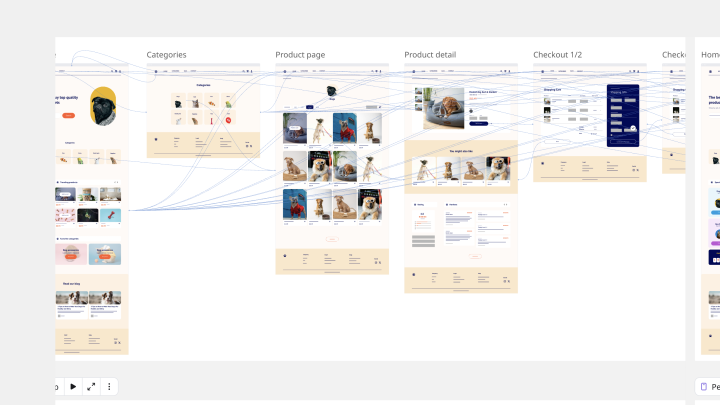
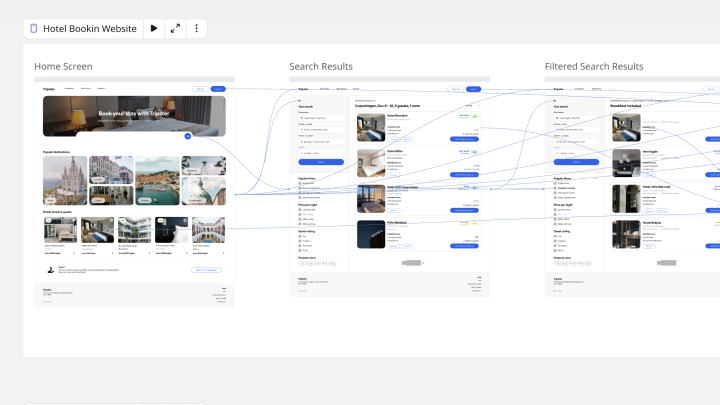
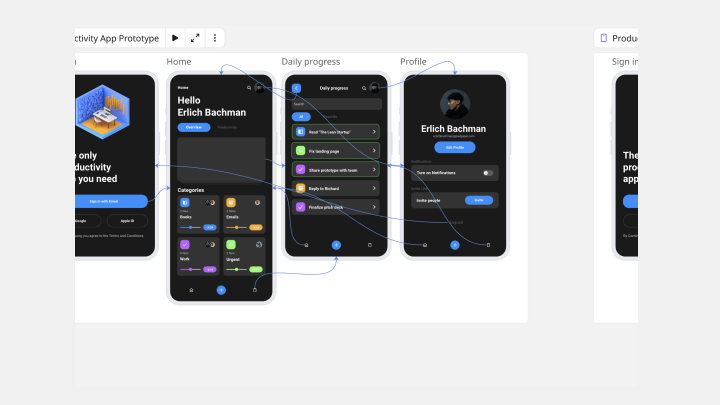
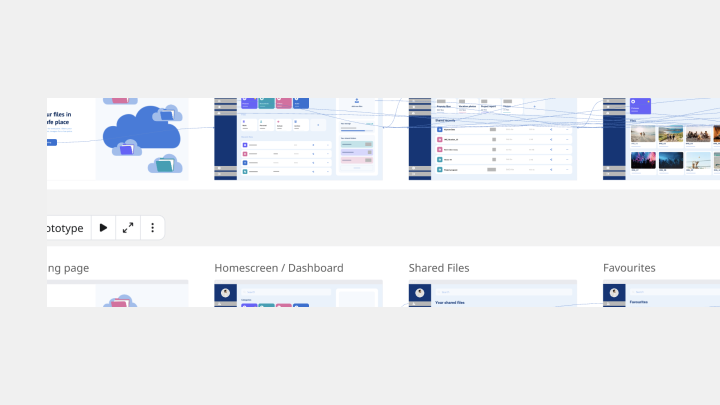
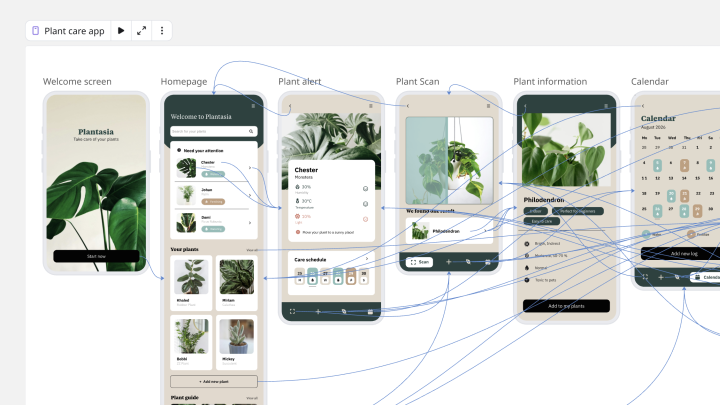
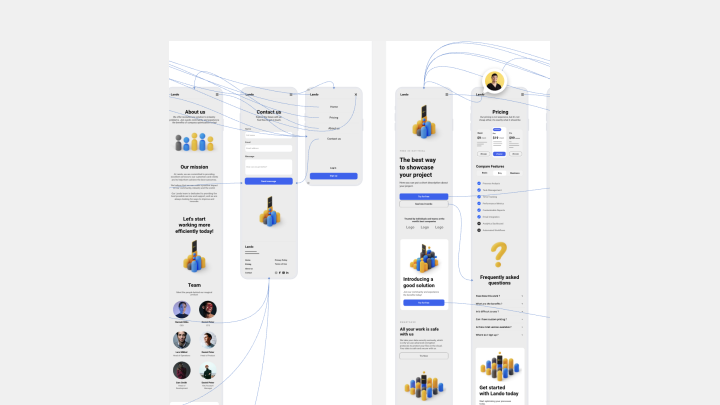
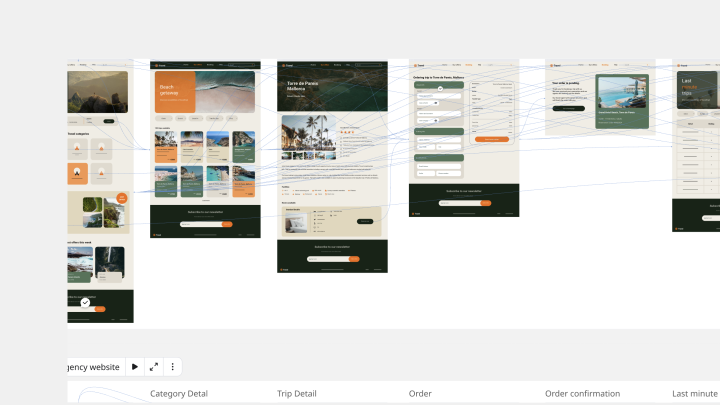
A prototype template is an interactive model of a product used to test and communicate its functionality to stakeholders and users. Unlike a wireframe (which shows the skeleton), a prototype demonstrates the "muscle" how the app feels, how transitions work, and how a user navigates from Point A to Point B. It allows teams to "fail fast" and refine the experience before a single line of production code is written.
Key Components of a Prototype Template
A professional prototype template acts as a "Sandbox" for your product. Every high-performance Miro board should include these five elements:
The Component Library: A set of reusable buttons, inputs, and headers to ensure visual consistency across screens.
Hotspots & Interactions: Defined areas that trigger a move to another screen or show a popup.
User Task Scenarios: Clear instructions for the tester (e.g., "Try to add a blue shirt to your cart and check out").
Feedback Capture Zone: A space for "Think Aloud" notes, where researchers record exactly what the user is saying during the test.
Version History: A section to track iterations based on previous test results, showing how the design has evolved.
Which Prototype Template Do You Need?
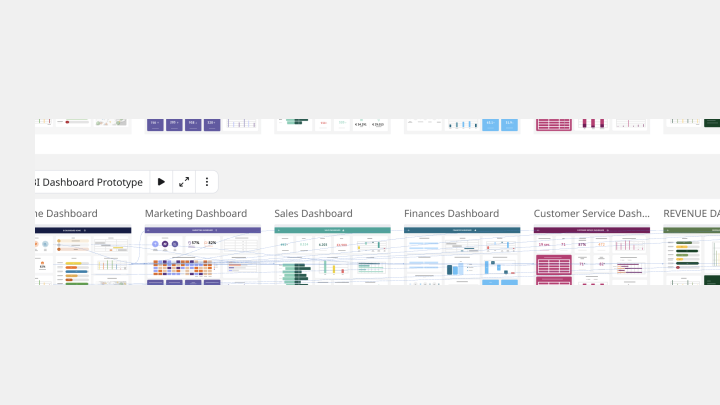
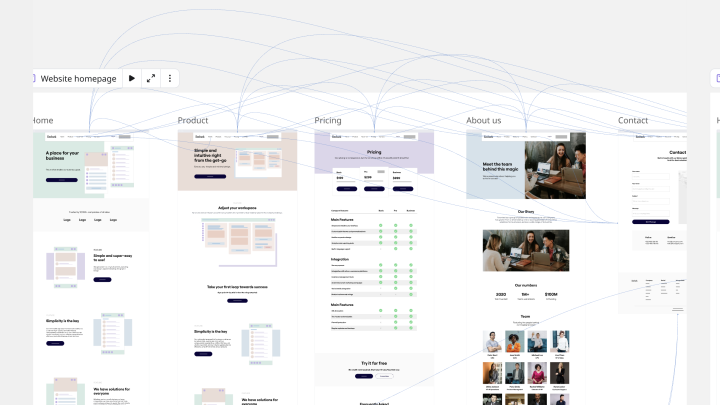
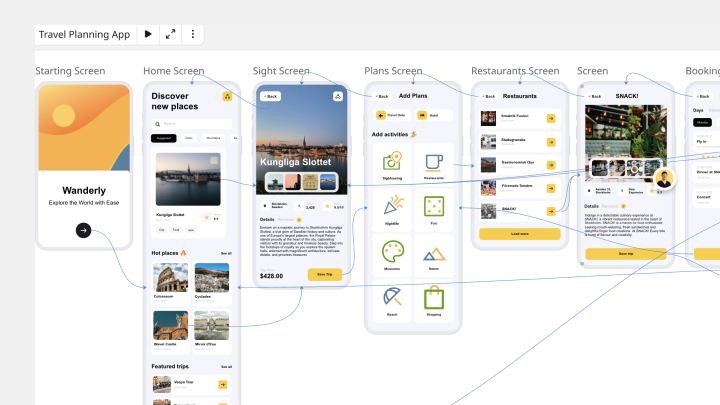
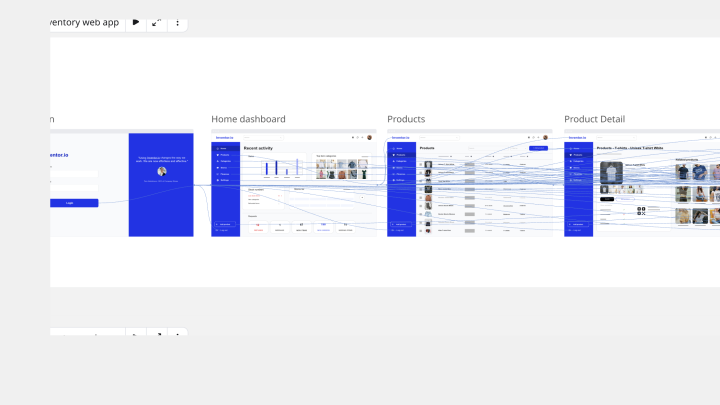
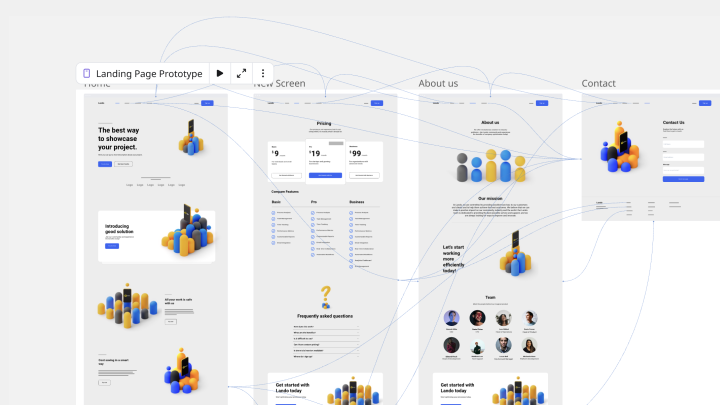
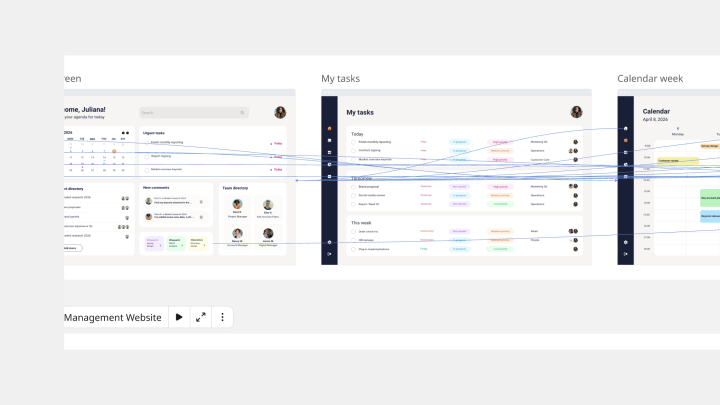
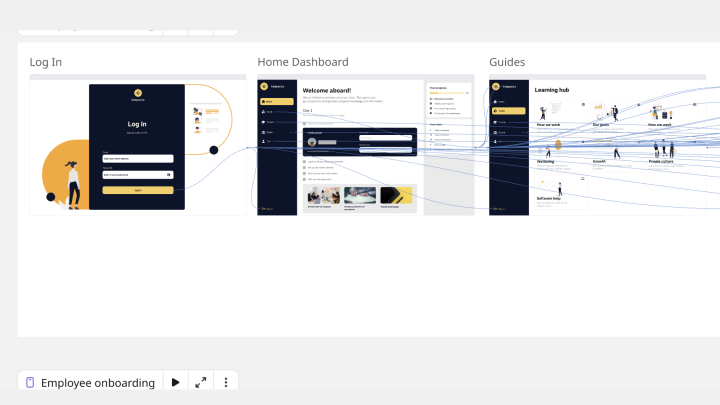
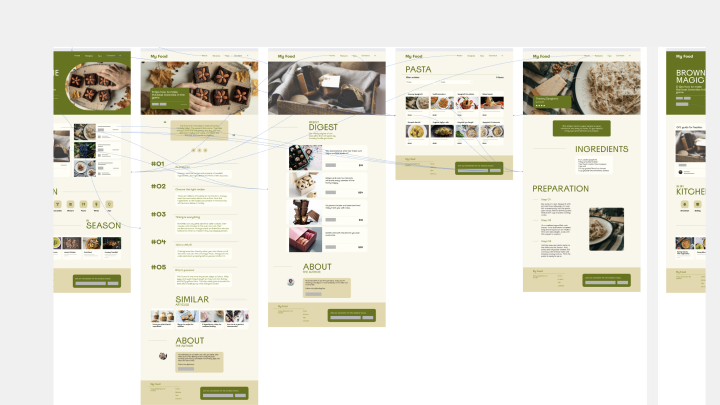
Select the Miro template that matches your current development phase:
How to use the prototyping templates
Step 1: Choose your starting point. Browse the prototyping collection and select a template that matches your project scope. Whether you need a basic mobile app wireframe or a comprehensive e-commerce website prototype, pick the structure that gets you closest to your end goal.
Step 2: Customize and build. Use Miro's drag-and-drop interface to adapt the template to your specific needs. Modify layouts, adjust user flows, and add your content. The templates provide the framework—you bring the vision that makes it uniquely yours.
Step 3: Add interactivity. Transform static designs into clickable prototypes using interactive hotspots. Link screens together to demonstrate user journeys and create experiences that stakeholders can navigate themselves.
Step 4: Collaborate and iterate. Share your prototype with team members and stakeholders. Use Miro's commenting and feedback features to gather input directly on the prototype, then iterate quickly based on the insights you receive.
Step 5: Present with confidence. Use presentation mode to walk stakeholders through your prototype in a focused, distraction-free environment. Demonstrate user flows, highlight key interactions, and answer questions in real-time using the same workspace where you built the prototype.
As you develop your own prototyping workflows, you can save successful templates as custom blueprints. This lets you standardize your approach across projects and share proven frameworks with your team, making future prototyping even more efficient.
FAQ about prototyping templates
How does Miro AI help with prototyping?
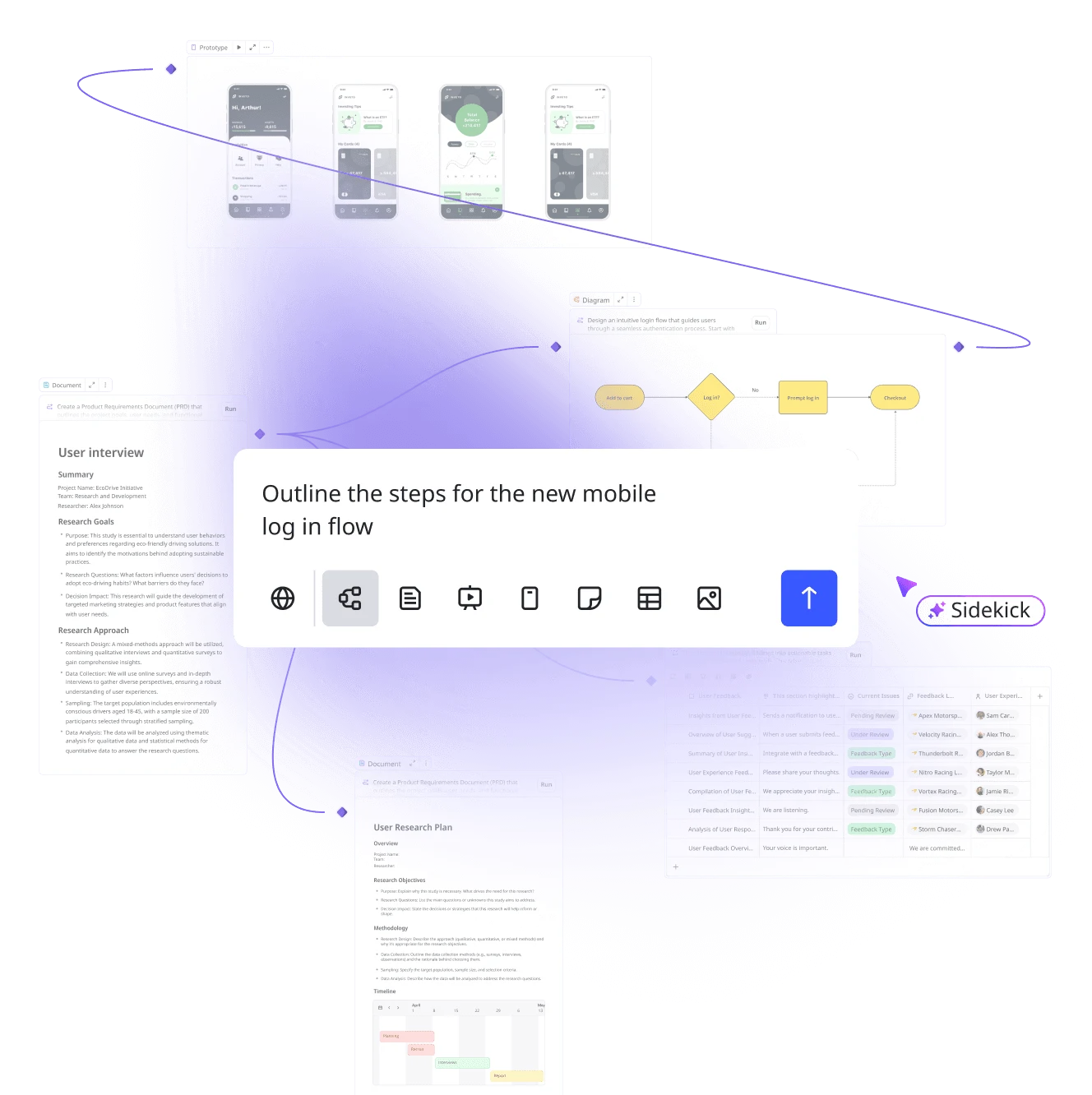
Miro AI accelerates your prototyping process by generating wireframe layouts, creating content for your mockups, and even suggesting user flow improvements. You can use AI to quickly populate screens with realistic text and images, generate multiple layout variations to explore different approaches, and get smart suggestions for organizing your prototype structure. This means less time on repetitive tasks and more time refining the user experience that matters most.
How is Miro prototyping different from tools like Figma?
Miro's prototype tool focuses on early-stage alignment—the crucial phase before you jump into high-fidelity design tools. While Figma excels at detailed UI design, Miro helps teams explore ideas quickly, communicate concepts visually, and collaborate effectively without needing access to complex design files or advanced UI design skills. Think of it as your ideation and alignment workspace where product managers, engineers, and stakeholders can contribute meaningfully to the design process before detailed design work begins.
Can non-designers contribute to prototyping in Miro?
Absolutely. Miro's prototyping templates are designed so that product managers, engineers, and other stakeholders can actively participate in the design process. The intuitive drag-and-drop interface means team members can sketch user flows, add feedback directly on screens, and even build basic wireframes without design expertise. This collaborative approach ensures everyone has a voice in shaping the product experience, leading to better alignment and fewer surprises later in development.
Ready to stop explaining and start demonstrating? Explore the prototyping templates and transform your next product concept into an experience stakeholders can actually use.