Table of contents
Table of contents
Mermaid diagrams: How we built AI-native diagramming for engineers
TL;DR
I'm Hannah Knight, product manager for Structured Diagrams with Mermaid at Miro. I want to walk you through what Mermaid diagrams are, why we built native Mermaid support into Miro, and how to actually use it today. This feature is in public beta, so I'll be straight with you about what works right now and what's still on the way. Watch it in action: one prompt maps an entire incident straight from the codebase, showing every service and every call between them. The team color-codes it to show what broke, comments directly on the diagram to work through a fix, and then hands it back to an agent, which drafts the whole decision as a pull request in GitHub.
Collaborative AI Workflows
Join thousands of teams using Miro to build the right thing, faster.
What Mermaid actually is
So, what is a Mermaid diagram? It's a diagram described entirely in text. You write something like A --> B, and you get two boxes, A and B, connected by an arrow. That's it. You can use it to describe almost any kind of diagram: flowcharts, sequence diagrams, class diagrams, entity-relationship diagrams, and more.
Engineers have used Mermaid for years to keep diagrams in their codebase, right next to the code they describe. But it has taken on a new life recently for one simple reason: large language models are very good at writing it. Ask an AI coding agent to diagram your system, and there's a good chance it hands you back Mermaid syntax, because that's the format it has learned to write well.
That combination, code that both humans and AI can read and write, is exactly why we built Mermaid support directly into Miro.
The problem I kept hearing about
Before we built this, Mermaid kept coming up in customer calls and user interviews, completely unprompted. Engineers had already figured out that AI-generated diagrams came out better when they asked for Mermaid instead of a picture. Diagrams have always been core to how engineers explain complex systems simply, and Mermaid combined with AI let them generate high-quality diagrams faster than they ever could by hand.
That "diagram as code, not just a picture" distinction matters for two reasons. If a diagram only exists as an image, an engineer can't track changes to it the way they track changes to code. And there's a second, more technical reason: large language models are much better at understanding one-dimensional text than two-dimensional images, because of how they process input. When a diagram is code, an AI agent can make a precise, targeted edit instead of regenerating the whole thing from scratch.
I've watched engineers go through this exact scenario with the old tools. Their codebase changes, and now their diagram is out of date. So they open Miro, manually drag shapes and boxes around to match what actually changed, then document it. That could eat hours.
Now, they can just ask a coding agent like Claude Code to generate a diagram of the codebase, and it renders beautifully on a Miro board automatically. If the code changes fast, they can even set up a scheduled skill to keep the board updated on a regular basis.
Why we built Structured Diagrams with Mermaid
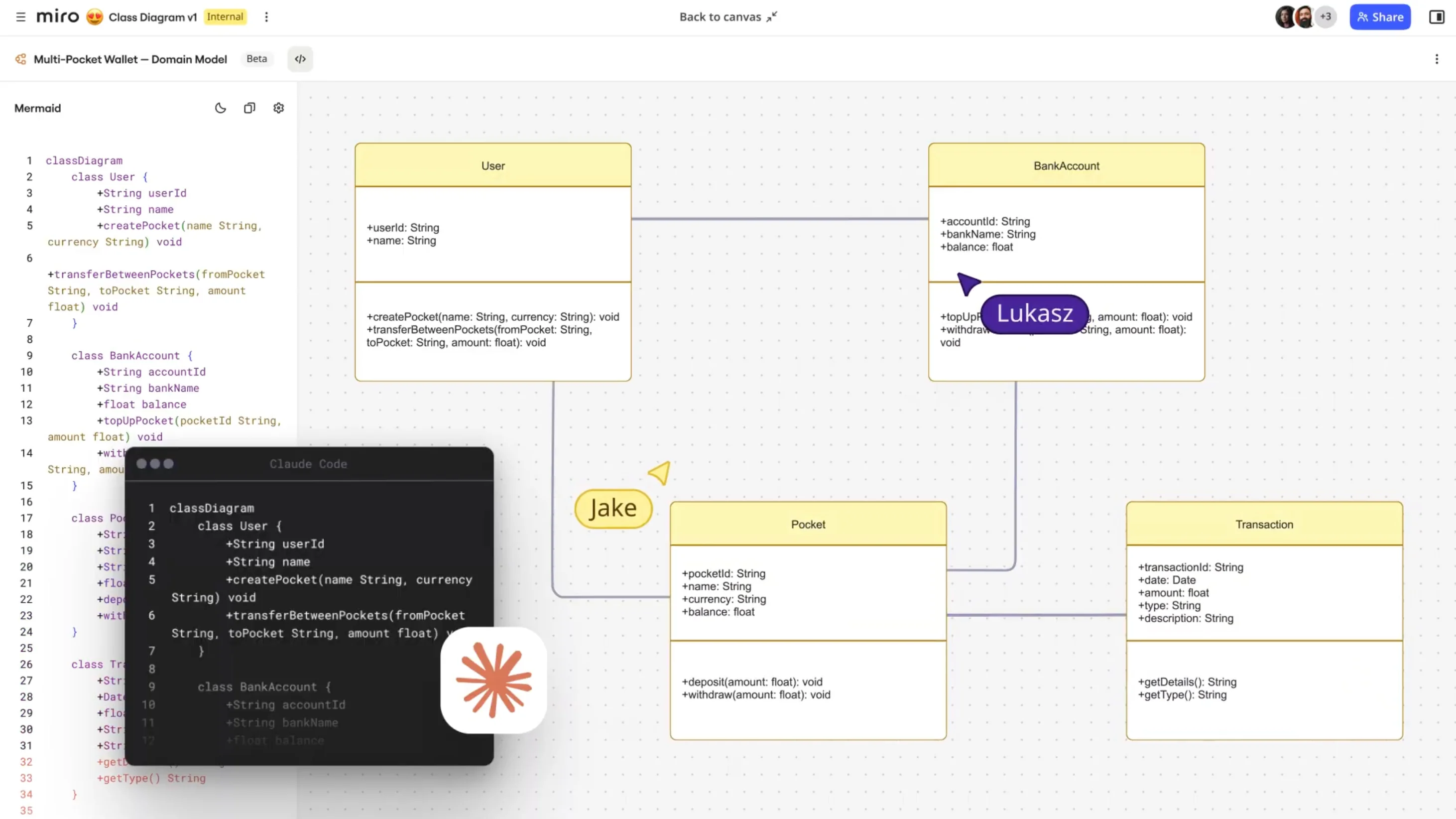
Structured Diagrams with Mermaid brings diagram-as-code straight into Miro. You write or generate Mermaid syntax, it renders as real Miro shapes, you and your team iterate on it together, and you export it back to code when you're done. It's a full round trip: an agent can generate a diagram through Miro's MCP server, your team collaborates on it visually, and another agent can read it back through MCP to keep your codebase in sync.
Mermaid is the source of truth. When you edit a diagram visually in Miro, the underlying Mermaid code updates with it, so the code and the diagram never drift apart. We could have broken that link and treated the diagram as its own separate thing once it landed on the board, which is what some other tools do. We chose not to. Keeping Mermaid as the source of truth means an AI agent can always understand your diagram and make precise edits to it, and you can export it to GitHub, VS Code, Obsidian, or anywhere else that reads Mermaid.
This replaces the old Mermaid app from the Miro Marketplace entirely. That app generated free-form shapes, not real Mermaid, and it couldn't round-trip: an agent could generate a diagram, but it couldn't read your edits back. Structured Diagrams with Mermaid does both.
What happens when you generate a diagram
In plain terms, this is what the round trip looks like: paste Mermaid syntax onto a Miro board, and the diagram renders right away. Ask an AI agent, like Claude Code, Claude Cowork, Codex, or Cursor, to generate a diagram, and it uses Miro's MCP server to write that same Mermaid syntax directly onto your board. Either way, the diagram shows up rendered and ready, not as a rough sketch you have to clean up.
Which diagram types render as native Miro shapes
Right now, four diagram types render as native Miro shapes:
- Flowcharts map out workflows, decision trees, and processes, so you can see exactly where a process might stall.
- Sequence diagrams show how systems or components talk to each other over time, which is handy for microservices communication or API call order.
- Class diagrams visualize objects, their attributes, and how they relate to each other.
- Entity-relationship (ER) diagrams map your database schema and the relationships between tables.
We've invested heavily in making these four look good straight out of the box, so you get something presentation-ready without extra formatting work.
Mermaid supports plenty of other diagram types too, including Gantt charts and C4 diagrams for system architecture. Those currently render as Mermaid.js SVGs rather than native Miro shapes. You can still add them to your board, edit with AI, and export them, but they don’t look presentation-ready, and you can't click into them and edit them visually the way you can with the flowchart. If you're evaluating this for your team, that distinction matters: know which diagrams you will get full native editing on today, and which ones you'll mostly use for viewing and exporting.
Getting started with Mermaid diagrams in Miro
This is what it looks like in practice:
- Open the Creation bar, select Formats, then Diagram, and click "Build with code."
- Paste Mermaid code you already have, choose a template, or send your agent one prompt to generate a diagram straight from your codebase, mapping every service and every call between them in seconds.
- Watch it render as native Miro shapes, with a clean, automatic layout, so you're not manually spacing boxes to keep lines from crossing.
- Open the diagram in focus mode to edit it. You can select a shape, line, or text label and adjust it directly, change the layout direction (top to bottom, left to right, and so on), or adjust spacing from narrow to wide. You can also open the code panel and edit the Mermaid syntax directly, or paste the diagram's link into your AI tool and ask your agent to make the change for you. Whichever way you edit it, the Mermaid code and the diagram stay in sync.
- Add meaning to the diagram. Color-code it to show a status or an incident, or ask your agent to make the change. When an agent edits a diagram, it can even add a legend marking what it added, removed, or changed.
- Invite your team to comment directly on the diagram, in the context of the current state and whatever fix or change you're proposing, instead of starting a separate thread somewhere else.
- Close the loop. Copy the Mermaid syntax back into your codebase, export the diagram as an image (JPG, SVG, or PDF), share a focus mode link with collaborators, or let your agent read the diagram and your team's comments back through MCP and draft a document, like an architecture decision record ready to open as a pull request.
If you already know Mermaid syntax, you can start writing it straight away. If you've never touched Mermaid before, start with a template, edit shapes visually, or just describe what you want to your AI agent and let it write the syntax for you. One thing worth knowing if you're on an Enterprise plan: a company admin needs to enable Miro MCP before anyone on your team can connect an AI tool to it.
A mistake I see people make early on
People try to drag shapes around freely, the way you would on a regular Miro canvas, and it doesn't work that way. We call these "structured" diagrams because they're backed by code, and one of the real benefits is that Miro lays them out automatically. If you genuinely need more shapes or full freeform movement, you can switch a diagram to free-form editing, but know that it's a one-way door: once you switch, that diagram is no longer synced to the Mermaid code, and neither you nor your agent can edit it through MCP anymore. If you're not sure yet, start by exploring the many features we have for Structured Diagrams, or work a copy into free-form instead of converting your original.
There's no single "right" way to write Mermaid, either. Don't overthink your first diagram. Get something down, then iterate, whether that's you editing it, a teammate refining it, or an agent picking it back up.
How this holds up at scale
We support Mermaid files up to 30,000 lines of code, and we've tested diagrams with 500 or more nodes in complex flowcharts without a drop in performance. There's no hard limit on how many Mermaid diagrams you can have on a board.
Where this fits with your existing tools
If another tool exports Mermaid syntax, you can paste it straight onto a Miro board. Want to keep a diagram under version control? Export it as a Markdown or .mmd file and commit it to your repo, the same way you'd version any other code. You can even set up a workflow where your agent generates the diagram, exports it, commits it, and updates it again as your code changes, all without you touching it manually.
Mermaid diagrams examples and inspiration
None of this is useful in the abstract, so here's where teams are actually pointing it:
Architecture onboarding
Instead of handing a new engineer a wiki page that's been stale since last quarter, ask your agent to diagram the current microservices architecture straight from the codebase. They get something that reflects what's actually running, not what was running six months ago.
Reviewing a schema change
Before a big migration, generate an ER diagram of the new schema so reviewers can see the structural change at a glance instead of untangling it from a text diff.
Incident review, start to finish
Diagram the affected services straight from your codebase the moment something breaks. Color-code or annotate it to show what failed and why, then invite your team to comment directly on the diagram to work through a fix. Once the team agrees, ask your agent to read the diagram and the comments back through MCP and draft the decision as a document, like an architecture decision record ready to open as a pull request.
Documenting an API
Generate a sequence diagram of your service calls, keep the Mermaid source in your repo, and let your agent update it whenever the API changes, instead of manually redrawing it every release.
Mapping a data model before you build
Sketch out an ER or class diagram early, while the data model is still just an idea. It's a lot cheaper to catch a bad relationship on a diagram than after you've written the migration.
Reviewing a Pull Request
When reviewing a pull request, ask your agent to generate a Mermaid diagram showing the before and after state of the code to quickly onboard. With AI, Engineers are reviewing considerably more code changes than ever before, and visualisations can speed up this process.
Best practices for Mermaid diagrams
Let AI write the first draft
If your agent already has the context, whether that's your codebase, a set of requirements, or an existing doc, ask it to generate the diagram rather than writing Mermaid syntax by hand. Refine from there.
Match your expectations to what's visually editable today
Flowcharts are the most flexible diagram type right now. Sequence, class, and ER diagrams render natively and look good, but treat them as code-first until visual editing rolls out for them too.
Keep feedback on the diagram, not scattered around it
Comment directly on the diagram instead of starting a side thread in Slack or email. It keeps the decision and the context in one place, and it means your agent can read the whole conversation back through MCP.
Version your diagrams like you version your code
Export as Markdown or .mmd and commit it. It's a small habit, and it means your diagram history is exactly as reliable as your code history.
Tell us when something's missing
If you hit a rendering issue, or you need a diagram type that isn't visually editable yet, say so. This is beta specifically so that feedback like that can still shape what ships next.
Being straight with you about beta
This is public beta, and I want to be upfront about where things stand. Visual editing works for flowcharts only right now; sequence, class, and ER diagrams render as native shapes but don't yet support that same click-to-edit visual workflow. Visual editing and the code panel only work in focus mode, not in split view on the canvas. And drag-and-drop for shapes is still on the way, so for now you add shapes with the plus button on an existing shape, or with copy, paste, and duplicate.
What I'm genuinely excited about next:
- Generating and iterating on Mermaid diagrams directly through Sidekicks and Flows, including reading free-form diagrams as Mermaid straight off the board
- Visual editing for ER and class diagrams
- Exporting as a native Mermaid file
- Easier ways to spot and fix errors in your code, plus a more comfortable code-writing experience overall
- Comments and annotations that agents can actually read
- Broader layout support, including swimlanes
The bigger picture
This matters beyond diagrams. It's a real example of AI agents and people working on the same canvas, instead of an agent just handing you a static output and walking away. Because Mermaid stays portable, any edit you make in Miro is something your agent can understand and build on. It can pick up the diagram you already fine-tuned and make a precise change to it, rather than generating the whole thing over again and losing the details you added.
A year from now, I want every engineer using Miro as a genuine part of their workflow for sharing, collaborating, and refining technical architecture, not just as a place to store a picture someone made once.
If you only take one thing from this: once you've generated a diagram straight from your codebase in seconds, you won't want to go back to drawing it by hand.
Ready to try it? Open the Creation bar, select Diagramming, and generate your first Mermaid diagram today.
Read more
Join our 100M+ users today


