About Mermaid Diagram Templates
A Mermaid Diagram template is a text-driven, developer-friendly visual workspace that transforms plain text markdown code into clean, complex diagrams in real time. Rather than manually dragging, dropping, aligning, and styling individual shapes, teams can use Mermaid's declarative syntax to script flowcharts, sequence diagrams, Gantt charts, and architecture maps directly alongside their codebase. By utilizing a standardized Miro template, engineering squads, system architects, and technical writers can instantly turn version-controlled markdown text into collaborative visual diagrams, drastically reducing documentation maintenance overhead.
Why Use Mermaid Diagrams?
Managing static architecture diagrams or manual wireframe shapes across changing codebases often creates out-of-date documentation. Scripting diagrams using text-based code provides four distinct advantages:
Version-Control Friendly: Plain-text Mermaid syntax can be stored, reviewed, and diffed directly inside GitHub or GitLab repositories alongside application source code.
Rapid Iteration: Modifying a decision node or adding a database connection takes seconds—simply update a single line of text without manually re-aligning connector lines or adjusting layout shapes.
Standardized Visualization: Auto-formats shapes, arrow connectors, and padding boundaries according to clean design standards, eliminating visual inconsistencies across teams.
Native Ecosystem Rendering: Renders dynamically inside popular developer platforms, including Miro, Notion, GitHub Markdown, VS Code extensions, and documentation engines like MkDocs.
Diagram Architecture Typologies
When choosing a template layout, match the Mermaid syntax engine to your team's specific documentation objective:
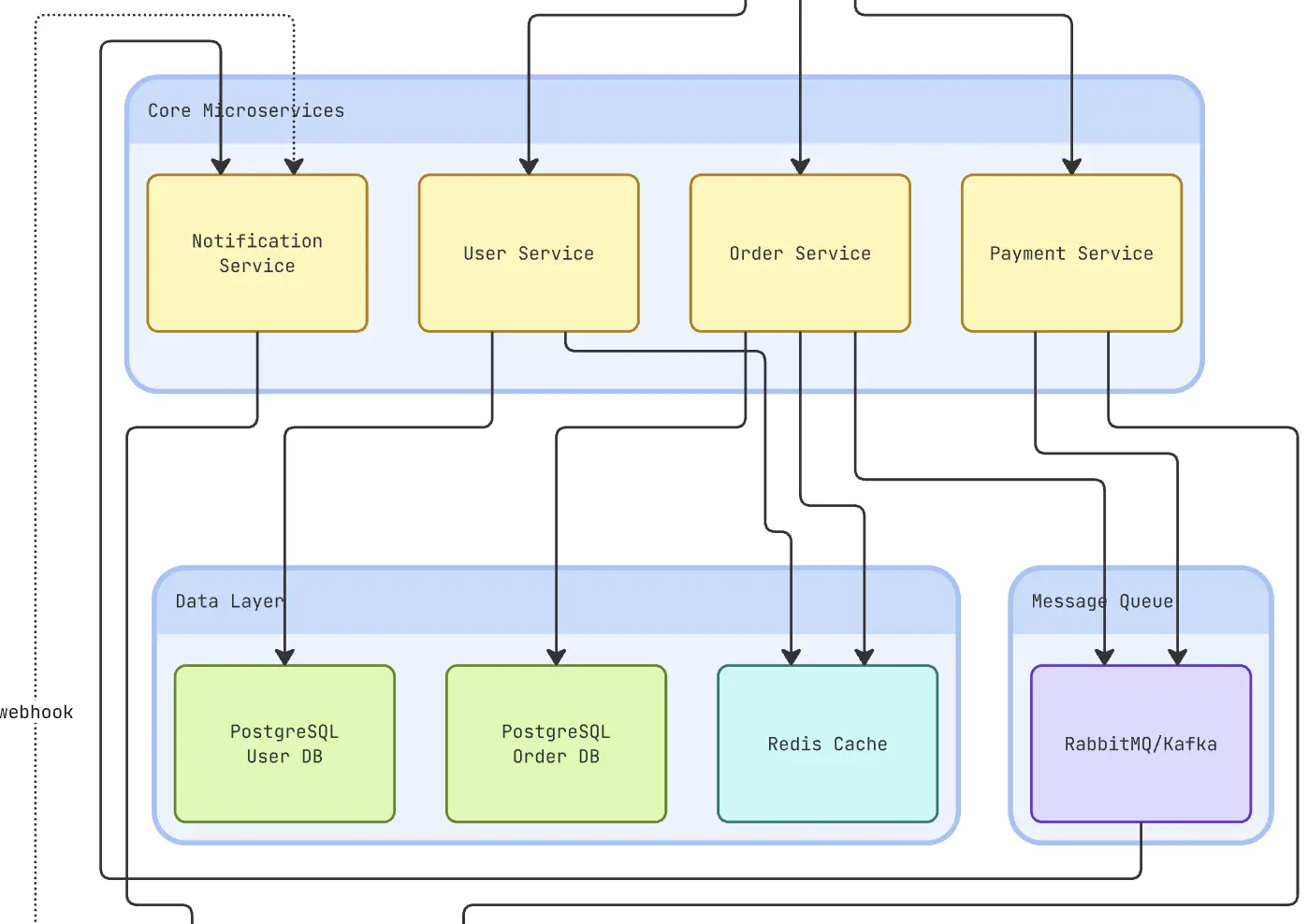
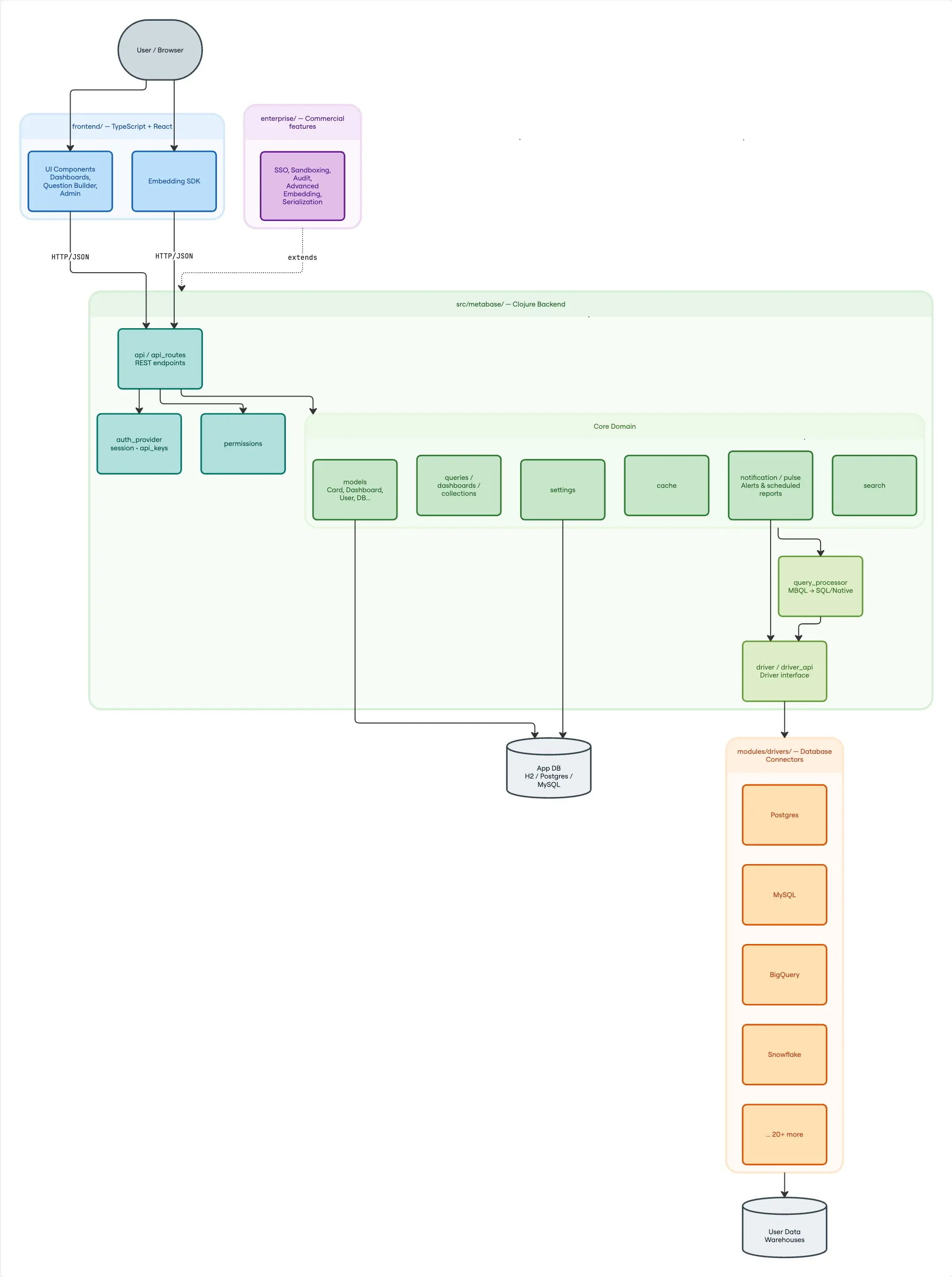
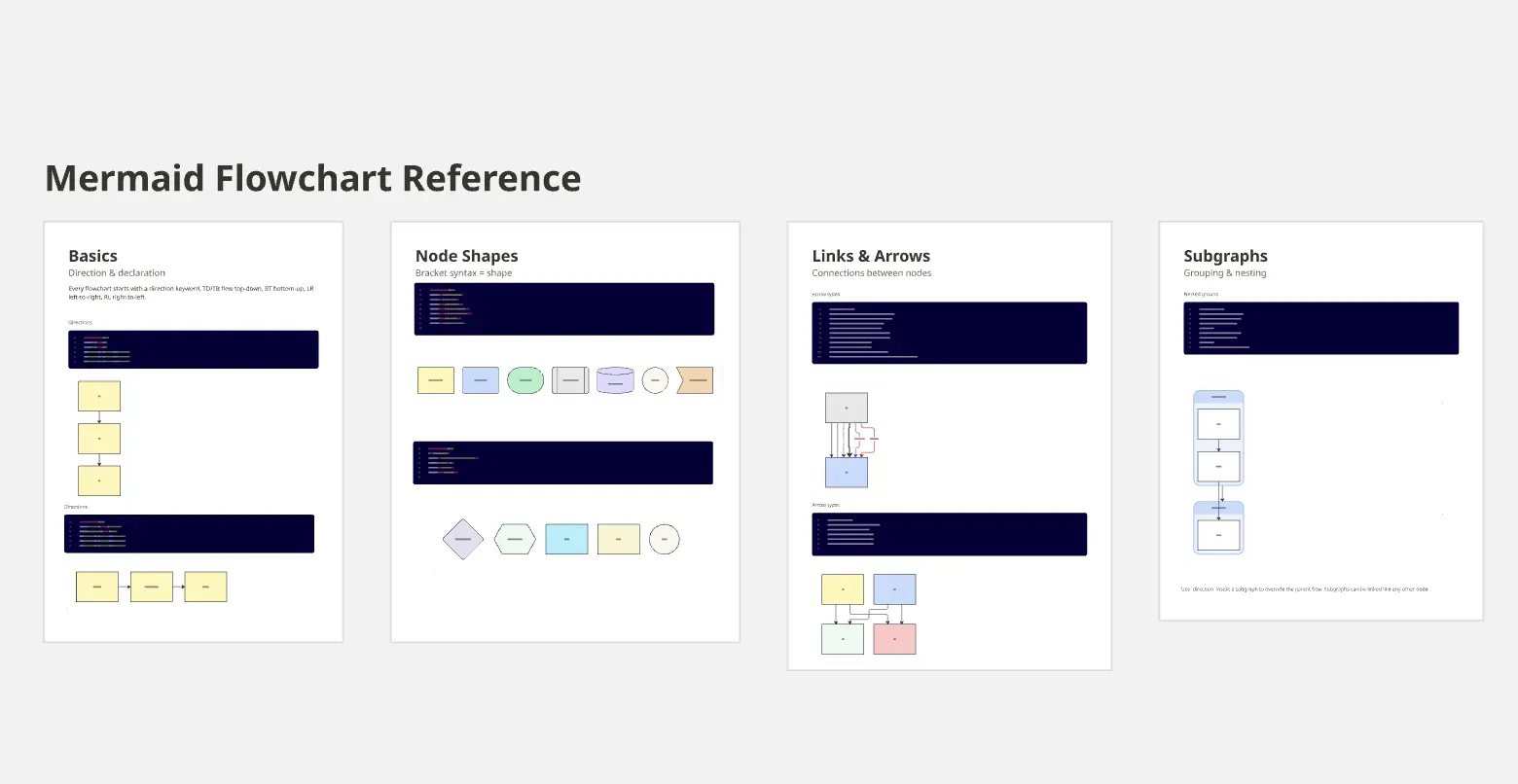
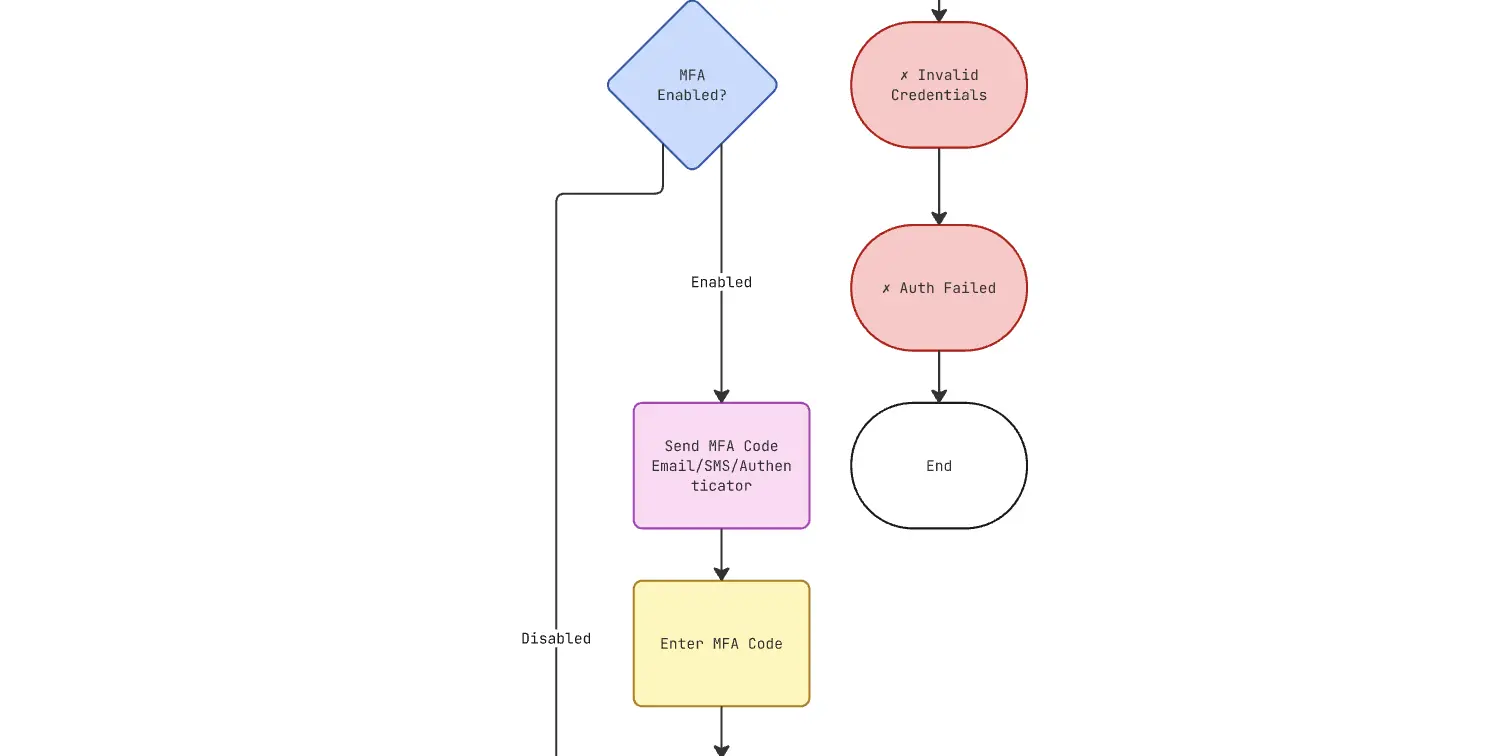
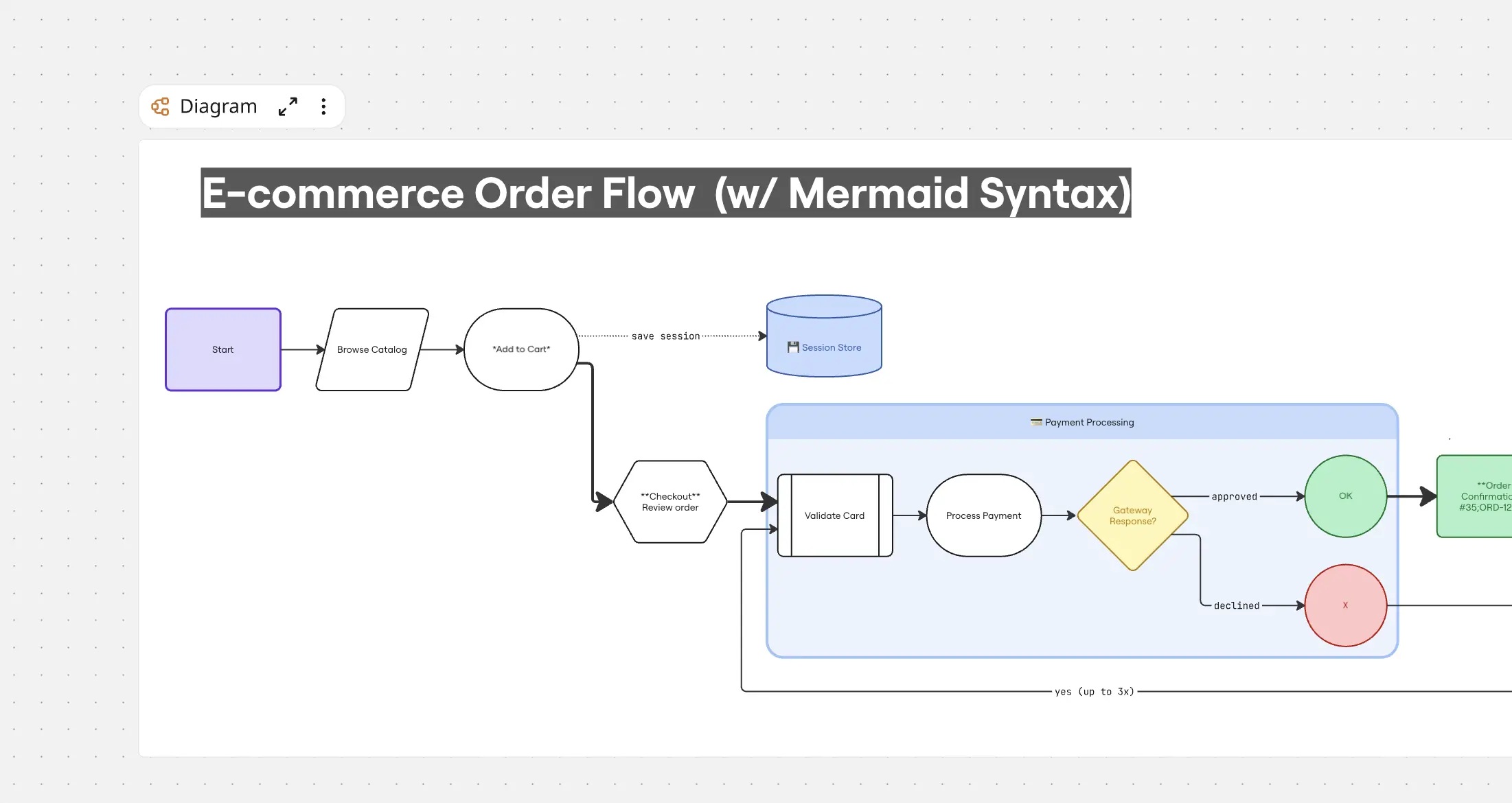
Flowchart (flowchart or graph): Mapping user onboarding paths, error-handling algorithms, and operational business processes.
Sequence Diagram (sequenceDiagram): Visualizing API request/response cycles, OAuth flows, and multi-service messaging queues.
State Diagram (stateDiagram-v2): Documenting complex UI state changes, order lifecycle transitions, or IoT device modes.
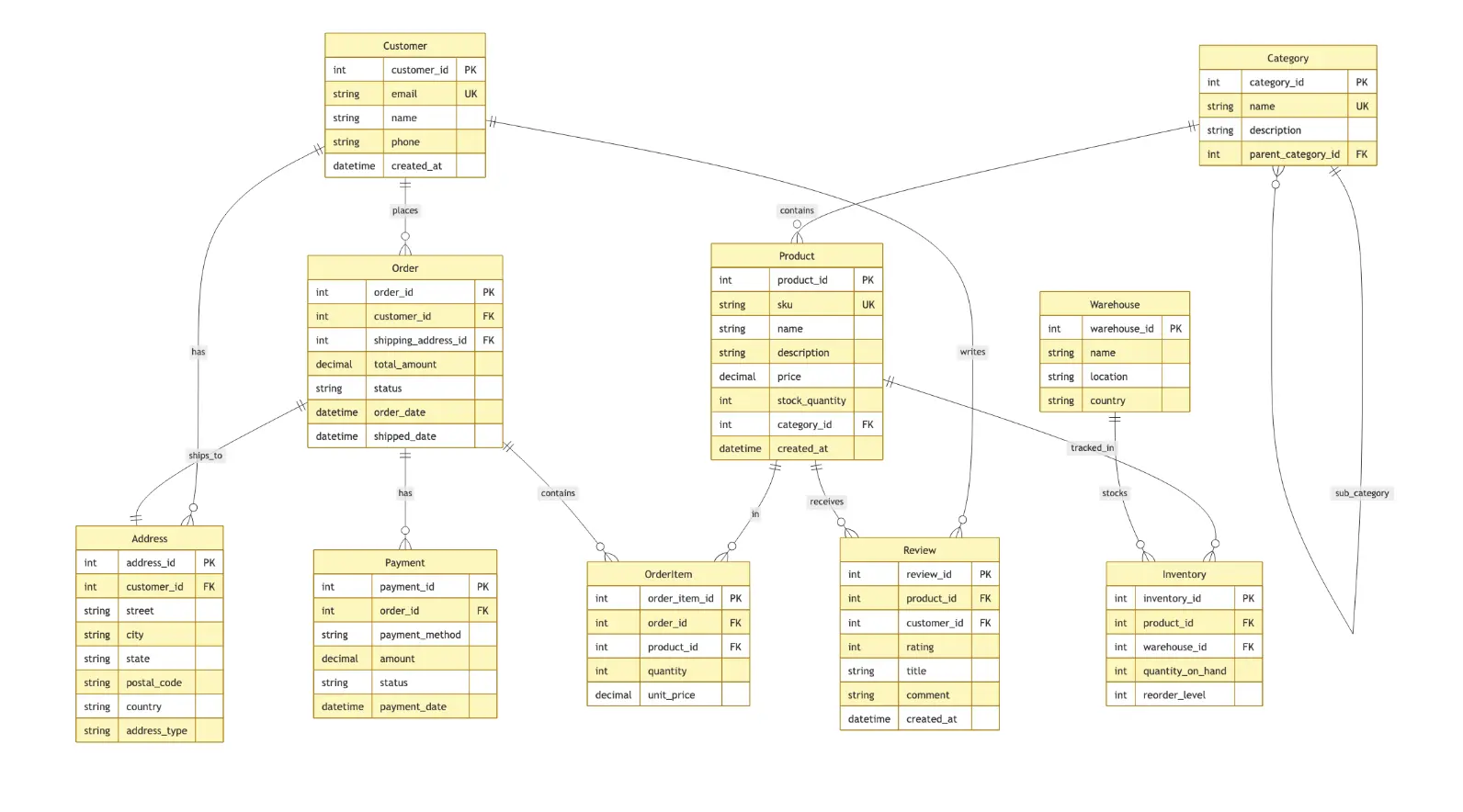
Entity Relationship (erDiagram): Modeling relational database tables, primary/foreign key connections, and data schemas.
Gantt / Roadmap (gantt): Sequencing software delivery phases, resource capacity, and cross-team sprint tasks.
How to Use Mermaid Diagram Templates in Miro
Add a Mermaid diagram or use a template
You can create Mermaid-powered diagrams in three main ways:
Paste Mermaid code directly on the board
Copy Mermaid code from your editor, docs, or an AI chat.
Paste it onto a Miro board.
Miro renders it as a Diagram made of editable Miro shapes (not a static image).
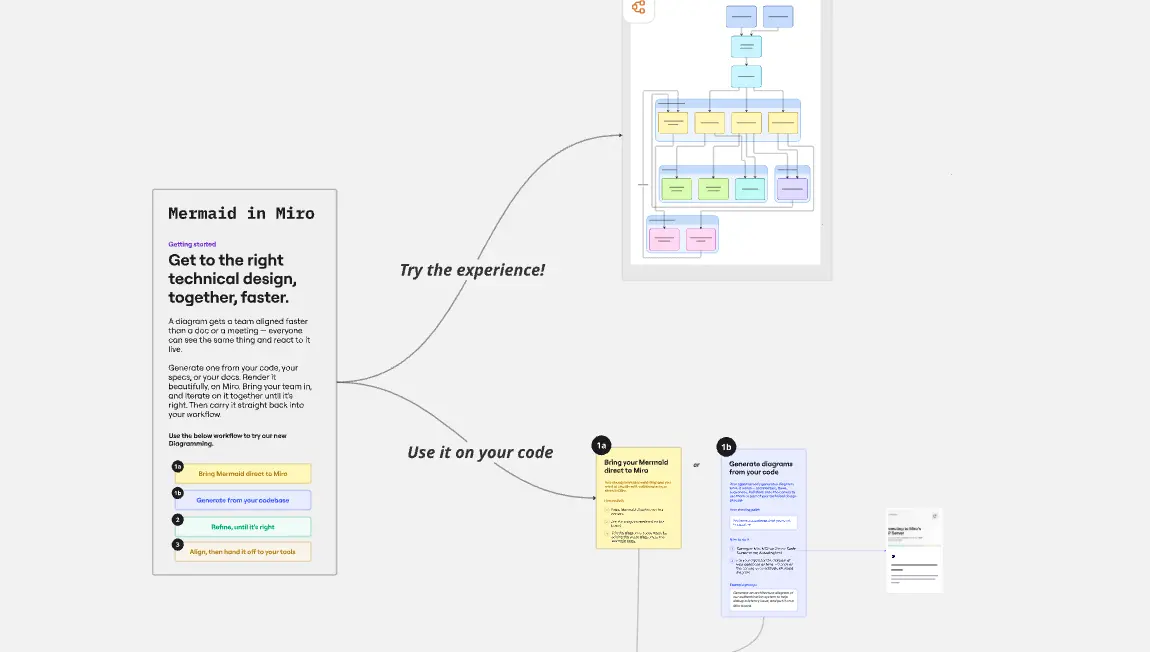
Use the Diagram format (“Build with code”)
On a Miro board, open the Creation bar and go to Formats → Diagram
Click Build with code
Paste your Mermaid code into the code panel or pick a Mermaid template
The diagram renders as Miro shapes, and you can continue editing in focus mode or on the canvas.
Generate via Miro MCP + an AI tool (for power users)
Connect an MCP-compatible AI tool (e.g., Cursor, Claude Code) to Miro MCP Server
Ask the agent to create a Mermaid diagram on a specific board (include the board URL).
Open the board in Miro to review and edit the rendered diagram; agents can also read/update the Mermaid diagram later.
Edit Mermaid diagrams
You can always edit both visually and in code; they stay in sync.