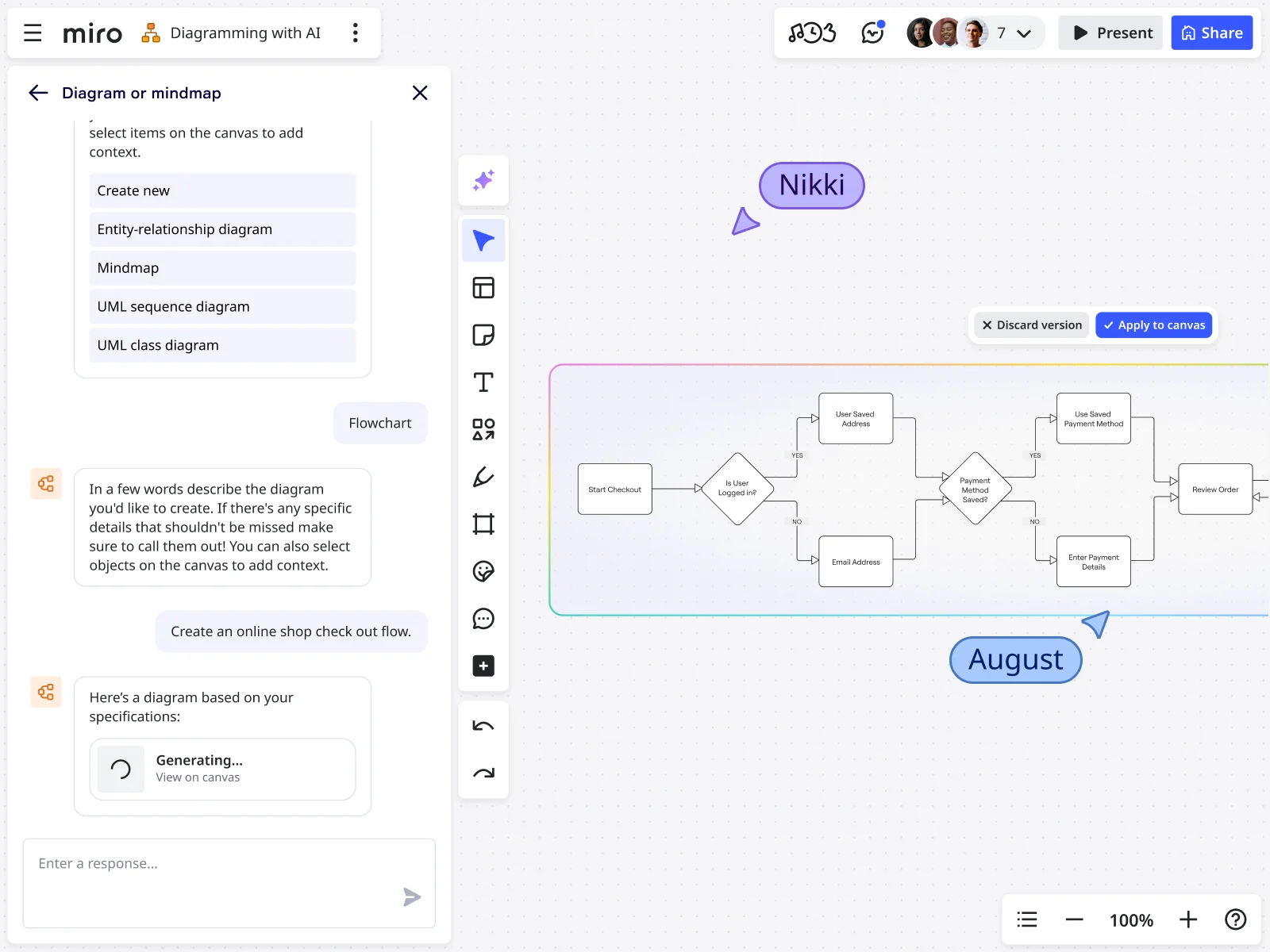
Customization Features in Miro’s AI Flowchart Generator
Transform your written concepts into visual diagrams with a customizable flowchart. Instead of spending hours manually arranging shapes and connectors, simply describe your workflow and see it mapped out in seconds.
Every flowchart is fully customizable - edit shapes, connectors, and layouts, or apply your team’s brand styles with just a few clicks. No rigid designs, no set templates. Create a custom flowchart that works and evolves with you.
Create Flowchart Variations in Seconds
There’s no need to settle on the first AI generated flowchart. With prompt variations, you can instantly generate alternative versions to explore different user paths, system configurations, or process options - all without starting from scratch each time.
Compare variations side by side, refine them with your team, and use built-in collaboration tools like comments or voting to decide on the best approach. This lets you test different process flows, compare approaches, and find the optimal workflow. Cut the manual work and save your team hours.
Apply Your Team’s Branding and Style
Once you’ve used Miro’s custom flowchart maker to create your base, you can now align it with your brand’s look and feel. Upload brand colors and fonts in the Brand Center, so approved styles are just a click away for every team member. This makes it easy for all team members to achieve the same look across all projects.
With custom branding applied, flowcharts match the professional standard of your other documents and presentations. Teams can collaborate with confidence, knowing every diagram reflects the same brand identity.
300+ Templates Ready for Customization
Get started on a customizable flowchart straight away. Dive into our library of over 300 templates to help kickstart your project. Each one is designed to save setup time, so you can focus on optimizing workflows.
Choosing the right flowchart template depends on your project’s requirements. Whether you need a decision tree for customer support, a process flow for pipelines, or a troubleshooting map, Miro’s AI flowchart generator can suggest the right type of diagram from your prompt.
Every template is fully customizable and can be refined together with your team, making it easy to adapt structures to your scope and requirements.
1. Yes-No Flowchart Templates
Yes-no flowchart templates can help visualize decision points and their outcomes, breaking complex processes into clear, step-by-step pathways. This makes decision-making faster, more consistent, and easier for everyone to follow.
Using a yes-no flowchart is essential for approval processes. Especially where consistency and accuracy are critical. This includes customer service protocols, quality control procedures, troubleshooting guides, and approval processes.
2. If-Then Flowchart Templates
If-then flowchart templates help to map out conditional scenarios. They translate into clear responsibilities, so teams always know who acts when specific conditions are met. This can streamline processes, provide role clarity, and identity growth opportunities.
By using customizable if-then flowchart templates, organizations remove confusion and delays, ensuring that responsibilities are clear across teams.
3. Troubleshooting Flowchart Templates
Troubleshooting flowchart templates streamline problem-solving by guiding users through logical diagnostic steps. Instead of relying on trial-and-error, you can remove downtime, improve communication, and ensure a consistent approach across the team. With clear pathways in place, junior staff can resolve routine issues with confidence, while senior experts focus on more complex challenges. The result is higher productivity and better knowledge sharing across your teams.
4. Algorithm Flowchart Templates
Algorithm flowchart templates create a shared language that makes complex processes clear and accessible. By breaking algorithms into visual steps, both technical and non-technical team members to understand, document, and improve workflows with confidence..
An algorithm flowchart can boost confidence and collaboration between team members. New developers can grasp existing systems. Project managers can assess scope and complexity with accuracy. And stakeholders can contribute meaningful feedback on business logic.
This fosters collaboration across roles and scales effectively as systems grow more complex.
5. Design Process Flowchart Templates
Design process flowchart templates provide creative teams with a clear, visual roadmap from concept to completion. They are transparent, easy-to-manage workflows that improve planning, decision-making, and execution at every stage.
By aligning designers, project managers, and clients in one shared space, you can reduce miscommunication and create shared accountability. It will also ensure smoother collaboration between teams and keep work organized and on track.
Build Custom Apps, Tools, and Integrations
Creating a customizable flowchart with Miro goes beyond personalizing colors and fonts. With the Miro developer platform, you can build custom apps, tools, and integrations tailored to your workflows and existing tech stack.
Sync flowcharts with project management tools, pull real-time data from databases, trigger notifications in communication platforms, or connect with specialized industry software. This eliminates the need to duplicate information across systems and ensures every diagram stays accurate and actionable.
For larger teams, custom integrations can be rolled out across your organization or published on the Miro Marketplace for others to use. By automating data flows, your AI-generated flowcharts stay accurate, up to date, and connected to your business.
FAQs
Can you save custom styles and templates for future use?
Yes, you can save custom styles and templates in Miro for future use. Apply your brand colors, fonts, and layouts once, then save them as a template for your team.
In the Brand Center, you can also set approved design elements. This makes it effortless to apply your organization’s brand identity to any new flowcharts and diagrams you create.
How much can you actually change after Miro creates a flowchart?
You can change every part of a flowchart after Miro creates it. From individual shapes and text to the entire structure and layout, to adding new steps, deleting sections, changing connector types, resizing elements, or completely rearranging the flow.
The AI-generated flowchart is your starting point. You have full control to customize it exactly how you need it.
Can you customize flowcharts to match different departments or use cases?
Yes, you can customize flowcharts for different departments and use cases. For example, you can use specific colors for HR processes vs. technical workflows, or customize templates for different industries or compliance requirements. You can even build department-specific shape libraries.
This way, your marketing team’s customer journey flowcharts can look different from IT system diagrams. Yet, you'll always maintain brand consistency.
What makes this better than regular flowchart software?
Miro goes beyond basic flowchart tools by combining AI, customization, and integrations in one collaborative workspace. Teams can move from initial ideas to finished projects without switching platforms. AI speeds up creation for both technical and non-technical users, while customization options ensure every diagram reflects your workflows and brand. With 160+ integrations - including Google Workspace, Jira, and Asana - your flowcharts stay linked to your work instead of being stuck in a separate tool.
Author: Miro Team Last update: October 6, 2025
Join our 100M+ users today


