2025 delivered. Big time. This was the year Miro became the AI Innovation Workspace, where you and your team can work together with AI on one shared canvas. We also celebrated a huge milestone: more than 100 million users worldwide, with 250,000+ companies building on Miro.
There’s a lot to cover — from AI that actually gets what you’re working on, to new ways to structure your work, and integrations that keep all your go-to tools in sync. Plus, we completely reimagined how product, design, and engineering teams build products with Miro for Product Acceleration.
It all adds up to this: Your team’s walking into 2026 ready to get great done. You’ve got all the tools you need to move faster, together, in the direction that really matters.
Here’s a roundup of 25 updates that defined 2025. The big launches, the AI breakthroughs, and the small but mighty improvements that made Miro work better for you. Let’s get into it.
Getting great done with the AI Innovation Workspace
The canvas has always been where teamwork happens. This year, AI joined in. Not in another tab or chat window, but right there alongside your team — helping you build on everything you’ve already created together.
Here’s the thing: AI has made individual work lightning-fast. But for teams, it’s been a different story. Everyone’s off in their own chat, building their own version of the plan. Then you try to sync up and — well, you know how that goes. Context gets lost, wires get crossed, and you spend more time aligning than actually moving forward.
At Canvas 25 in October, we unveiled the AI Innovation Workspace. At the heart of it is our new AI Canvas, where teams and AI work side-by-side. Here’s how it’ll transform your work in 2026.
1. Run multi-step AI workflows with Flows
Imagine you’ve just wrapped up a round of customer research. You turn the feedback into key insights, then a product brief, then a working prototype. All in one go. That’s the power of Flows.
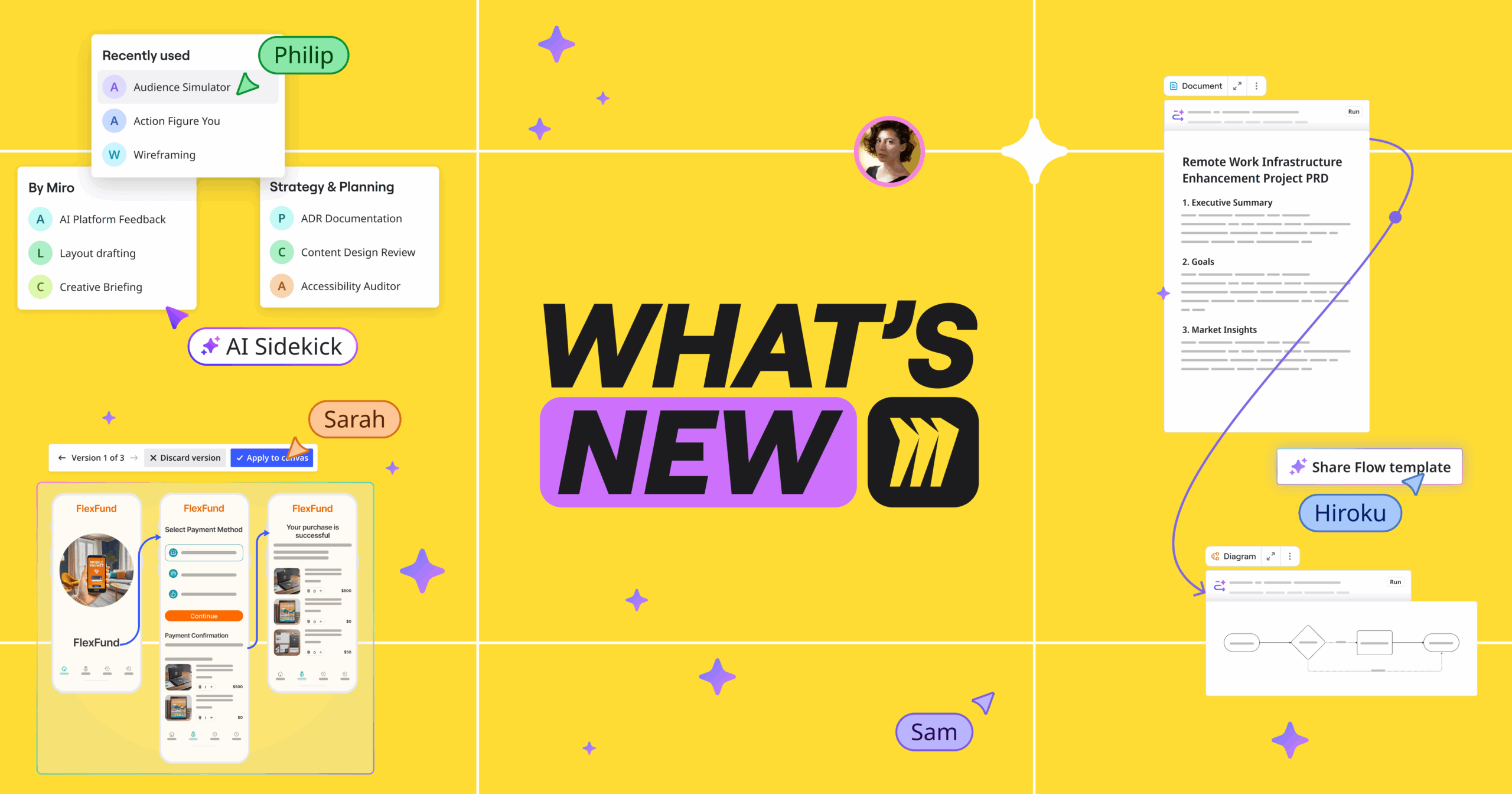
Create repeatable, multi-step AI workflows, right on the canvas. No complex prompts needed — just connect your context and watch AI run with it. The best part? Your team can see every step, jump in to tweak, and refine the results together. Once you’ve nailed a process, save it as a template to reuse it later. Your ideas turn into plans, your plans into action, and your wins become your new way of working.
2. Team up with Sidekicks on the canvas
Flows are great for structured, repeatable processes. To get to that point, it’s helpful to have a thought partner — someone to gut-check your strategy, spot what you’re missing, or help you push past a creative block.
That’s where Sidekicks come in. They’re AI agents that work alongside you on the canvas, understand the context, and help you move forward. Ask them for feedback on your roadmap, get a fresh take from your target persona’s point of view, or just hand off your busywork like building slides or diagrams. Start fast with our ready-made Sidekicks, or create your own with your team’s unique frameworks and brand guidelines built in.
3. Skip explaining — your canvas is the prompt
Here’s what makes Flows and Sidekicks so powerful: they actually get what you’re working on. Most AI tools need you to describe what you’re working on in detail, so getting the prompt right becomes a project in itself. But in Miro, you can just select all the context on the canvas: screenshots, stickies, diagrams, even the results of your team’s dot voting session.
Miro AI doesn’t just understand each individual piece, but also how they all connect. We call it visual context processing. It means everything you ask AI to create is grounded in the work you’ve already done. Rich context in, better results out.
4. Turn rough ideas into polished docs, diagrams, and more with AI
Speaking of creating things with AI — here’s where it gets fun. Got a messy brainstorm? Turn it into a structured summary doc. Sketched out a quick user flow? Turn it into a polished diagram. You can generate docs, sticky notes, diagrams, tables, and prototypes from a simple prompt, using whatever you’ve selected on the canvas as context.
And you don’t have to get it right the first time. Iterate in a private chat, compare versions, and only add it to the board when you’re ready to share.
5. Connect the canvas to your AI coding tools with MCP
For engineers and builders, all that rich context doesn’t have to stay on the canvas. Model Context Protocol (MCP) connects Miro to AI coding tools like Cursor, GitHub Copilot, Windsurf, and Claude Code — so your team’s ideas, designs, and decisions flow directly to your coding environment.
And it works both ways. When specs change, context flows back to Miro so everything stays in sync. It’s the canvas-to-code pipeline engineering teams have been waiting for.
6. Bring your company knowledge onto the canvas
Quality AI outputs need quality inputs. But too often, the context you need is scattered across Confluence, Google Drive, Slack, internal wikis — and you spend more time hunting for information than actually working.
Our new and upcoming integrations with Glean, Amazon Q, Microsoft Copilot, and Gemini Enterprise let you search your company’s knowledge base without leaving Miro. Find what you need, drag it onto the canvas, and use it to fuel your next move with Sidekicks and Flows. The context is already there. Just use it.
7. Hit the ground running with AI-powered templates
Putting all these AI updates into practice is easier than you think. You don’t have to start from scratch. 80+ Miro templates now come with Sidekicks and Flows already built in — so you’re not just starting with a structure, you’re starting with momentum.
Technical solution design. Weekly updates. Candidate interviews. Whatever you’re working on, there’s a template ready to go. Or you can add a Sidekick or Flow to any existing board and pick up speed wherever you are.
Reimagining how product teams work with Miro for Product Acceleration
Great products don’t happen by accident. They happen when strategy connects to execution, when teams validate before they build, and when decisions actually make it into the code. But let’s be honest — that’s easier said than done. Strategy lives in one place, execution in another, and somewhere in between, context gets lost.
That’s why we built Miro for Product Acceleration: a suite of AI-first products designed specifically for product, engineering, and design teams. It brings together everything your teams need to connect strategy to daily work, validate ideas before building, and get more from AI coding tools. The products are rolling out gradually — here’s a taster of what to expect.
8. Tie your work back to company goals with Goals and Roadmaps
You want your work to count — to know you’re building toward goals that matter, not just checking boxes. That’s easier when you can see how your work connects to the bigger picture.
Miro Goals helps you keep company objectives top of mind. View goal cards right where you work, and zero in on them during sprint planning to make sure every commitment ties back to what actually matters. You don’t have to guess if your work’s making an impact — you see it for yourself.
Miro Roadmaps brings planning onto the canvas, where your whole team can collaborate. Decide on priorities together, get AI-powered suggestions, and sync tasks with Jira or Azure DevOps so your roadmap is your single source of truth. Updates reflect in real-time, so when things shift (and they always do), you can pivot faster.
9. Build the right thing with Insights
Every team wants to build the right thing. But when customer feedback is scattered across your CRM, support tickets, and a dozen other tools, it’s tough to figure out what actually matters. You end up building on gut feeling instead.
Miro Insights brings all your feedback together in one place, and gives you AI-powered recommendations for what to build next. Instead of manually sifting through customer interviews and support tickets, you get clear, data-backed insights on what customers actually want. You can prioritize with confidence, ship features that land, and stop second-guessing every product decision.
10. Make product decisions faster with Prototypes
The best ideas often start rough: a sketch, a screenshot, stickies from a workshop. Shaping them into something tangible shouldn’t take weeks. That’s where Miro Prototypes come in. And this year, they got even better.
You now have a focused space to explore ideas early, collaborate, and make decisions. Use AI to turn what’s already on your canvas — screenshots of your product, workshop ideas, PRDs, user flows — into interactive prototypes you can click through.
Then refine them together: adjust layouts and flows with drag and drop, preview the experience like a user would, and make changes on the spot as feedback rolls in. Map out full journeys in one view so teams can compare options and align on direction together. When design or dev kicks off, your whole team knows exactly what to build.
11. Get more from AI coding tools with Technical Design and Specs
AI coding tools are only as good as the context they get. But by the time requirements make it from product to engineering, things get lost in translation — with context scattered across docs, tickets, and half-remembered conversations. Cue engineers rewriting all the AI-generated code. Again.
Miro Technical Design helps teams turn complex problems into clear diagrams and documentation, all synced with Confluence and Notion. Then, you can package all those PRDs, prototypes, and technical diagrams into comprehensive specs using Miro Specs — and send them straight to your AI coding tools via MCP. Better context means higher-quality code, and a lot less back-and-forth.
Moving from brainstorm to build with Formats
There’s a moment in every project where the ideas are flowing, the energy is high — and then you need to actually turn all that creativity into something structured. A plan. A presentation. A diagram that makes sense to people who weren’t in the room.
That’s where Formats come in. In Miro, you don’t just have to work on the canvas, but also in structured formats like docs and tables. This year, we added some new ones to the lineup. And they’re all powered by AI, so momentum never drops.
12. Plan and track work with Tables, Timeline, and Kanban
Your PM wants a timeline. Your team wants a Kanban. You want a spreadsheet you can actually filter. So you end up updating all three, and none of them ever match. Until now.
With Miro Tables, you can build a plan once, then switch views depending on what you need to see. Flip to Timeline to see what’s happening when, or Kanban to spot what’s moving and what’s stuck. Or create custom views to zoom in on what matters most for your stakeholders. Same data, multiple perspectives, always in sync.
Bonus points if you connect your team’s go-to task tracking tools like Jira or Asana, so you can stay on top of the latest status — without chasing updates.
13. Map out systems and processes with Diagrams
Diagramming in a collaboration tool usually means compromise. Either you get the flexibility of a whiteboard or the precision of a dedicated diagramming tool.
Miro Diagrams gives you both. Work on a focused canvas built for diagramming, with 3,000+ shapes, layers, and precision tools on hand. And collaborate with your team in one place: gather feedback, use layers to tailor views for different audiences, and share synced copies in your documentation so it stays up to date.
14. Create interactive presentations with Slides
You’re already doing the work in Miro. Why rebuild everything in another tool just to present it? With Miro Slides, you can turn anything on your canvas into an interactive presentation. Reorder frames, drop in interactive icebreakers and polls, and workshop ideas right on the slides, so your audience doesn’t just watch — they actively take part.
Your deck lives on the canvas alongside all your context, so you can zoom out to the big picture or dive into details without breaking your flow. And now, you can even import PowerPoint presentations into Miro to make them interactive. Present, collaborate, and decide, all in one place.
Helping teams work smarter, together
AI and formats help you move faster. These next updates make sure your team moves faster, together: keeping your projects organized, your team informed, and your work consistent across the board. Think of them as the glue that keeps things running smoothly.
15. Get up to speed in seconds with Catch-up
You’ve been on PTO for a few days. Or maybe you’re jumping into a board you haven’t checked in a while. Either way, you need to know: what changed, and what needs your attention?
Catch-up gives you an AI-powered summary of the latest board changes and comment threads, highlighting what actually matters. You can filter edits by collaborator, jump to exactly where changes happened, and get back in the flow without having to sift through everything yourself.
16. Keep your projects organized with Spaces
When your work is scattered across dozens of boards, finding what you need can become a project in itself. Spaces helps with that.
Bring all your boards, docs, tables, and formats together in one centralized Space — organized by team, project, or whatever makes sense for how you work. Create sections, drag to reorder, and pin what you use most. Everything’s findable. Nothing’s lost.
17. Get from kickoff to done with Blueprints
Once you’ve got Spaces set up, they’re a game-changer. But you don’t always have to set them up from scratch.
Blueprints are ready-made Spaces loaded with boards, formats, and resources for entire workflows. Roadmap planning, OKRs, AI initiative planning, you name it. The structure’s already there — just jump in and start executing. Since everyone follows the same steps, it’s easy to standardize how your team works. Once you’ve nailed it, save it as a Blueprint and reuse it every time.
18. One source of truth, anywhere you need it with Synced copies
Some content needs to live in more than one place. Your project timeline. A process diagram. Onboarding resources for new hires. You could copy-paste it every time something changes. Or you could create Synced copies.
Copy content from one Miro board, then paste and sync it on another. It could be a diagram, a doc, a frame, or anything else you need. Whenever the original changes, your synced copies update automatically. No version control headaches. Just one source of truth, anywhere you need it.
19. Add a surprise to your next session with Flip cards
Now, this one is fun. With Flip cards, you can add the element of surprise to your workshops and meetings. Question on the front, answer on the back, flip to reveal.
They’re great for icebreakers, quizzes, teaching moments, or just breaking up the rhythm of a long session. And you can shuffle them to make things more unpredictable. Want to add even more interactive elements? Take your pick from our Intelligent widgets.
Working your way with integrations
Tab overload is real. When you’re constantly bouncing between your docs, design tools, and dashboards, half your day disappears in the shuffle.
In Miro, you can work your way, with your favorite tools, all in one place. There are 250+ apps and integrations in the Marketplace — here’s a quick roundup of some that landed this year.
20. Create polished visuals with Adobe Express in Miro
You’re putting together a presentation or workshop, and the visuals need some work. A screenshot needs cropping. A background needs removing. An image needs to… pop?
With Adobe Express in Miro, you can handle it right on your board. Clean up screenshots, polish images, and create on-brand visuals, without leaving Miro or having to bother a designer. Or open up the full Adobe Express experience in Miro to access templates, brand kits, video editing tools, and more.
21. Use your go-to Microsoft 365 tools in Miro
Not everyone on your team — or every stakeholder — lives in Miro. But chances are, they work in Microsoft 365. This year, we made some major updates to our integration with Microsoft 365 to make sure you can move easily between your work tools, and access your content wherever and whenever you need it.
- Import Word, Excel, and PowerPoint: Drag your Word docs, Excel spreadsheets, and PowerPoint decks onto the canvas. They automatically convert to editable Miro Docs, Tables, and Slides, so you can collaborate on them in Miro.
- Miro agent for Microsoft Copilot: Ask Copilot to synthesize information, find specific boards, or create content for you in Miro.
- Smart screenshots: Embed live screenshots of your Miro boards or frames in Word or PowerPoint. When you update your board, they update too.
22. Connect Miro and Google Workspace
If your team runs on Google Workspace, we’ve got you covered too. We’ve made some updates that make it easy to bring your content over from Google Workspace to Miro, and share your work back out — so everything stays in sync, wherever your team works.
- Miro for Google Chat: Keep tabs on comments, mentions, and board invites, and even create new boards. All without leaving Google Chat.
- Smart screenshots: Embed live screenshots of your Miro content in Google Docs and Slides. Update your Miro board, and they update too.
- Import Google Docs and Sheets: Bring what you’re working on in Google Docs or Sheets right into Miro, so you can keep all your work on one canvas. Edit directly from Miro — no tab switching or version control headaches. Connect Google Drive to Miro to get started.
23. Connect your tools, close your tabs
Your team relies on a whole ecosystem of tools. Bring them together in Miro so you can see the full picture without bouncing between tabs.
Embed Figma frames, Looker dashboards, Power BI reports, and more in Miro — right alongside your roadmap, research, and specs. Everyone keeps working where they work best, but you can always see how the pieces fit together.
24. Manage all your tasks in one place
Dev uses Jira. Marketing uses monday.com. Design uses Asana. Sound familiar? Now you can bring all those tasks together in one place.
Connect Miro Tables to your team’s favorite task tracking tools: Asana, Trello, Linear, ClickUp, monday.com, Jira, Rally, and more. Changes sync automatically, so you’re always looking at the latest status. Visualize dependencies across teams, track progress, and actually see how your project’s shaping up.
25. Keep everything running smoothly from Admin Home
We couldn’t wrap up this year without a shoutout to the unsung heroes who keep everything running behind the scenes: admins.
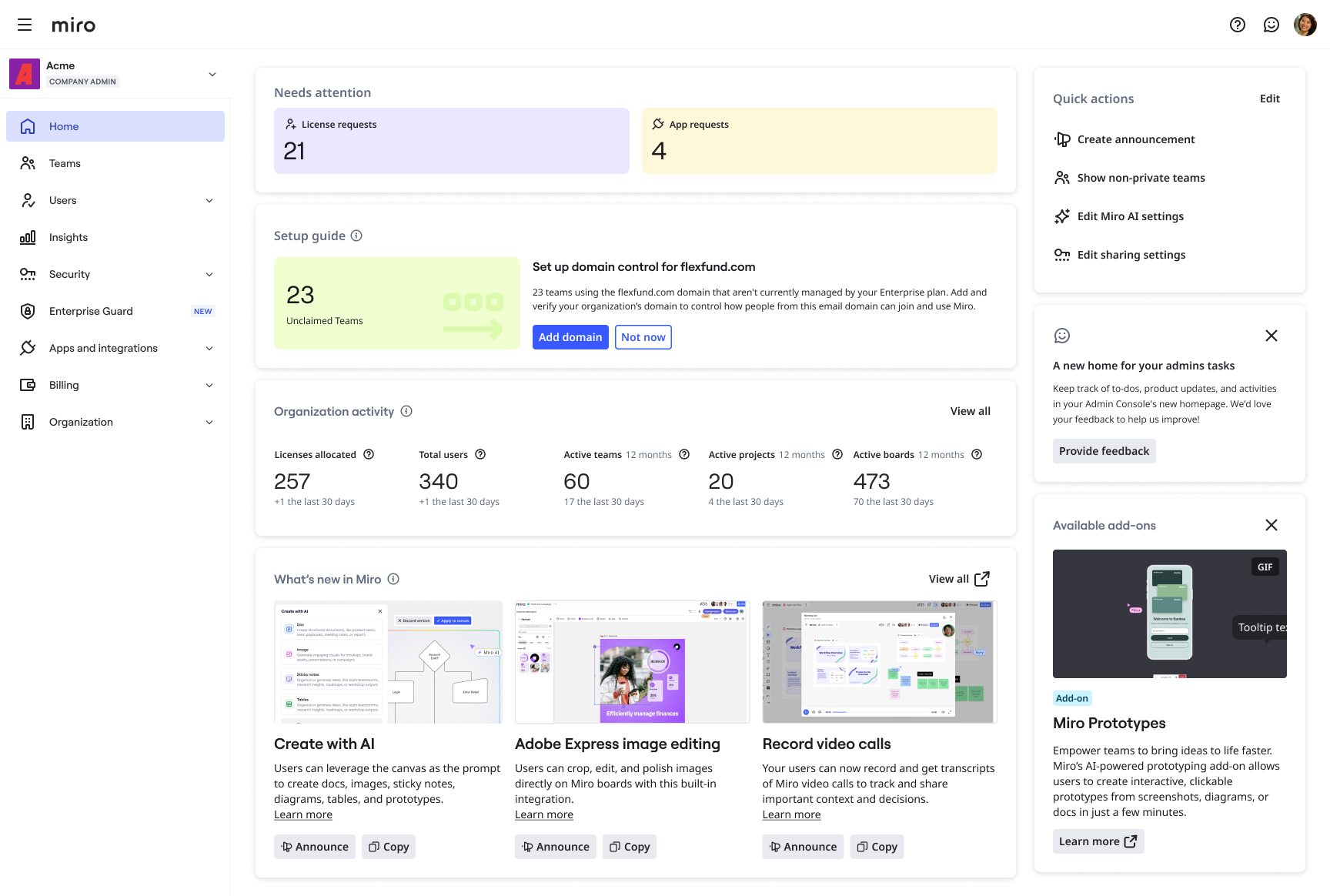
This year we launched your new mission control: Admin Home. See license requests and usage stats at a glance, take quick action without digging through menus, and keep tabs on the latest Miro features so you always know what’s new for your teams. All from one dashboard. Thanks for everything you do, admins!
See you in 2026!
That’s a wrap on our 25 updates. But honestly, it’s just a slice of everything that shipped this year, and there’s plenty more on the way. As always, you can catch our latest updates in our monthly What’s New blogs.
Before you look ahead to 2026, take a minute to look back. How many ideas did you drop on the canvas this year? Who did you collaborate with most? And what’s your unique Miro working style? We’ve wrapped it all up in your Miro Recap. Check it out, share it with your team, and celebrate how far you’ve come.
Thank you for building with us this year. Here’s to getting great done in 2026!