AI is rapidly changing how teams build, decide, and ship. But here’s what the teams in the lead have already figured out: the difference between AI that’s helpful and AI that’s truly transformative comes down to three things. The context you feed it. The speed at which your team can get on the same page. And whether you’re building on your team’s collective intelligence — not just one person’s prompt.
Those are the topics at the heart of our annual event, Canvas 26. We’re just a few weeks out from our first stop in San Francisco, where we’ll announce the latest Miro launches and show you how to put them into practice with your team. Can’t make it in person? You can register to stream the keynote live or on demand, wherever you are.
In the meantime, this month’s Miro updates are here to give you a taste of what’s to come. In this issue: feed PDFs and markdown files into AI workflows, import Jira issues into tables, create Miro boards from Microsoft Copilot, and make decisions together with new Miro Engage activities. Let’s dive in.
Canvas 26 is almost here: register now
Moving fast with AI is easy. The real challenge is making sure your team is building the right thing, together, at speed. And that’s what Canvas 26 is all about.
This year, we’re bringing Canvas 26 to four cities: San Francisco, London, Sydney, and Tokyo. It’s free, it’s in-person, and it’s where you’ll see Miro’s latest product launches and get to try them out before anyone else.
The lineup is stacked with some of the sharpest thinkers in product and AI. You’ll hear candid stories from teams getting real results with collaborative AI workflows — and leave with actionable strategies, not slides you’ll forget. Spots are filling fast, so lock in yours today.
Canvas 26 is Miro’s free annual product event, happening in San Francisco, London, Sydney, and Tokyo between May and July 2026. It brings together engineering, product, design, and AI leaders for a first look at Miro’s biggest product launches, candid stories from teams getting results with collaborative AI, and hands-on product sessions. Whether you’re an IC figuring out how to work smarter with AI or a leader scaling it across your org, this is the room to be in.
The Miro keynote is streaming live from San Francisco on May 19 at 9am PT, so you can catch our latest product launches right as they drop, or on demand later. Register now even if you can’t watch it live — we’ll send you the recording after the event, along with select session recordings from the rest of Canvas 26.
Give AI better context to work with
By now, we all know that the output you get from AI is only as good as the context you give it. A vague prompt gets a generic answer — but a detailed brief, a thorough research report, or a well-structured spec? That’s where AI starts doing work that actually moves your project forward. This month, we’re making it easier to bring your most important content onto the canvas, so it’s ready to fuel your next AI workflow.
Turn any PDF into a starting point for AI workflows
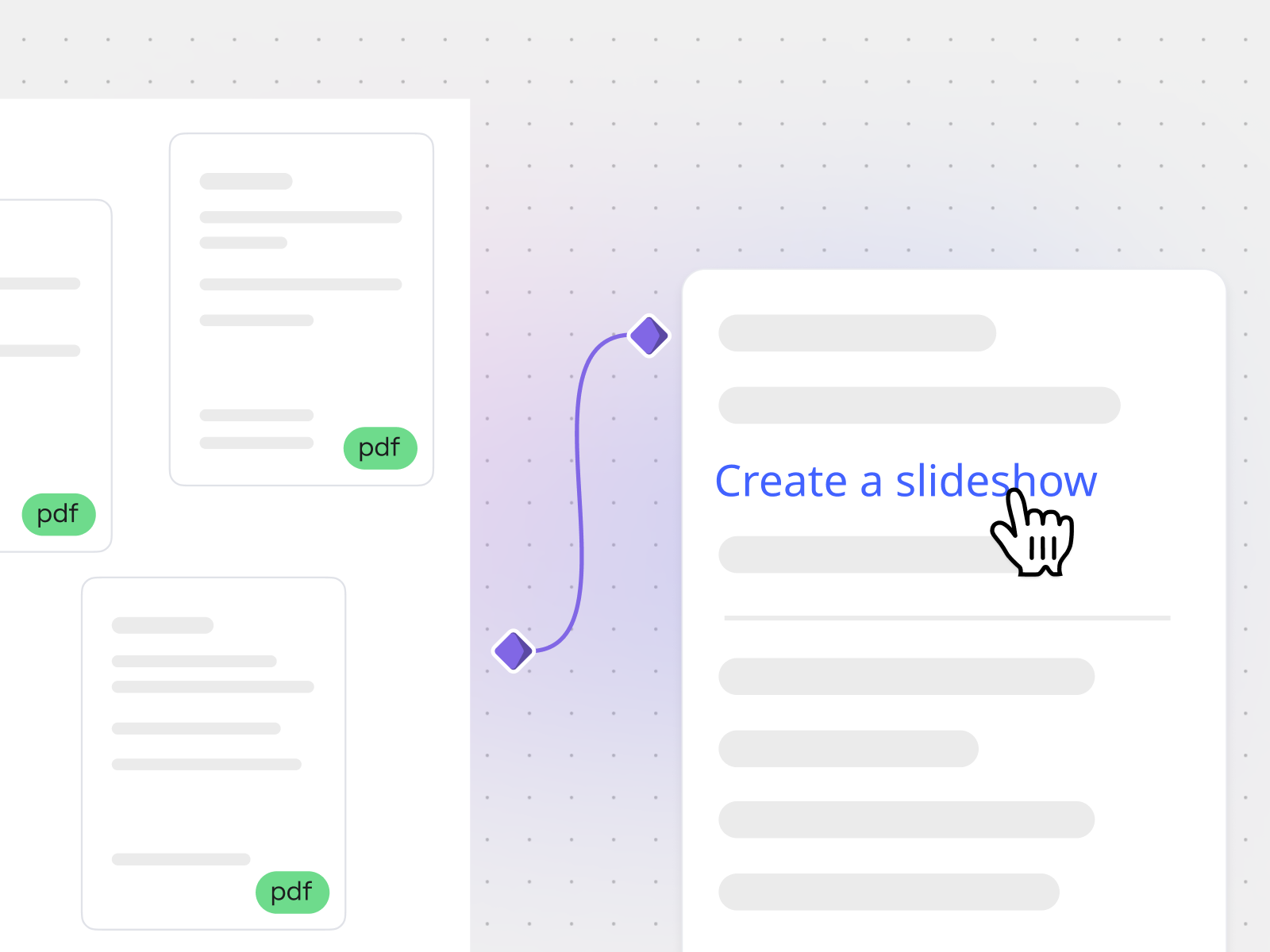
You can now use PDFs as input in Flows, Miro’s collaborative AI workflows. Just drop a PDF onto the canvas and the Flows connector icon appears, ready for your next step. Point it at a market research report and pull out key findings into a presentation. Feed it a product requirements doc and generate a user journey diagram. Hand it a creative brief and kick off a prototype. Instead of starting from a blank prompt, you start from what your team already knows. The PDF is the prompt. Find out more about running a Flow in this article.
📌 Flows availability and usage limits vary across plans. Check your plan details for specifics.
- If you’re in product: Drop a PRD onto the canvas and prompt Flows to generate a user journey map. You’ve just skipped an hour of manual diagramming.
- If you’re in marketing or design: Feed a competitive landscape or trend report into Flows and turn it into a slide deck so you can discuss it with your team.
- If you’re in engineering: Upload a technical spec and prompt Flows to generate a system architecture diagram. From written requirements to a visual in seconds.
- If you’re in leadership or ops: Turn a quarterly business review into an executive summary of key metrics and recommendations. The prep work for your next planning session just did itself.
Presentations, diagrams, prototypes, summary documents, comparison tables, and so much more — it all depends on what you prompt. A competitive analysis PDF could become a slide deck of key findings. A vendor evaluation could become a structured comparison matrix. A customer research readout could become a journey map.
Drop any PDF onto your Miro board. The Flows connector icon appears automatically — click it to choose what you want to create next. Flows uses the full content of your PDF as context, so the output reflects your actual data, research, or requirements. Find out how to run a Flow in this article.
Drag markdown files straight onto the canvas
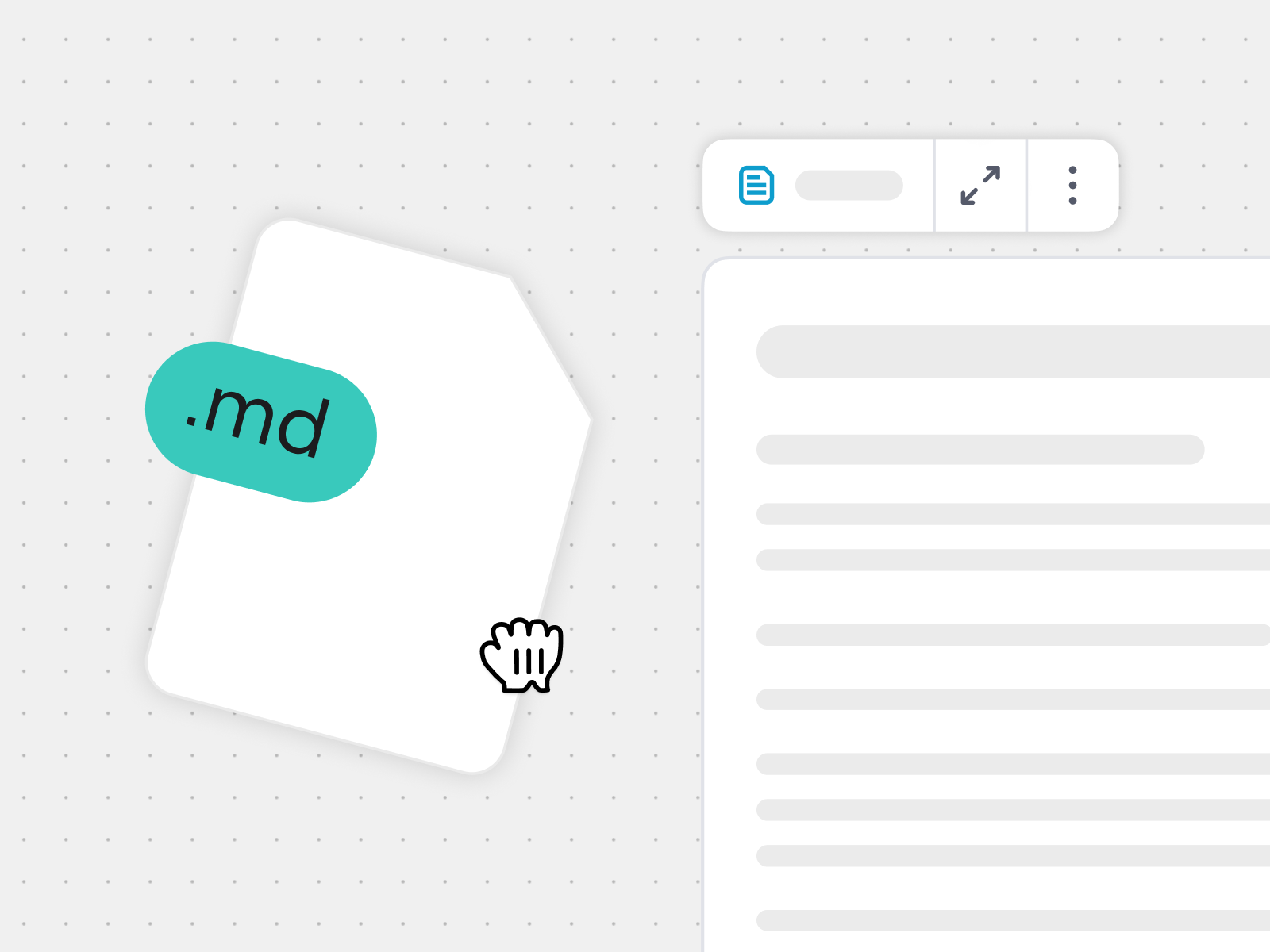
You can now drag markdown files directly into Miro, where they automatically become formatted Miro Docs with full support for code blocks and tables. And once they’re on the canvas, you can use them as input for Flows, just like any other content. This has been one of our most requested features, and it makes a bigger difference than you might expect.
If you’re using AI to draft specs, briefs, or project plans, the output often lands as a .md file. Now you can just drag it onto the canvas, and it becomes a doc your whole team can review, annotate, and build on — or use as input for Flows to take it even further.
It’s also a big win for technical teams who live in markdown every day. Drop your docs, READMEs, and technical specs onto the canvas, and you’re ready to collaborate with your team on user flows, architecture diagrams, prototypes, and more.
Quick tip: You can also export any Miro Doc as a markdown file, so you can collaborate in Miro and then bring that content back to your codebase, documentation, or other AI tools. Here’s how.
Drop a project brief or technical spec .md file onto the canvas and select it to use it as input for Flows. Then, ask AI to generate a diagram, a presentation, or a summary document from content you’ve already written.
Yes. Just drag a .md file onto any Miro board, and it becomes a formatted Miro Doc that you can edit or use as input for Flows, Miro’s collaborative AI workflows. You can also export any Miro Doc back to markdown. Here’s how.
Keep your team building in the same direction
Fast build cycles are great until half the team is working from the backlog while the other half is looking at last week’s planning board — and decisions made in meetings never make it to the people doing the work. We’ve been working on tighter connections between Miro and the rest of your stack, so picking up speed doesn’t mean losing track of each other. Here’s what just shipped.
Import Jira issues directly into Miro Tables
You can now search and import Jira issues directly into Miro Tables — no more copy-pasting or dragging cards around to build your planning view.
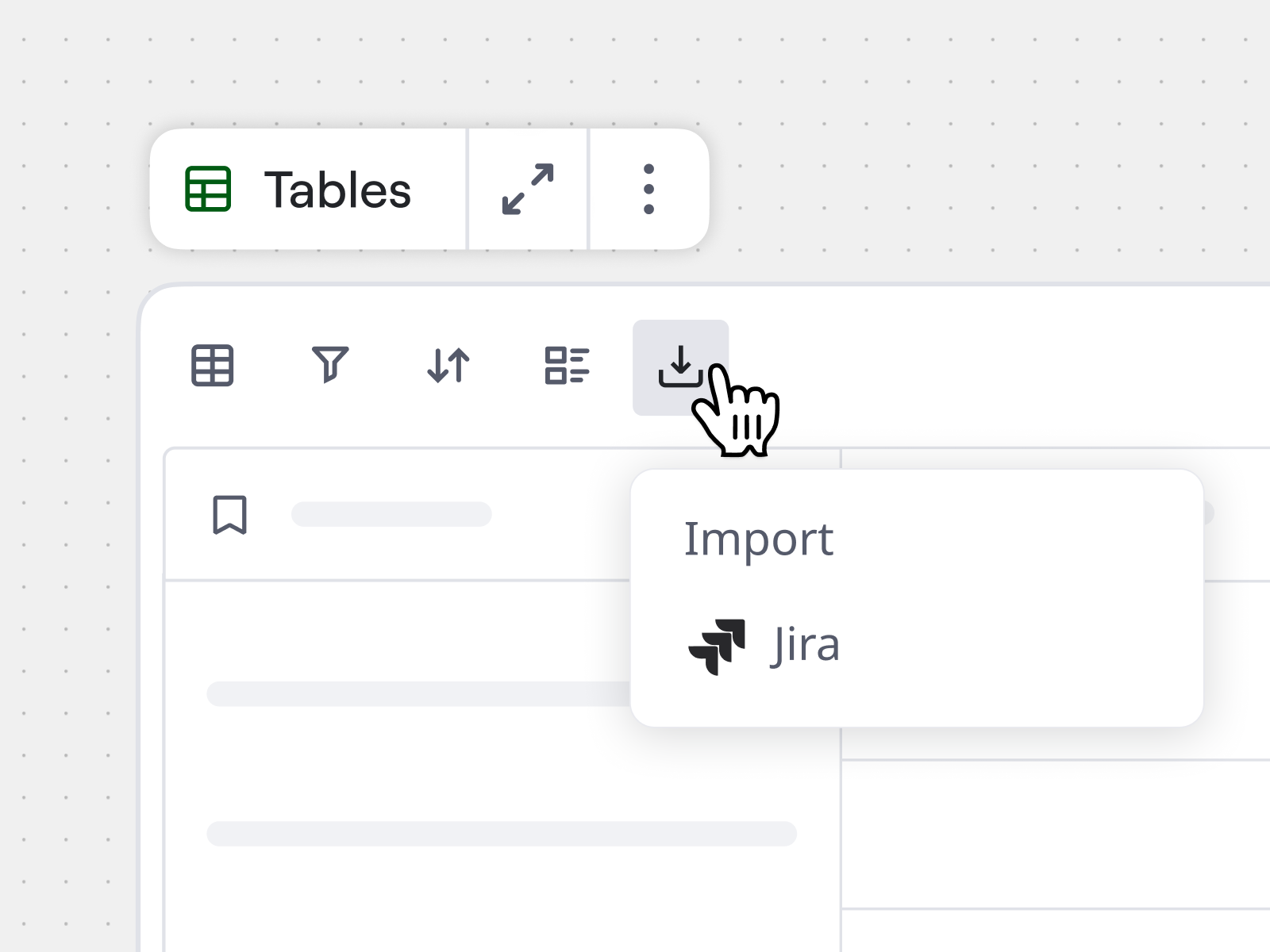
Just hit “Import”, open the Jira issue picker, find what you need, and pull it in. Your sprint backlog, a set of epics for roadmap review, issues from multiple projects for dependency mapping — it’s all on the canvas in seconds, structured and ready for your team to work with. And it syncs both ways, so changes in Miro update Jira and vice versa.
Ready to try it? Connect Jira to Miro, and see what else you can do with Miro Tables.
📌 Available on the Enterprise plan with the Advanced license.
- If you’re a scrum master or engineering lead: Import your sprint backlog before the next planning session. Group by priority, add an estimation column, and let the team plan with the full picture on the canvas. Try the Sprint Planning with Jira template for a quick start.
- If you’re in product: Pull in epics across multiple projects, then switch to timeline view for a stakeholder-ready roadmap — grounded in real Jira data, without asking anyone to log into Jira.
- If you lead team planning sessions: Import work from Jira, Asana, monday.com, or whichever tools your team uses into a single Miro Table. Now, you can run your session from one view instead of four tabs.
Miro’s two-way integration with Jira makes sprint planning faster and more collaborative. Import your Jira backlog directly into a Miro Table, then organize it however your team plans best — group by priority or assignee, set up columns for each sprint, and add filters to focus the view. Your team estimates, discusses, and reprioritizes right on the canvas, with all relevant tasks in one view. Changes sync back to Jira automatically, so nothing gets lost between the session and the sprint.
Want a head start? Try our Sprint Planning with Jira template.
Yes! Miro Tables support imports with two-way sync from Jira, Asana, monday.com, ClickUp, and Trello. That means a cross-functional team where engineering tracks work in Jira, design uses Asana, and marketing runs on Monday can use a single Miro Table as their shared planning surface. All the work is visible in one view, it stays up to date automatically, and your team can plan, prioritize, and spot dependencies without asking anyone to switch tools.
Create Miro boards from a Microsoft Copilot conversation
The Miro app in Microsoft Copilot just got an upgrade. Your team can now create Miro content — including diagrams, flowcharts, timelines, tables, and sticky notes — directly from a Copilot conversation, with all the visuals rendered right in the chat.
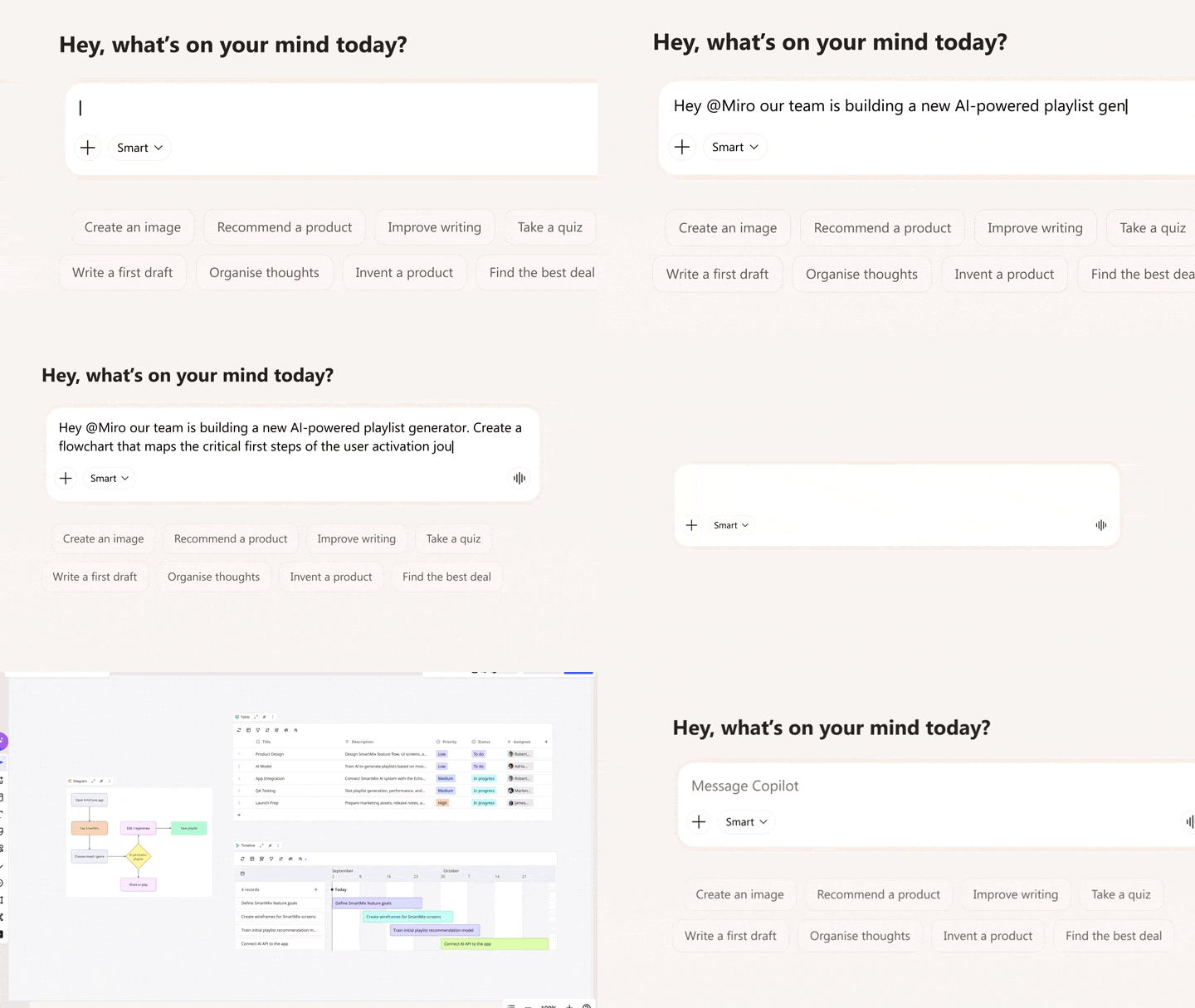
Previously, the Miro app in Copilot could search your existing boards and create new ones. Now it builds rich, visual content out for you — and you don’t even have to leave Copilot to see it. A planning discussion becomes a structured timeline. Notes from your Teams call shape your project plan. A technical conversation turns into a system diagram. And all the thinking you do with Copilot can become something visual that your whole team can work with.
To find out more about Miro in Copilot, check out this article.
📌 Available on Business and Enterprise plans. You’ll need a Microsoft Copilot license to use this feature. Reach out to your Microsoft admin with any questions about access.
Make decisions together with your team
Every person on your team has a perspective on what matters most. The challenge is capturing all of them at once and turning that input into something you can actually act on.
Prioritize and align as a team in real time
Meet the two newest additions to Miro Engage: Ranking and Scales. In case you missed it, Miro Engage is an audience engagement tool for running interactive activities during workshops, presentations, and team meetings — and these two make it even more useful for collecting structured input from your team or collaborators.
- With Ranking, you set up a list of items, and your audience drags them into their preferred order. The group’s collective ranking is calculated and revealed in real time — so you go from “everyone has an opinion” to “here’s what the team thinks” in moments.
- With Scales, you add statements for participants to rate on a custom scale — from “strongly disagree” to “strongly agree,” 1 to 10, or whatever range fits. Results show as bars and averages, giving you an instant read on where your team is aligned and where they’re not.
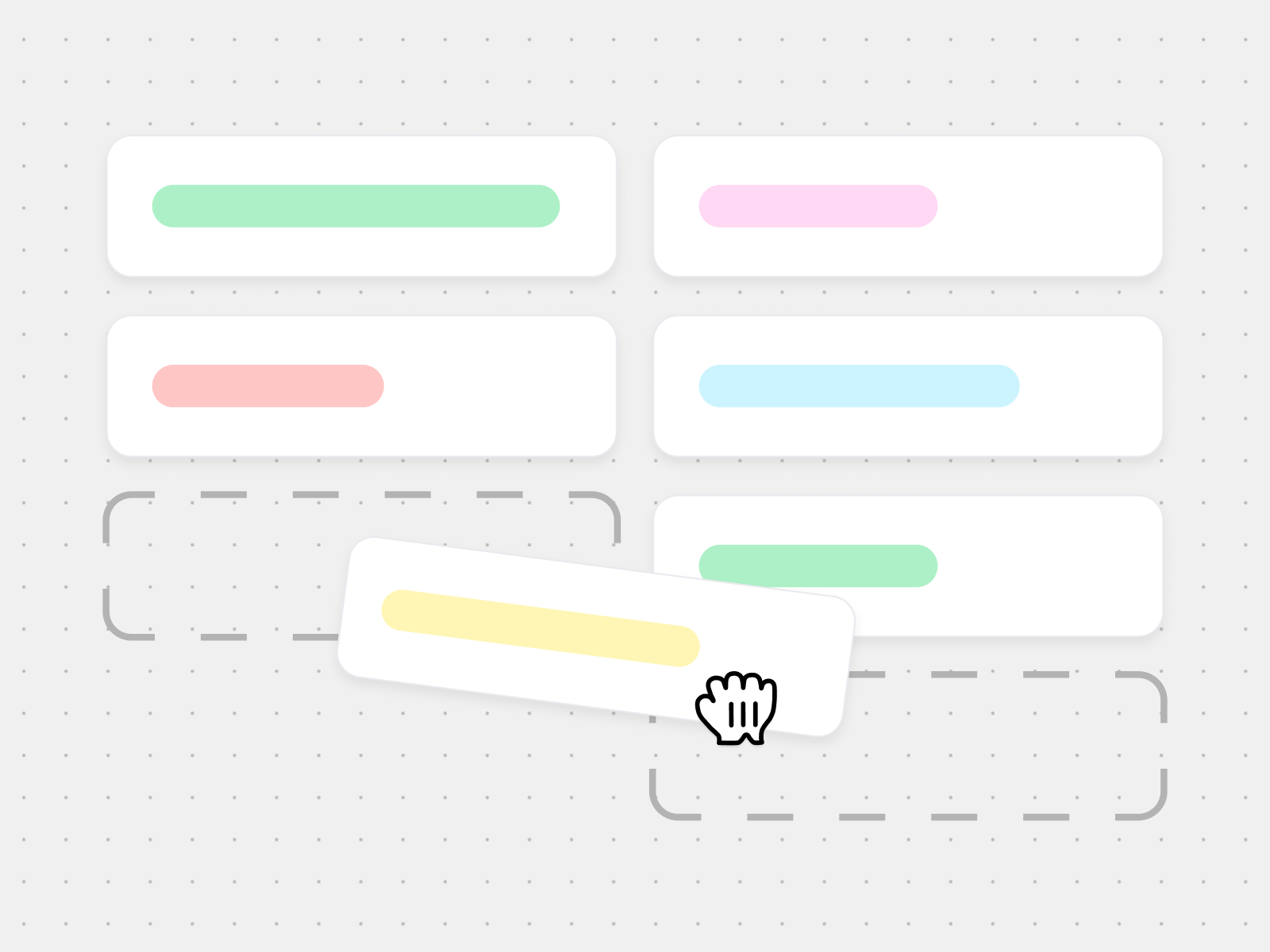
Both of these activities work the same way as everything else in Miro Engage: participants join from any device via QR code or link, no Miro skills needed. And once the responses are in, you can instantly put them to work in any AI workflow to create summaries, slide decks, diagrams, prototypes, and more. Start fast with a ready-made template, or find out more about Miro Engage activities in this article.
📌 Miro Engage is available as an add-on. See our pricing page for details.
Miro Engage is an audience participation tool that helps teams run interactive activities during meetings, workshops, and presentations. Invite up to 2,000 participants to join voting, polls, word clouds, open-ended responses, and now ranking and scales — and get participation from everyone in the room. Participants join from any device via QR code or link, no Miro skills needed. Responses land directly on the canvas, giving you data you can act on immediately — in your next discussion, decision, or AI workflow. Want to see it in action? Try it in the Miro Engage Playground.
The quickest way to start is with a Miro Engage template — there are ready-made setups for retros, prioritization sessions, and more. Or you can add interactive activities to an existing slide deck. Just drop your Miro Slides or PowerPoint onto the canvas, then add interactive Miro Engage activities like open-ended questions, voting, word clouds, ranking, and scales. Participants join from any device via QR code or link, and their responses appear on the canvas in real time, giving you structured data to use in your next discussion or AI workflow.
What else landed on the canvas this month
Add dividers to organize your canvas
A small but useful update: you can now add horizontal or vertical divider widgets from the Shapes menu. Drag them onto the canvas to visually separate sections on a board, inside a doc, in a table, or on a slide. Adjust the rotation, color, and thickness to match the layout you’re going for. It’s a simple way to bring more structure to busy boards. Find out more about adding shapes to the canvas.
Organize tables, timelines, and Kanbans with better grouping
Grouping in Tables, Timelines, and Kanban just got more flexible. You can now hide and show groups to create focused views, reorder groups by dragging them up or down, and add groups above or below existing ones. The grouping menu has also been simplified for easier access. Here’s how to use grouping in Miro Tables.
New Flows templates from the Miro community
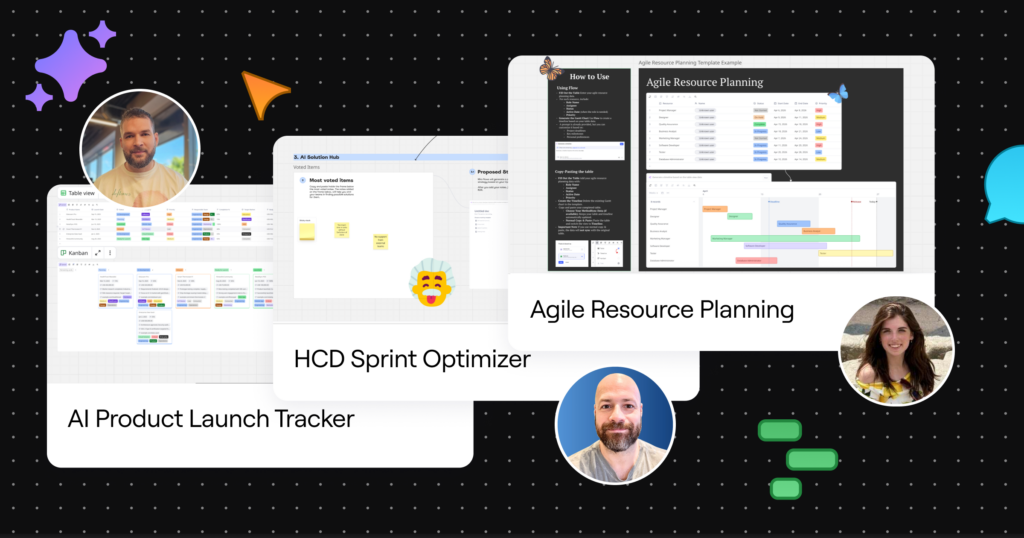
Want to see what other people are building with Flows? The Miro community has been creating AI-powered templates you can use to jump-start your next project. Here are three worth trying:
- The AI Product Launch Tracker by Rodolfo uses Flows to keep your team strategically aligned during product rollouts. If you’ve ever lost track of who’s doing what in a launch, this one’s for you.
- The HCD Sprint Optimizer by Leandro is designed to break down silos, reduce burnout, and clear the path for better delivery. A practical framework for teams running human-centered design sprints.
- This Agile Resource Planner by Lisa turns your resourcing data into a dynamic Gantt chart, giving you instant visibility into who’s doing what and when.
What’s next
That’s a wrap on April! These updates are here to give your team (and your AI workflows) better inputs, better data, and better ways to decide together. And there’s a lot more coming. Canvas 26 is where you’ll see the full picture. Don’t forget to register to join us in person or register to watch the keynote live on May 19. If this month’s updates got you thinking, you’ll definitely want to be there.